
Do you know about that small device that establishes your connection to the internet? That’s the Cox Modem! A device provided by Cox Communications, an internet service provider. The modem allows the transmission of data between your devices, like computers, smartphones, and TVs. It also enables you to browse, stream videos, send emails, and more.
And if you’ve ever noticed it, you might have seen small LED lights on the front. As part of their design, modems come equipped with these LED indicator lights that provide essential information about their status and activities. These indicator lights come in various colors, each representing distinct states of the modem.
One of those lights, the Blue Blinking Light, acts as a communication tool. In this article, you will find what story that little messenger has to say! Read on.

What is Cox Modem?
Cox Communications, established in 1962, stands as one of the prominent internet service providers and a leading telecommunications company in the United States. It offers a wide range of services, including a key component called Cox Modem.
A modem, abbreviation of “modulator-demodulator,” is a networking device that ensures your access to the internet, lets you browse multiple websites, send and receive emails, and more.
Structure and Features of Cox Modem
The specific structure of a Cox modem can vary depending on the model and manufacturer, but generally, Cox modems have a compact and rectangular design. Typically, the Cox Modem includes the following:
Purpose of Modem LED Lights
LED lights on modems and routers serve as valuable indicators, providing essential information about the device’s status and activities. These small yet powerful lights play a crucial role in keeping users informed about the modem’s performance and connectivity.
Different Colors and Patterns
Different colors and blinking patterns convey various states and functions of the modem, making it easier for users to troubleshoot issues and optimize their internet experience. The exact indications can vary depending on the manufacturer and model.
Why is Cox Modem Blinking Blue?
When you see the blue blinking light on your Cox modem, mainly it’s an indication that the modem is in WPS (Wi-Fi Protected Setup) pairing mode.
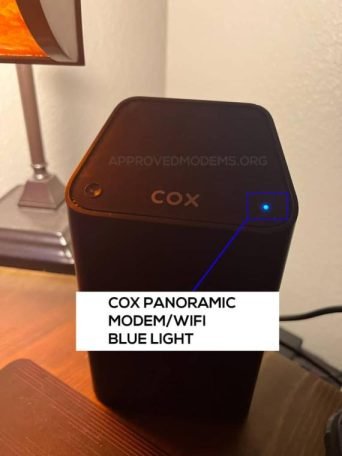
Here are 6 Reasons for the Modem’s blinking blue LED light:
WPS-Mode
What is WPS Mode?
WPS stands for “Wi-Fi Protected Setup,” and WPS mode is a feature mainly found in many modern routers and modems. With WPS mode, connecting your device, like a smartphone, to the Wi-Fi network becomes effortless. Just press the WPS button on the router or modem, and the connection is established without any hassle.
How to Activate WPS Mode?
Activating WPS mode is a simple process and can vary slightly depending on your router or modem model. Here are the general steps to activate WPS mode:
Method 1: WPS Button
Step 1: At First, find the WPS button on your Wi-Fi router or modem. It is usually labeled “WPS” and may have an icon representing two arrows forming a circle.
Step 2: Ensure the proximity of your device (e.g., smartphone, tablet, or laptop) to the router or modem.
Step 3: Simply press and hold the WPS button on the router or modem for a brief duration, usually around 3 to 5 seconds.
Step 4: The WPS LED indicator (Blue Light) on the router or modem will start blinking, indicating that WPS mode is activated and ready to pair with a device.
Step 5: Open the Wi-Fi settings on your device and find available networks. You should see the network with the WPS-enabled router’s name.
Step 6: Select the network, and the device will connect to the Wi-Fi without the Wi-Fi password.
Other than WPS-Mode, there could be other reasons for a modem to blink blue. The specific reasons may vary depending on the modem’s model and manufacturer. Here are a few other possibilities for Cox Modem, which also indicates a blinking blue light.
Firmware Update
The modem blinks blue while receiving a firmware or software update from the internet service provider. These updates are essential for enhancing modem performance, fixing bugs, and improving security, ensuring a smooth internet experience.
Booting or Restarting
During the boot-up process or after a restart, the modem temporarily blinks blue as it initializes and establishes connections with the network. This is normal behavior as the modem prepares to provide internet connectivity.
Searching for Signal
If the modem struggles to establish a stable connection to the internet, it may continue blinking blue while searching for a signal. This could be due to factors like network outages or interference.
Wi-Fi Pairing Mode
On certain modems, a blue blinking light signals the modem’s Wi-Fi pairing mode, providing a secure connection for new devices without requiring Wi-Fi passwords to be entered.
Hardware Issue
In rare cases, a blue blinking light could indicate a hardware problem with the modem, which may require troubleshooting or replacement.
Duration and Pattern of Blue Blinking LED Light
The blue-blinking LED light on a modem can vary in duration and pattern depending on its specific activity or status. Here’s an overview of common scenarios:
WPS Pairing Mode
Firmware Update
Booting or Restarting
Searching for Signal
Hardware Issue
Troubleshooting Cox Modem – Blue Blinking Light Continues? Here’s What to Do!
If the blue blinking light on your modem continues for an extended period, it may indicate a potential problem that requires attention.
Check the User Manual
Refer to the modem’s user manual to understand the different LED light behaviors and their meanings specific to your modem model. The manual should provide information on what a prolonged blue-blinking light signifies.
Power Cycle the Modem
You can attempt to resolve temporary glitches by power cycling the modem. This simple step often proves effective.
Ensure Stable Internet Connection
Ensure that your internet service is functioning properly by checking the connectivity of other devices linked to the modem for any issues.
Check for Firmware Updates
Check the manufacturer’s website or the modem’s web interface for any available firmware updates and ensure the latest version.
Disable and Re-enable WPS Mode
If the modem is in WPS pairing mode, try to disable and enable it. Press the WPS button on the modem to deactivate WPS mode and see if the blue blinking light stops.
Contact your Internet Service Provider
It’s recommended to contact your internet service provider’s customer support for assistance in case the issue persists, or you suspect a hardware problem. They can diagnose the problem and provide further guidance.
Consider Factory Reset
You can perform a factory reset on the modem if nothing works. However, keep in mind that this will reset all custom settings, and you’ll need to reconfigure the modem.
Can the Blue Blinking Light be Disabled or Customized?
The ability to disable or customize the blue blinking light on your modem depends on the specific make and model. To check if your modem allows customization, refer to the user manual or access the modem’s web interface. Look for an “LED” or “LED Indicators” section to explore customization options.
Conclusion
In conclusion, understanding the modem LED lights, particularly the blue blinking light on Cox modems, is crucial for a better internet connection experience. The blue blinking light indicates WPS pairing mode, simplifying device connections without Wi-Fi passwords. Being aware of other potential reasons for the blue-blinking light ensures proactive troubleshooting. If faced with persistent issues, contacting Cox support is highly recommended for expert assistance.
FAQs (Frequently Asked Questions)
Q1: Is the blue blinking light always a problem with the modem?
A: Not necessarily. It can signify WPS mode, firmware updates, or searching for a stable internet connection.
Q2: How long does the blue blinking light continue during WPS pairing mode?
The blue blinking light usually lasts for 2 to 5 minutes while the modem searches for devices to pair. Once connected, the blinking stops.
Q3: Can the blue blinking light indicate a hardware issue?
A: Yes, in some cases, a blue blinking light with different patterns or steady light may indicate a hardware problem that requires troubleshooting.
Q4: What if the blue blinking light occurs after a modem restarts or a power outage?
A: After a restart or power outage, the blue blinking light is normal as the modem initializes and connects to the network.
Q5: Does the blue blinking light behavior vary between Cox modem models?
A: The blue blinking light’s behavior can differ between modem models, so refer to the user manual for accurate details.
Q6: Is WPS mode enabled by default on Cox modems?
A: WPS mode may come enabled by default on some Cox modems, but you can disable it in the modem settings if desired.


