Windows To Go is an interesting feature of enterprise mobile productivity that allows us to install, transport and run a user’s desktop in an external storage unit, enabling IT departments to support the BYOD trend without compromising the security of the corporate environment.
Very similar in objectives to the “LiveCD / LiveUSB” solutions that Linux users know well, Windows To Go allows the operating system to be run from a USB stick (or hard disk / SSD) connected to a USB port without installing it on the computers where it runs.
This ‘Windows to go’ is not intended to replace desktops, laptops or supplant other mobility offers, but it allows you to use resources efficiently in alternative work scenarios. Windows To Go works just like any other Windows installation, although it has some exceptions such as:
- Internal disks are disconnected.
- The Secure Platform Module (TPM) is not used
- Hibernation is disabled by default.
- The Windows Recovery Environment is not available.
- Updating or restoring a Windows To Go workspace is not supported.
- The store is disabled by default.
Hardware for Windows To Go
Microsoft certifies specific external storage drives to support Windows To Go, although others could be used virtually. The official offer includes USB pendrives of 32, 64, 128 and 256 Gbytes of storage capacity from manufacturers such as Imation , Kingston , SPYRUS , Super Talent , as well as Western Digital , which offers solutions such as the WD My Passport Enterprise external hard drive.
All these units are connected to the equipment through the USB peripheral interconnection port (2.0, 3.0, 3.1) and some models include AES encryption or FIPS 140-2 certification (United States federal standard for information processing) mandatory for Access governments and administrations.
Creating Windows To Go with official hardware
Released in Windows 8 Enterprise, Microsoft kept it in Windows 8.1 and expanded it in Windows 10 with availability in the Pro and Enterprise versions of the system.
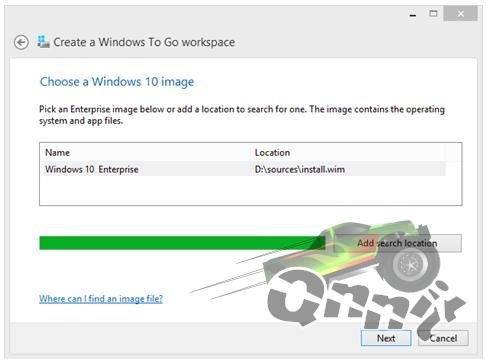
Windows 10 Enterprise includes a specific tool for creating Windows To Go drives. A wizard that facilitates the creation of Windows To Go simply by following these steps and after obtaining the ISO image of the system that Microsoft offers, also as a free 90-day evaluation . Windows 10 Pro also facilitates the creation of this solution with a wizard available in the system control panel.
Creating Windows To Go with unofficial hardware
Windows To Go drives can also be created with hardware not certified by Microsoft . This requires any USB flash drive or external drive with at least 16 Gbytes of available storage capacity. As for the software, you can use a Windows installation disk or, alternatively, an ISO image of the system that you can download from the Microsoft page dedicated to Windows 10, as follows:
- Access the Microsoft web portal for Windows 10 and download the tool to install the system.
- Run the downloaded file called “MediaCreationTool.”
- Select “create installation media for another PC”.
- Select language, Windows edition and architecture, in this case Windows 10 Pro 64-bit.
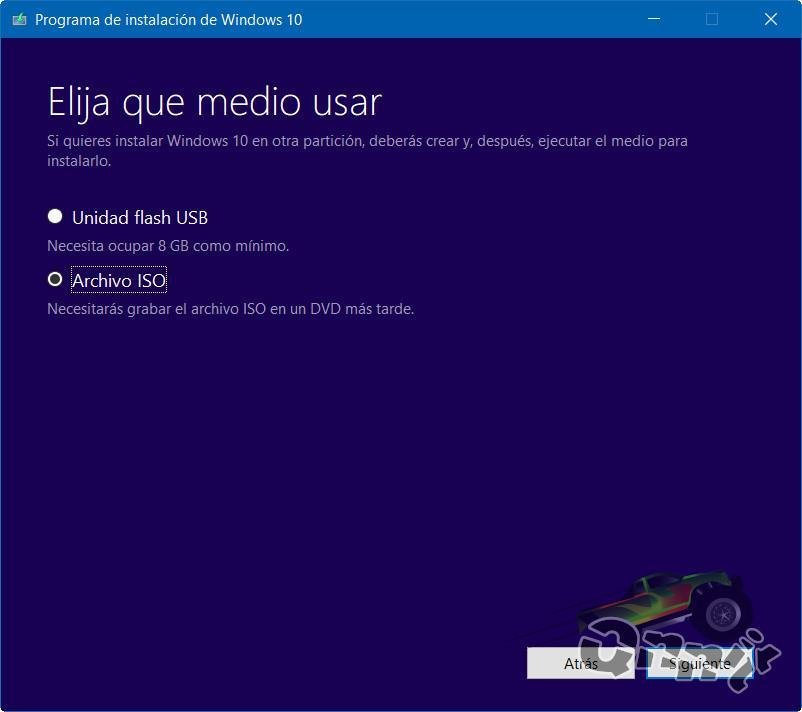
- Choose ISO file as a medium to use and download the system image.
For the creation of the solution, a tool specialized in «burning» of images such as Rufus is necessary, with the following step by step:
- Download Rufus from its official website (it’s free) and run it.
- Select the pendrive to use and the path of the downloaded ISO image.
- In format options select the Windows To Go option to prevent the application from creating a standard USB boot drive for installations.

It only remains for the process to finish to obtain this enterprise mobility solution.
A portable Windows that we can take anywhere, connect it to a USB port, start it on computers once the pendrive is highlighted as the first boot device in the BIOS / UEFI and be able to obtain a complete Windows 10 desktop with the exceptions mentioned at the beginning of the Article.