

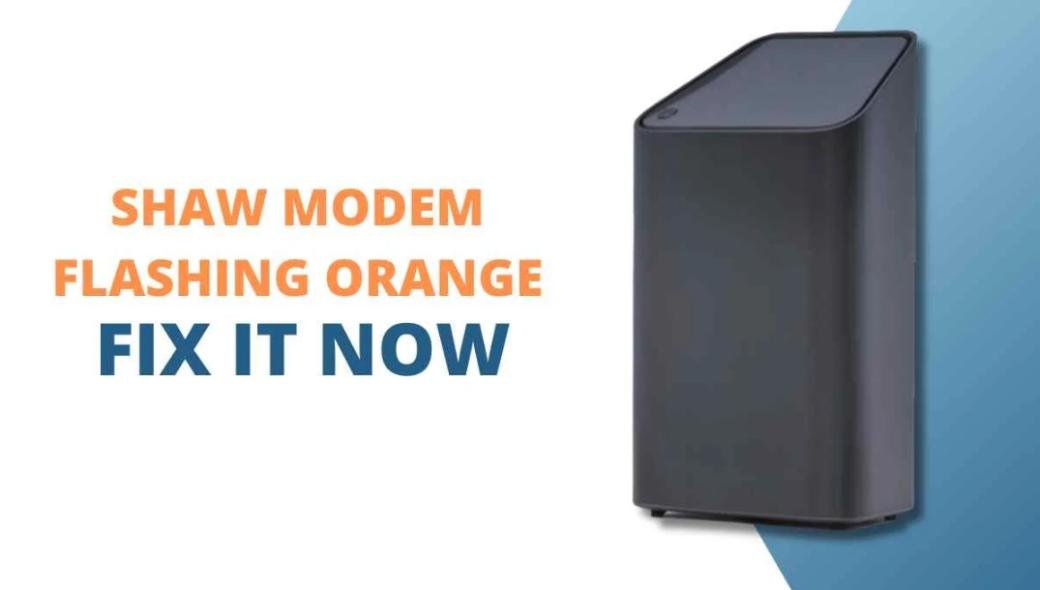
Have you ever experienced your Shaw modem flashing orange? Or, have you wondered how to fix the Shaw Modem Flashing Orange issue? No worries, as you have come up to the right place. In this blog you will have the solution to the issue Shaw Modem Flashing Orange.
Moreover, whenever you come across the Shaw modem flashing orange light then understand it signifies that your device is undergoing a firmware update that take place automatically on Shaw devices.
However, in case the flashing orange light lasts longer than 30 minutes and you are also experiencing problems connecting to the internet, then it needs further consideration. Moreover, the issues can be a network outage, loose cables, device damage, or issues with the modem splitter.
Thus, we recommend you wait for 30 minutes for the firmware upgrade to complete, and if the Shaw modem is still flashing orange, then you must look after the power cycle, review the cable connections, or run a factory reset of your device. Make sure to read the blog till the end to learn more about the causes and fixes of the flashing orange light on a Shaw modem.
Why Your Shaw Modem is Flashing Orange Light
Below are the 4 reasons for a Flashing Orange Light on Shaw Modem:
1. Firmware Download in Progress
In case your Shaw modem is blinking an orange light, then the reason could be a firmware update in progress on your Shaw modem. It is pertinent to mention that the software that is programmed to power some of your device’s hardware functionalities is called firmware.
Furthermore, when it comes to a modem, the firmware manages the functionality of the network. The good thing is that Shaw releases firmware updates with better functionality and security.
Also, the Shaw modem is designed to automatically update the firmware. Thus, when the orange light is flashing, it signifies that your modem is downloading a new software version.
2. Network Outage
Network outrage is yet another reason for the flashing orange light issue on Shaw Modem. The issue could be scheduled network maintenance or an emergency issue due to extreme weather conditions. To resolve this problem, either check it online yourself or call your ISP to double-check if there is an outage.
3. Problems with Modem Splitter
The device that splits cable signals is known as a splitter. Moreover, if your modem is using one, then understand that this is the issue that is leading to the modem flashing an orange light.
In addition, the splitter is used to connect the cable network or internet to various places in your home. If it is damaged or cut, your internet connectivity will be affected, and the modem will start flashing an orange light.
4. Damaged Device
If your modem is outdated or damaged and can’t be repaired, then understand that it will not be connected to the internet and will cause a Shaw modem flashing orange light issue. In this situation, you better return the modem to Shaw, and if you are still within the warranty period, it is also possible to get a replacement.
How to Fix a Flashing Orange Light on a Shaw Modem? (6 Effective Fixes)
Below are the 6 ways to fix a flashing orange light on a Shaw modem:
Way #1. Wait Out the Firmware Upgrade
The flashing orange light on your Shaw modem signifies an ongoing firmware upgrade. Usually, when a firmware upgrade is in progress, your device will show the issue.
It is pertinent to mention that the firmware upgrades normally take 10 to 30 minutes to complete. While waiting for the update to finish, it will be better to verify if Shaw’s services are currently online.
To do this, follow the below steps:
Step 1: First, make sure to go to Shaw’s official website.
Step 2: Now, just figure out the “Service Update & Outages” page.
Step 3: Next, select your county.
Step 4: After that, make sure to provide the required location information in the appropriate fields.
Step 5: Make sure to click on “Detect” or “Search.”
Step 6: Lastly, just review the results to see if there are any ongoing outages or service interruptions.
Way #2. Reconnect the Coax Cable
Check to see if the coaxial cable’s connection has become jammed, which will lead to the disconnection of your modem. Thus, in order to instantly resolve this issue, make sure to reestablish the connection of the coaxial cable from the phone jack (wall outlet) to which it was first connected.
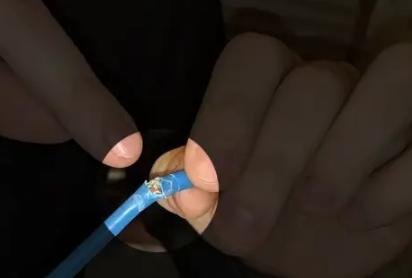
Follow the below steps to reconnect the coaxial cable:
Step 1: First, make sure to disconnect the coaxial cable from your Shaw modem.
Step 2: Now, just unplug the other end of the coaxial cable from the wall outlet.
Step 3: After that, set the cable aside.
Step 4: Next, do not forget to leave the cable disconnected for almost 60 seconds.
Step 5: Make sure to reconnect the coaxial cable to both the “Cable IN” port on your modem and the wall phone jack.
Step 6: Lastly, just test the connection to check out is it is working properly.
Note: While troubleshooting, carefully check out the coaxial cable to ensure there is no physical damage to its hardware. This way, it will help identify any problems in your setup and guide your next steps. Also, check in case the coaxial cable becomes faulty; it is better to replace it with a new one.
Way #3. Power Cycle the Device
Power-cycling the device is indeed a great and effective solution for addressing flashing orange light issues. Thus, this process helps reset the hardware of your network device and restart all of its software services.
Below is the step-by-step guide to power cycling your Shaw modem:
Step 1: First, make sure to press the power button in order to turn it off.
Step 2: Now, just enable the device to remain disconnected from power for a minimum of 5 minutes.
Step 3: After that, just reconnect the power adapter of the modem back into the outlet.
Step 4: Make sure to press the power button in order to turn on the modem.
Step 5: Next, just test the device to check if the issue has been sorted out.
Step 6: In order to ensure a proper discharge, make sure to keep the modem unplugged for at least 5 minutes. In case the device remains unplugged for a longer duration, it will result in a more thorough discharge, which can benefit you.
However, if the issue still exists, make sure to keep the modem unplugged for an extended period in order to get a more comprehensive discharge.
Way #4. Use a Different Phone Jack
It is recommended to connect the modem to a variety of phone jacks, as there is a possibility that the current jack has developed a fault and will lead to an internet disconnection for your modem. As a result, it will cause the LED to blink with an orange light.
To troubleshoot this flashing orange light issue, follow the below steps:
Step 1: First, make sure to check if there is another suitable phone jack available in your house where you can plug your modem in.
Step 2: Now, just figure out an alternative phone jack and then relocate your equipment there.
Step 3: After that, you are not required to move all of your devices. All you need to do is just connect the Shaw Modem to the new phone jack in order to test it.
Step 4: Next, if the blinking orange light issue still exists with the modem connected to the new phone jack, then revert to the prior wall jack and continue reading.
Step 5: Lastly, when moving your modem to a different location, make sure all connections are strongly secured. Thus, it helps you to avoid any loose connections that might become a reason for this issue.
Way #5. Reinstall the Modem Splitter
Sometimes it happens that the splitter that you use in your setup might develop a fault, as they are used to separate a single phone jack’s signal into two separate streams, which allows you to connect several modems.
So, all you need to do is to temporarily uninstall the splitter by following the below instructions:
Step 1: First, make sure to unplug both of the coaxial cables connected to the splitter.
Step 2: Now, just disconnect the splitter’s cable from the phone jack.
Step 3: After that, wait for about 60 seconds.
Step 4: Next, just reinstall the splitter. However, this time, make sure to connect only one device to it, which must be your Shaw modem, and notice the indicator light.
Step 5: In case the modem’s indicator light is no longer blinking orange when connected directly to the splitter, then understand that the problem in your setup might be related to the secondary device that was previously connected to the splitter.
Note: If the splitter continues to cause such issues and refuses to work properly, then just replace it with a new one. As faulty splitters can cause different issues with your internet connection, which must be properly addressed and resolved.
Way #6. Factory Reset the Shaw Modem
At this point, if none of the above-mentioned solutions have yet resolved the issue, then a factory reset can be your ideal solution to sort out this matter. This last solution will revert all modem settings to their default state.
The best feature of the factory reset process is that it erases all software configurations, network adjustments, data, and connections made to your modem so far.
So, before starting the factory reset, make sure to take a backup screenshot of any major settings. You can save the modem’s configuration through the Shaw Mobile App.
Below are the 6 steps to factory reset your Shaw Modem:
Step 1: First, make sure your device is connected to the power outlet and turned on.
Step 2: Now, just figure out the pinhole reset button, which is at the back.
Step 3: After that, use a paper clip or a pen to press and hold the reset button for about 20 seconds.
Step 4: Now, the modem must flash numerous times to indicate the reset process.
Step 5: Make sure to wait for a few moments for the reset to complete.
Step 6: Lastly, once the factory reset has been activated, avoid interacting with the device during the process, as any interference could cause the reset to fail.
Conclusion
The blog has covered the required details about the Shaw Modem Flashing Orange. Make sure to read the blog carefully to get to know about why Shaw Modem is flashing an orange light and how to fix the Shaw Modem orange light issue. Stay tuned to Qnnit for more informative blogs.


