

Introduction
Being an Instagram user who changes their usernames quite often, have you ever been in a situation in which you want to recall an old username you once had on Insta? If you are in the same situation of your memory fail, let us help you out with this!
Social media has become a major part of our daily lives, where we spend hours scrolling through various social media apps. One of the widely used social media platforms is Instagram, where we share pictures, videos, and much more.
There are many people who have been using Instagram for years. They must have changed their usernames for some reason. So, if you are among them and want to reminisce on old memories and are curious about How to See your Old Usernames on Instagram iPhone, trust me, you are on the right platform.
In this blog, we will dive in to uncover our Instagram history and look at the steps on How to See your Old Usernames on Instagram iPhone. Good read!
Can I See my Old Usernames on Instagram iPhone?
Many Instagrammers question whether they can see their old usernames on Instagram. So, the first thing we need to clarify to you is that, yes, you can see previous usernames on Instagram. for this, all you have to do is go to the former usernames section in the account data section in settings. There, you will find all of the account’s former usernames. Isn’t that simple and quick?
How to See your Old Usernames on Instagram iPhone
Before further ado, let us explore below all the necessary steps for How to See your Old Usernames on Instagram iPhone:
Step 1: Open Instagram on your iPhone
The first obvious step to see your old username is to open your Instagram account. In case you are not logged in, enter your current username/email address and password.
Step 2: Go to your Instagram Profile
After you open/ log in to your Insta account, tap on your profile photo that is in the bottom right corner of your iPhone app on Instagram. You will enter your profile page, where you can see all your Instagram posts, videos, and reels.

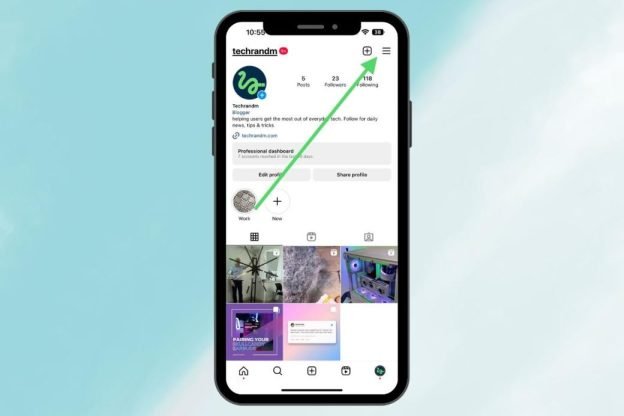
Step 3: Tap on the Options Menu
On your profile page, you will see three horizontal lines in the top right corner. Tap on those lines that look like bars (you can easily see them on your screen).
Step 4: Go to your Activity Page
Soon after you tap on the three lines, a dialogue box/ menu will appear with multiple options to choose from, such as settings and your archive menu. Among those options, click on Your Activity from the options.

Step 5: Go to your Account History
Another menu will appear on the screen after choosing the Your Activity option. Out of all the other options, tap on the Account History option on your screen. On your iPhone, it should be the fourth option on the screen, after the Interactions options and prior to the Recent Searches option.

Step 6: Explore your Username History
A page will appear on your iPhone screen where you can see all the changes you have made to your Instagram account since you created the account. Among multiple options, search for the label Username to find all the past usernames you have used. For that, you have to scroll down further on the screen, and this is where you can easily see your username history for your Instagram profile.

Let us tell you the exciting part; you can also check the date when you changed your Instagram username. Moreover, Instagram allows you to see when you changed your bio, website, name, and other account details. It means that you can have access to your entire account change log. By following these simple steps, you can easily find what you are looking for, i.e., your old username, on Instagram.
Can you Check Someone Else’s Instagram Username History?
If you are wondering whether you can check someone else’s Instagram username history, let us tell you that yes, you can. To do so, that specific Instagram account should have an ample following, or it should be a verified account. It is because the username history is not available for small accounts with only a hundred followers. It means that if you want to check your friend’s username history with fewer followers, you can’t do this.
But, if you want a sneak peek into the username history for a celebrity account or an account with a big following, below are the quick steps to do so;
It is pertinent to mention that every account does not have a “Former Usernames” section. The option is available for only those accounts that have changed their usernames in the past.
Why is Username History Only Available for Notable Accounts?
After reading to this point, a question must pop up in your mind why is Username History Only Available for Notable Accounts? The feature is not available for small or non-verified accounts due to some reasons. Let us explain them one by one.
The first reason is that famous accounts, such as those of public figures, celebrities, and brands, have a significant following and a history of changing their usernames over time.
The username history feature allows the users to verify the authenticity of the account by offering a way to see if the account name has been changed in the past. The feature is crucial for famous or verified accounts as they are often targeted by hackers, spammers, or fake accounts.
Moreover, the option of username history is specially designed by Instagram to deal with online misinformation and fake accounts. Through this feature to verify an account’s history, the social media platform Instagram tends to make it hard for cyber criminals to create fake accounts and deceive users to their disadvantage.
As stated before, famous and verified Instagram accounts are more likely to be attacked by fake accounts, so this feature is an important step to secure such accounts and avoid the spread of misinformation.
There are Instagram users with limited following who may not want their username history to be publicly available due to their privacy concerns. So keeping the username history feature specific to famous accounts allows Instagram to maintain a balance between verification and privacy.
In a nutshell, the option to explore the history of Instagram usernames of famous and verified accounts is to promote authenticity, combat misinformation, and maintain user privacy on the platform.
Frequently Asked Questions (FAQs)
Below are some of the questions frequently asked about How to See your Old Usernames on Instagram iPhone:
Q1: Can Instagram support help me find my previous usernames?
Ans: Although there is no need to contact Instagram support to find your username, you can still message them if you can’t find it on the account activity page.
Q2: Are there any third-party apps or websites to retrieve old Instagram usernames?
Ans: There is no need to use third-party apps or websites to retrieve your old Instagram usernames. You can easily find your old usernames through the official Instagram app.
Q3: Can I find my old Instagram usernames through my email archives?
Ans: Yes, you can easily find your old Instagram usernames through old email notifications. When Instagram sends you a notification email, the mail has your username, and even if you change your username, your old username will still appear in the old emails in your inbox.
Q4: Will my old direct messages on Instagram show my previous usernames?
Ans: When you change your Instagram username, it is updated all across the app, including on your old Instagram direct messages. After you change your username, the old Instagram Direct will show the updated username.
Conclusion
Here we wind up our writing on How to See your Old Usernames on Instagram iPhone. Instagram allows exploring old usernames for various purposes, including simply ruminating about old usernames of one’s account or verifying the authenticity of a notable account.
One can check their old usernames by following some quick steps mentioned in the blog. However, to view someone else’s username history, the account has to be verified or famous with a significant following.
The feature of username history in the case of personal accounts is helpful for personal reasons. However, in the case of notable accounts, the option helps promote authenticity, combat misinformation, and maintain user privacy.
We hope this blog was helpful. For more such blogs, stay tuned to Qnnit.


