Introduction
Mark Zuckerberg owns Facebook. Billions of people are using the app at a time. It also comes across unexpected bugs and errors that frustrate the users. This article is all about Facebook is Not Loading? Try This 7-Step Troubleshooting Guide.
Facebook Site is Down
If the social platform is not working, there might be an overall site issue. You may try using Facebook from another browser and check whether the issue has been resolved.
Also, you can use the Down Detector app to check whether Facebook is down. If yes, then you must wait for the problem to be resolved.
Method # 1: Close and Open the Facebook App
If Facebook is not loading, you must check the local issues in the system. You must exit the page and try reopening the app, which might fix the error.
Also, you must log out and log in back to your account. It will help to resynchronize everything. You must do the following steps:
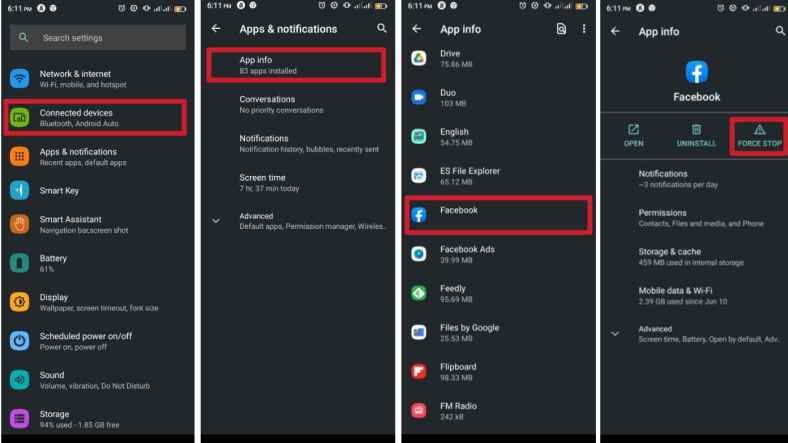
- Open the ‘Settings’ on your device
- Go to ‘Apps’
- Tap on ‘See all‘ apps
- Find ‘Facebook’ and tap on it
- Tap ‘Force stop.’
- You can also choose ‘Uninstall’ if you want to remove the app
Method # 2: Check for Updates
Sometimes the problem occurs when you use an older application version. Ensuring you run an updated app on your device would be best.
Here are the steps to follow:
- Open the Google Play Store
- Hit on your profile image in the top-right corner
- Choose ‘Manage apps & device.’
- Tap on ‘Updates’ available
- Find ‘Facebook.’ If there’s an available update, you must see an Update button next to it. Tap on it
- Otherwise, you can select ‘Update all.’
![Deleting an app in iOS.]](https://qnnit.com/wp-content/uploads/2023/04/deleting-an-app-in-ios-.jpeg)
Method # 3: Restart the Device
Restarting the device would solve half of the technical glitches. Try to restart the device and check whether the Facebook app is working properly. You need to follow a few steps:
- Press altogether the ‘Power’ and ‘Volume Up’ buttons
- Select ‘Restart’
If you are using it on a PC/Laptop:
- Go to the ‘Start menu.’
- Click on ‘Shutdown’ or ‘Restart’
Method # 4: Check Internet Connection
Another reason Facebook is not working could be that the internet connection is down. Go to ‘settings’ and check whether the internet connection works properly. Or it would be best if you probably restarted the router too
If you are using mobile data, you must follow these steps:
- Open the ‘Settings’
- Go into ‘Network & internet.’
- Tap on ‘SIMs’
- Enable ‘Mobile data’ on
- If you’re outside your country or network coverage, you may enable Roaming (this may incur extra charges)
Method # 5: Check Apps Permission
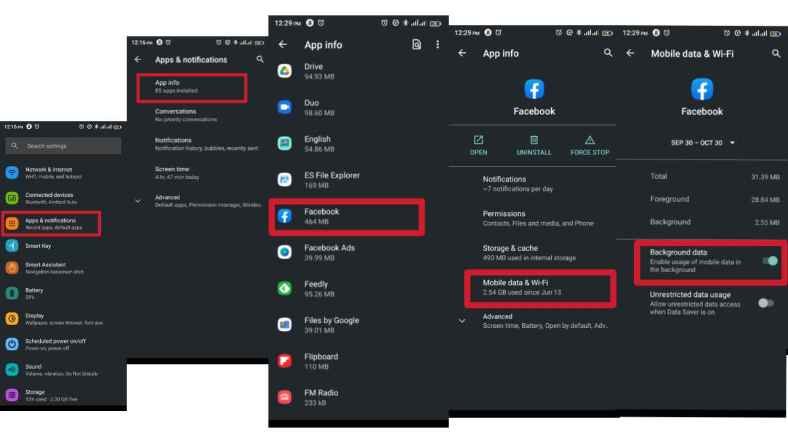
There could be an app permission issue. Make sure you allow all the settings from your device to function properly. You must follow these steps:
- Open the ‘Settings’
- Go into ‘Apps’
- Tap on ‘See all apps
- Find and select ‘Facebook.’
- Hit ‘Permissions’
- Under Not allowed, go through each option and allow permission
Method # 6: Clear the Cache
The cache is generally good. It stores the data locally for instant access rather than downloading it every time. It is also good to clear the cache to make sure the problem is going to be resolved.
You may follow these steps to clear the cache on Google Chrome:
- Open your Google Chrome browser
- Click on the three-dot menu button in the top-right corner
- Select ‘Settings’
- Go to ‘Privacy and security.’
- Tap ‘Clear browsing data.’
- You can delete only the cache, but we advise you also to clear the cookies and history
- Select ‘All time’ and hit ‘Clear data.’
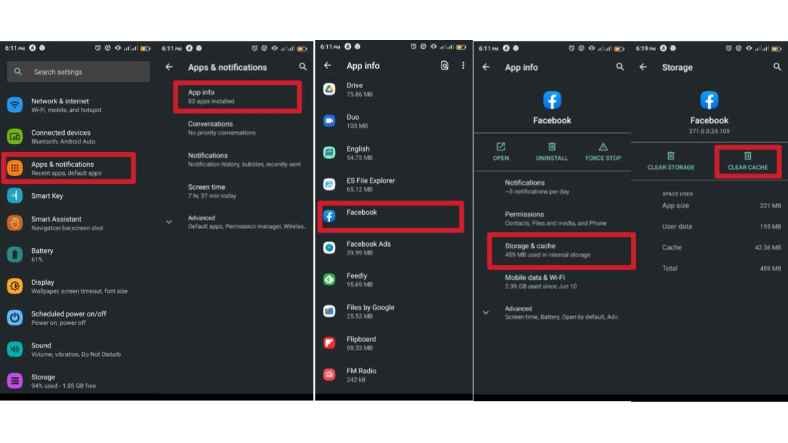
You may follow these steps to clear the cache on your Android device:
- Open the ‘Settings’
- Go to ‘Apps’
- Find the ‘Facebook’ app under ‘See all apps
- Tap on ‘Storage & cache.’
- Hit ‘Clear Cache
- You can also select ‘Clear storage’ for a clean start
Method # 7: Reinstall the Facebook App
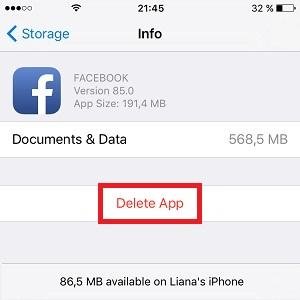
If your Facebook app is not loading, try another way out. You can also try to uninstall the Facebook app from your device and reinstall the latest version.
Frequently Asked Questions
What is Facebook?
Facebook is a social media app where people interact with each other. People are free to communicate, post and share different videos and pictures.
Who owns Facebook?
Facebook is owned by Mark Zuckerberg Meta, who also owns Instagram and Whatsapp.
Does Facebook support live chat support?
Unluckily, Facebook doesn’t support live chat support. However, this feature is available for business tycoons.
Conclusion
Every app has its bugs, and Facebook has a lot of them. However, there are minor glitches as well that can appear at any time. But every glitch can be resolved; this article was about ‘Facebook is Not Loading? Try This 7-Step Troubleshooting Guide’.