Introduction
Cox Router Blinking Green light may cause some nuisance to several users, but it could be fixed. Cox is an American ISP established in 1962, offering a range of services such as Cable TV, internet, phone services, and home automation services. Cox has always been on its toes to provide the best service experience to the users. And if you are facing some problem with their services, then worry not because we have got your back.
We will provide you with some good fixes for the issues. One such problem is the Cox router blinking green light, which is annoying for some users. In short, the green blinking light on the Cox modem indicates that the Router is not properly connected to a stable internet connection or the signal is weak. It is quite frustrating when the internet connection is not stable. Some quick fixes are checking the power cable, cox cable, hard reset, and software update.
7 Reasons Behind the Cox Panoramic Wi-Fi Blinking Green
There could be several reasons that could be the reason behind the Cox Panoramic W-Fi Blinking Green:
1. Internet router services
2. Defective splitter
3. Damaged cords
4. Fried circuit
5. Back-end issue
6. Internet outage
7. Firmware Update
What does Blinking Green Light on a Cox Modem Router Mean?
If you witness a green flashing light on your Cox modem, then it is an indicator of a problem with your internet connection. This clearly means that it is not capable of bonding with upstream channels at the moment.
The reason could be:
- Damaged coaxial cable
- Issues in the signal splitter
- Issues with Internet service
Here is another representation of the problems and status:
Gateway Light | Color | Status | Problem |
| Power Up | Solid Amber | Initial power-up and boost | None |
| OFF | No light | The device is in power save mode or Off | No power. Check your power supply. |
| Upstream | Flashing Green | Registration | None |
| Downstream | Flashing Amber | Registration | None |
| WPS | Blinking Blue | WPS Mode | None |
| Operational | Solid White | online | None |
| Error | Solid Red | Offline | Verify the cable connections |
| Software Download | Green and Amber lights | Download in progress | None |
Now, let`s move on to the most crucial part of the blog.
How to Fix a Cox Router Flashing Green Light Issue
There are multiple ways to fix the issues of electronic equipment. This section will focus on multiple fixes along with troubleshooting upstream channel issues with your Router. First thing is first, pay your pending bills. It is important because your service provider might cut your service due to arrears. Then check all your cable connections to ensure that there is nothing wrong from your side before asking for customer support.
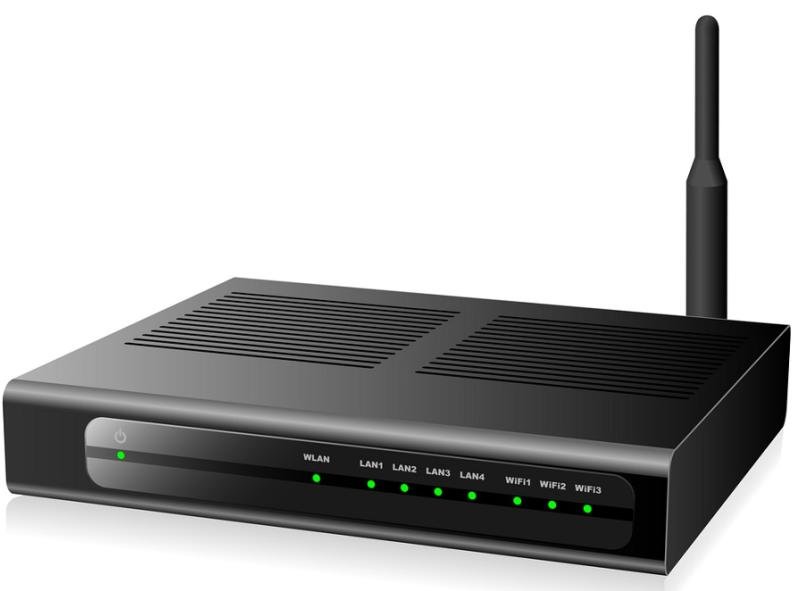
Now, let`s check one by one the solutions to fix the green blinking light on your Cox router.
Fix-1: Check the Coaxial Cables
Check all your coaxial cable connections, as any disturbance to the cables may loosen the joint and hinder the internet services causing green flashing light on the modem.
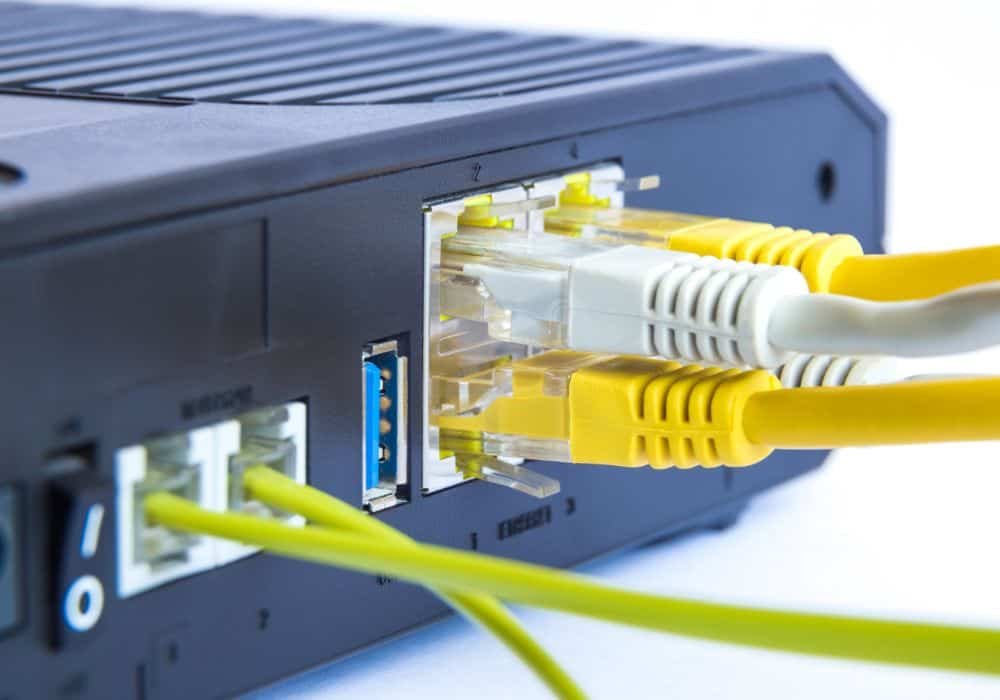
The setup of the modem is based on the location of the cords.
Steps to troubleshoot the cables:
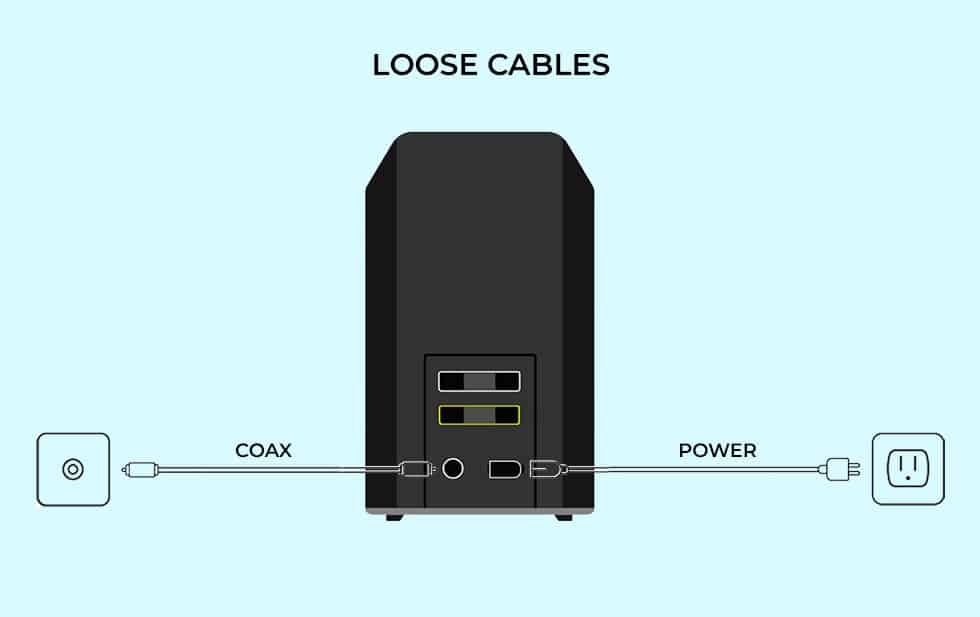
Step 1: Unplug any electrical connections for safety purposes.
Step 2: Unplug all coaxial cables carefully.
Step 3: Clean the ports for any dust or debris.
Step 4: Replug the coaxial cables and ensure they are tightened into their respective ports.
Step 5: Lastly, reconnect the Cox modem to the electrical connection and switch it on.
indication of a stable internet connection. It is also a sign that all your cables are properly plugged.
Fix-2: Check for the Walled Ports
If your modem is properly plugged in, then you better check the walled internet ports and cables. The walled ports are usually hidden or at places behind the electronic devices, and it takes extra effort to check them, which are not usually visible.
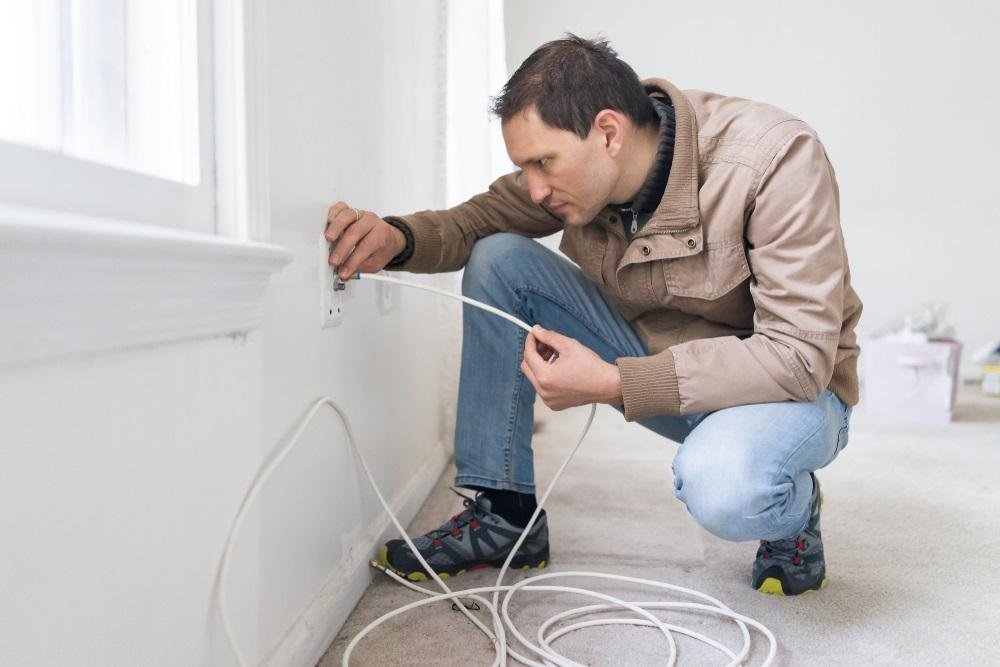
Steps to check the walled ports:
Step 1: Check for any visible and physical damage to the ports and cables.
Step 2: If you have a separate port available, then try relocating it to connect with a different port area.
Step 3: Unplug and reconnect the connections to the ports.
Step 4: If the green light is stable, then it is an indication of a stable internet connection.
Fix-3: Check Power Outlets
Stable power connections are quite vital to the proper internet connection.
If any power cable is loose, then it might not be the mistake of your internet provider but yours.
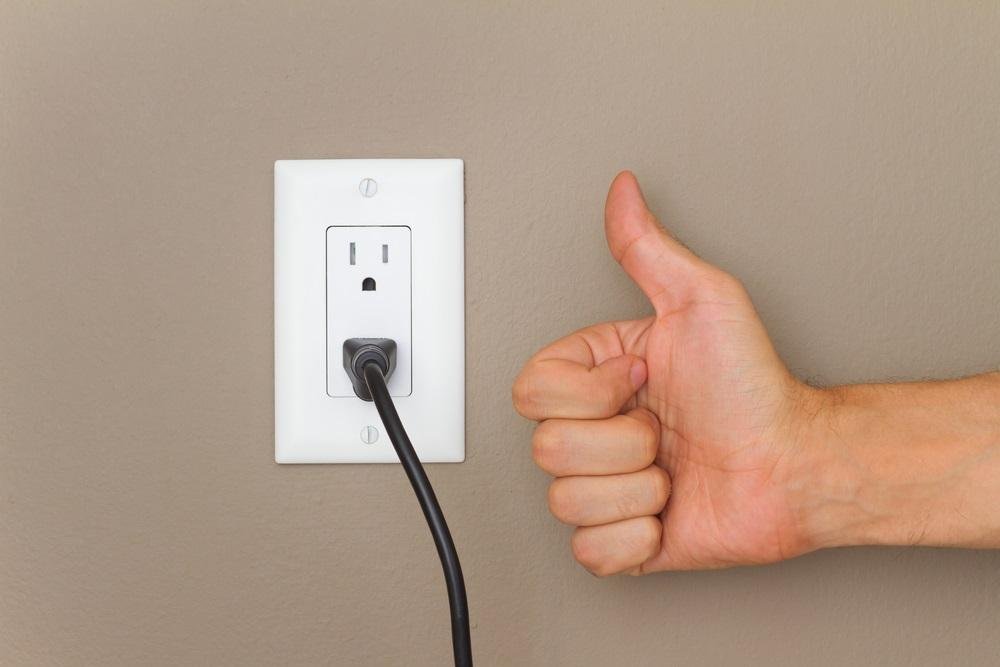
Steps to check the power cables:
Step 1: Ensure that there is no light absence in your house.
Step 2: Take a general observation of the power outlet.
Step 3: Switch off the button and unplug the power connection from the switch and from the modem.
Step 4: Blow the ports with a powerful blower to remove any dust. Use protective gear to cover your face.
Step 5: Now reconnect the power cable to your modem and switch it on again.
Step 6: If you see the stable green light on your modem, then that means that power cables are properly installed and your internet is stable.
Fix-4:Check the Splitters
Splitters alone are capable enough to wreak havoc on your internet connection. It is advised to schedule splitter checks as they are liable for different issues. Basically, splitters divide the connection into two or more, acting as a bridge. Its more than necessary use may cause problems.
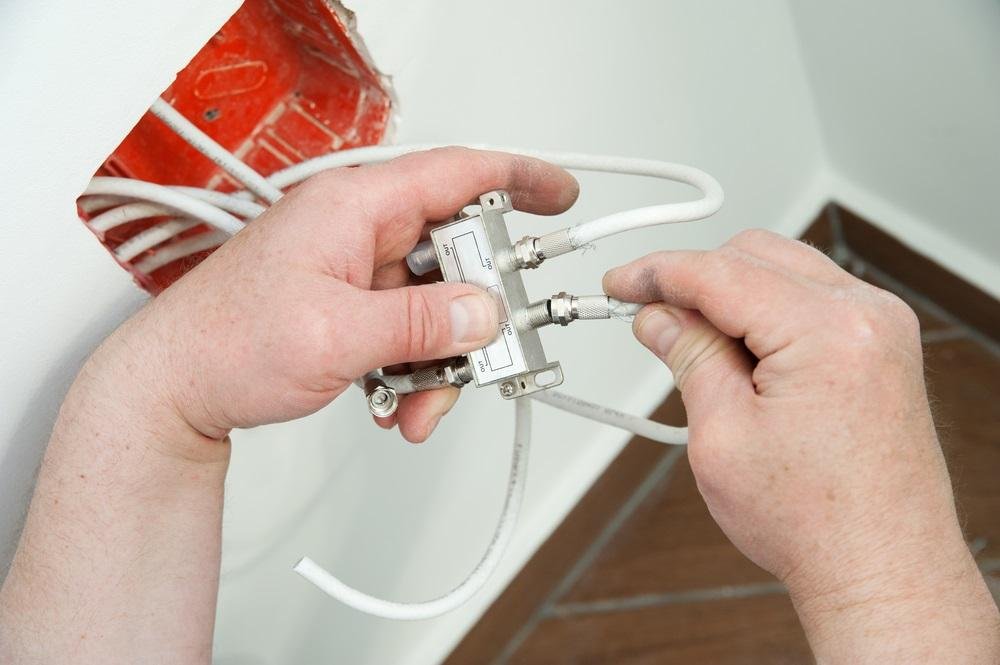
Steps to check the splitters:
Step 1: Check for the defective splitter causing the blinking green light.
Step 2: Repair or replace the defective splitter if needed.
Step 3: To check if there is no fault in the splitter, find the place where the Coax cable enters your residential area. That’s where the first splitter is probably located.
Step 4: Disconnect the splitter and connect the incoming coax cable directly to your Cox Panoramic gateway.
Step 5: If the green blinking light becomes stable, then the issue might be with your splitters. Repair or replace them.
Fix-5: Update the Software
Software updates should always be your priority, not just for the Cox router but for any other electronic equipment software. In this regard, you may also contact the official customer service of Cox and follow the instructions to update the software.

Steps for software update:
Step 1: Open your browser and visit “http://192.168.0.1“.
Step 2: A window of “Admin Interface” will open up.
Step 3: Enter the required credentials, such as “Username and Password”.
Step 4: Go to “Settings” and check for available “Updates”.
Step 5: “Download and install” the new updates.
Step 6: Lastly, “restart the modem”.
Fix-6: Modem Reset
This reset master option works on many electronic devices. You might have to perform a hard reset on your Cox router. However, this will remove your settings and will solve the problem. Qnnit advises taking a backup of important things.
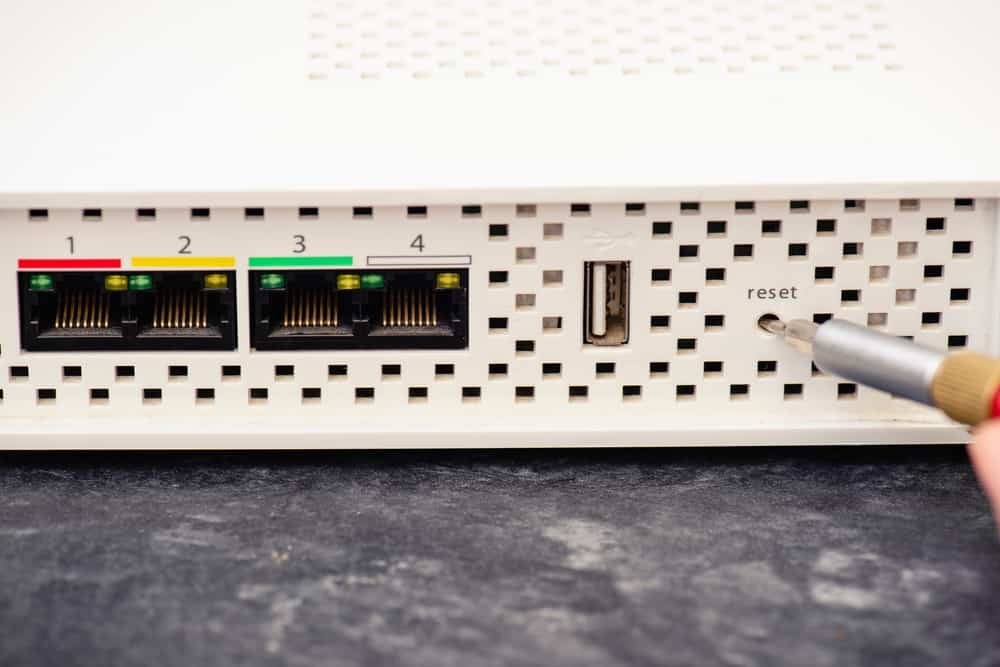
Steps to reset Cox Modem:
Step 1: Press and hold the reset button at the back of the panoramic modem device.
Step 2: You will have to use a pin for this purpose.
Step 3: Keep the button pressed for up to three seconds.
Step 4: Now restart the Router and check if the Router is providing a stable connection.
Fix-7: Reboot Cox Router
Rebooting the Router could prove to be the ultimate solution. It is applied when you experience problems with your connections. Be careful not to do it when the Router is upgrading. The software update is indicated by the orange and green blinking lights one after the other. Interrupting the firmware upgrade may corrupt the software or make the Router stuck at the software update stage, thus presenting a completely new set of problems.
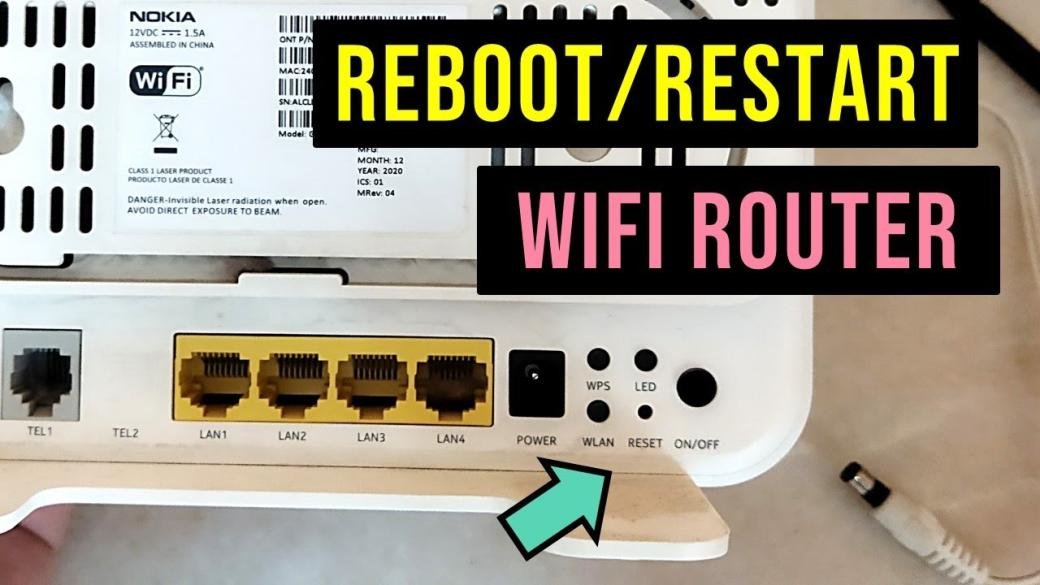
Steps to reset Cox Modem:
Step 1: First of all, unplug the power cord from the Cox modem.
Step 2: Leave it like that for a couple of minutes.
Step 3: Now, plug the power cable back into the Router.
Step 4: Give a few minutes for the Router to boot up completely.
Step 5: Lastly, check if the green light is still blinking.
Fix-8: Contact Cox Customer Representative
Contact customer care service to solve problems with your Cox internet if everything fails. You may contact them directly by calling the contact number or by sending them an email requesting prompt help. State your problem in detail and also tell them about what solutions you have already tried and failed to accomplish.
Get a New Cox Modem
This is the full and final step if all the solutions fail. The Cox customer support might also suggest the option if everything fails. The reason is that any electronic device might fail at any time. Or if your modem has been in place for quite some time, then wear signs might have disabled it completely, thus needing to be replaced altogether.
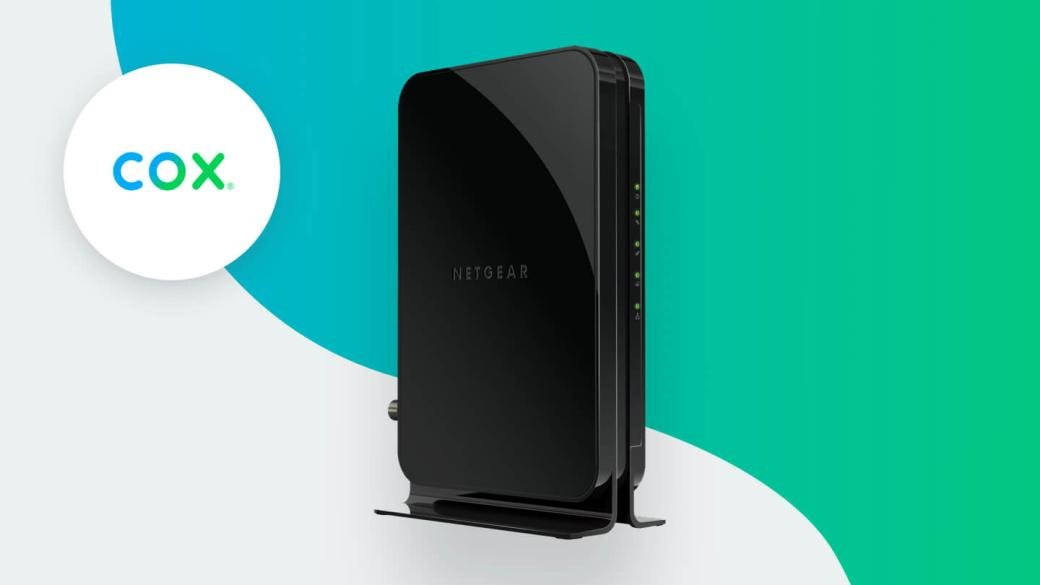
Cox will provide you with different options, such as buying a new one or renting a new one. We recommend buying a new one to get rid of paying rent every month. This will also give you mental peace as you don’t have to pay the rental fee every month, causing mental stress for paying something extra from your limited resources.
Pros and Cons
Here are the pros and cons of Cox Router:
Pros | Cons |
| Easy to setup | Costly |
| Customer support | Limited features |
| No need for compatibility checks | Delayed software updates |
| Integrated modem and Router | Laggy performance |
| Cox repair or replace the Router | Limited customization and control |
| Bundles and discounts | Dependency on ISP |
Cox Router FAQs
Here are the frequently asked questions (FAQs) regarding Cox Router Blinking Green:
Q1: What is Cox Modem Router?
Ans. Cox is an ISP service provider in the US. It provides internet services and, with it the, modem routers.
Q2: What is the meaning of Cox green blinking light?
Ans. The blinking light on the Cox modem means that the internet connection is not stable.
Q3: Why is my Cox router blinking green?
Ans. Green blinking light is caused by many issues, as mentioned earlier, such as power outages, firmware issues, port damage, power outlets damage, or cable damage.
Q4: How to Fix a Cox Router Blinking Green Light Issue?
Ans. Follow these steps:
- Check coaxial cables
- Check power outlets
- Check for internet outages
- Check the splitters
- Update software
- Check for overheating
- Perform a power cycle
- Reset
Q5: What does the orange light on a Cox Router mean?
Ans. The orange light indicates that the Router is undergoing the software update.
Q6: What does stable green light on Cox Router indicate?
Ans. It means that your internet connection is stable and good to go.
Q7: What is the difference between a Modem and a Router?
Ans. A Router is a box allowing to use wired and wireless internet connection. A Modem is a box connecting your home network to your internet service provider.
Conclusion
Cox Router Blinking Green has now been made easy with a few simple steps mentioned in the earlier sections. Green blinking on a Cox modem is the indicator of an unstable internet connection and vice versa. You must check several aspects before finally calling Cox customer care to save time and resources.
Remember the basic troubleshooting steps the next time your experience an internet outage or Cox gateway. Try to be careful with electrical connections and only carry out these steps if you are confident enough. Otherwise, you always have the option to contact customer care. Do you know that there is also a solid fix to the Cox Modem Blinking Blue? For more useful guides, don’t forget to visit Qnnit.com.