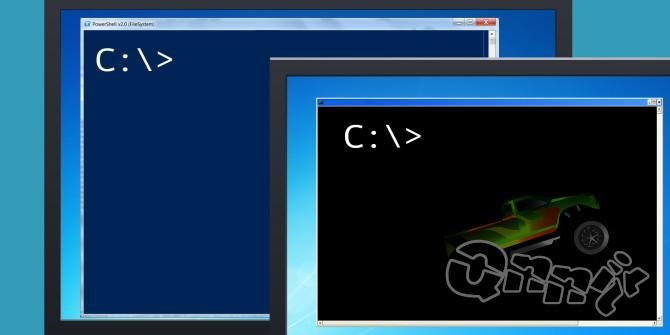
The Windows console is the equivalent to the Linux terminal or the one provided by other operating systems such as macOS.
The application runs in text mode and is not as intuitive as a typical graphical user interface, but it is still a recommended option for advanced or professional users who require perform tasks more flexibly and quickly.
On Windows systems, the console is called a command prompt ( Command prompt – CMD) and is the application used on NT-based systems (Windows XP, Windows 7, Windows 8, Windows 10, Windows Server) to execute MS-DOS commands ( 16-bit .exe) and others as scripts with .bat and .sys format.
This command line tool shows its power to execute repetitive tasks, sometimes where the graphical interface is blocked, to manage certain components or access certain system information that is not available in any other way.
Windows console access
Access to the Windows command line is offered in two different modes, user and administrator .
The first limited and the second most powerful and with access to the entire team. In addition, Microsoft offers a more advanced variant called PowerShell that is intended for system administrators.
For start-up you can type “command prompt” from the general search box in Windows 7 or 8.1 or use the Cortana wizard in Windows 10 both by keyboard and with voice commands.
Another of the fastest ways is to access from the command prompt from the run window (Windows + R to open it) and type “cmd”.
Also from the browser accessing the executable “cmd.exe” in the path C: \ Windows \ System32 or in Windows 8.1 and Windows 10, using the user menu accessible with the combination of Windows + X keys or by pressing the right button of the Mouse over the start button.
Windows console: use and main commands
Once inside we will find a text interface that users who have been in this for a long time will remind MS-DOS, although it is not the DOS-based operating system nor is it a part of the Windows system, but an application, which We can customize in design, colors or fonts by accessing its properties by a secondary click on the CMD framework.

This command line allows us to communicate directly with the team and perform a series of tasks. Its operation is simple as well as powerful. We write the command and the CMD application acts as an interpreter for its execution. The use of modifiers for each of the commands allows hundreds of combinations to be executed for a wide variety of tasks. Some of the most important commands are:
Help . A good way to start is with the “help” command that will show us a list of all available commands. “Help + command name” will show us information about a specific command while “Command name + /?” will show us all the modifiers and possibilities of the command.
Assoc . Most Windows files are associated with a specific program assigned to open the default file. This command shows or modifies the associations of file extensions.
Chkdsk . Check the status of a hard disk / partition / volume and display a status report. Fix disk errors or find damaged sectors and retrieve information.
Driverquery . Device drivers are among the most important software installed on the PC. Its elimination or bad installation is a constant source of problems. This command lists all that you have on the machine, its name, driver type, link date or directory where it is installed.
Powercfg . Powerful command for the energy management of the team. Energy saving, suspension or hibernation states. Create a detailed report of the power consumption on a PC that allows to know a fault for this reason. Windows 8 has added a modifier that provides a detailed analysis of a laptop’s battery usage, capacity, charge status or recharge cycles.
Shutdown . Shut down, restart or hibernate the local computer. It has a lot of modifiers to plan the shutdown or restart in time, a session closure in addition to forcing the shutdown of applications. It is also used to document an unexpected system shutdown.
Sfc . Examine the integrity of all protected system files and replace the wrong versions with the correct ones from Microsoft. The command verifies damaged or missing files, automatically replacing them using cached copies of the system.
Systeminfo . Displays operating system configuration information for a local or remote computer, including service pack levels. It informs of the installed processor, the physical and virtual RAM used and available, the BIOS, the manufacturer of the motherboard, as well as the version of the operating system used and all installed updates.
There are also groups of commands specialized in certain tasks such as those for networks , providing a management and information capability that simply does not exist elsewhere in the operating system. The most useful in this section are:
Ipconfig . It is one of the most useful network commands. Reports the current TCP / IP network configuration settings and updates the DHCP protocol configuration and the domain name system (DNS).
Ping . Test the communication status of the local host with one or more remote computers in an IP network. By sending ICMP packets, it diagnoses the status, speed and quality of a given network.
Tracert . It allows to know the packets that come from a host (network point). A statistic of the RTT or network latency of these packets is also obtained, offering an estimate of the distance at which the communication ends are.
Pathping . Combine the ping and tracert utility. It is more informative, so it takes more time to execute. After sending the packets to a specific destination, the route taken is analyzed and the packet loss is calculated and provides details between two hosts.
Getmac . Gets the mac of the computer where it runs. The MAC address is a 48-bit identifier determined and configured by the IEEE and the manufacturer (24 bits each). Also known as physical address is unique to each device.
Nslookup . It is used to know if the DNS is correctly resolving names and IPs. It also allows us to find out the IP address behind a certain domain name. If you want to convert an IP address into a domain name, just type it in the browser and see where it leads.
Netstat . Powerful command that shows network statistics and allows diagnostics and analysis. By default, it shows a list of the active connections of a computer, both incoming and outgoing. It includes the protocol in use, routing tables, interface statistics and connection status.
Netsh . Synonymous with the network shell, it allows you to modify, manage and diagnose the configuration of a network, with more detail and power than the previous ones. An advanced command that offers a lot of options using its modifiers and that, as an example, allows you to change the primary and secondary DNS of a computer.
10 tricks to manage the Windows console
The above are just a sample of the possibilities of this Windows command line, whose management we can enhance with a series of tricks or handles like the ones we offer you:
1. Use the function keys . Most of the function keys (F1 to F9) fulfill a function in the Windows console:
- F1: Retype the last command used, character by character per press.
- F2: Ask for a character, then retype the last command used until the first appearance of that character.
- F3: Retype the last command used completely.
- F4: Request a character, then delete all the characters in the current command, starting from the cursor position until the first appearance of the requested character.
- F5: Retype the commands used previously, but it is not activated.
- F6: ^ Z types in the current command.
- F7: Presents a menu of previously used commands.
- F8: Fully rewrite previously used commands.
- F9: Rewrites a previously used command, which corresponds to the number in the menu presented by F7.
2. View the command history. When you want to see all the commands you have written since the beginning of the session, you can use the “doskey / history” command.
Doskey is a utility provided by Microsoft with several functions, one of which is the command history. It is basically the same as pressing F7, but it also allows you to save, feed or manipulate the information output.
3. Repeat a previous command. If you need to recover a previous command, either to repeat or modify it, all you have to do is press the up arrow key on your keyboard. If you continue to press it, it will continue repeating previous commands starting with the most recent.
Functionally it is similar to using the F8 key except for one difference: the up arrow places the cursor at the end of the command while F8 places the cursor at the beginning of the command.
4. Execute several commands at once. If you need to execute multiple commands, but each of them requires a lot of execution time, you can get ahead with the command “cd C: && echo…”. The commands will be executed in the order you wrote them, starting from the left to the right of the console. The new commands are not executed until the previous ones are finished.
5. Cancel a running command. If you ever execute a command and it takes too long to execute it, you can stop it by pressing “Ctrl + C”. A function also useful when you want to stop an application or service.
6. View information, page by page. Most Windows commands produce information output on the screen. Sometimes, it shows a huge amount of information that is even inaccessible even if you scroll up.
With the order “[command with output] | more ”we get the console to display the information page by page, moving from one to another with the press of the space bar key.
7. Filter the output of a command. If the result of a command is detailed and you need to find a particular line or instance of a word, you can filter the result with the command “[command with output] | find “query”.
The search filter is applied line by line, so it will return all lines that include the text of the query.
8. Copy the output of a command. If you are looking for help to solve a system problem, you may need to get the information to an external tool. And it’s cumbersome if you don’t use an order like “[command with output] | clip ”that copies the information to the clipboard. From there, with the typical “Control + V” order, you can copy it wherever you want.
9. Save the output of a command. If your intention is to save the result of a command in a file, you can use the above method or directly send it to a file with the function “[command with output]> filename.txt”.
The text file will be saved in the location of the command prompt you are using, although you can save it in any other by setting the full path “… C: \ folder \ filename.txt)”.
10. Drag and drop files. If you are working with files in a deeply nested directory and need their full path names for a command, you have some options. You can type them manually.
You can copy the path from the address bar of File Explorer and then type the name of the file. Or you can simply drag and drop the file directly into the command prompt.
Useful tricks to manage this Windows console. An application in text mode that is not easy to handle, but instead offers great power for advanced and professional users to manage the operating system in a more complete and flexible way or to access certain information or functions that are not available in the interface of graphical user.
As a variant for system administrators, Microsoft offers the advanced PowerShell console, more powerful and specialized than this command line.