Introduction
Connectivity issues can be frustrating, particularly when your Chromebook keeps disconnecting from Wi-Fi. This issue can arise due to various factors, including router problems, Chromebook network settings, or outdated software. Quick fixes involve checking and resetting your Wi-Fi router, forgetting and reconnecting to the Wi-Fi network on your Chromebook, checking for and updating to the latest Chrome OS version, or resetting your Chromebook’s network settings.
While these steps generally resolve most connectivity problems, if the issue persists, it may necessitate a professional diagnosis to identify underlying hardware problems. Each of these steps will be elaborated on below for a comprehensive guide.
What is Chromebook?
A Chromebook is a unique breed of laptop computers that runs Google’s Chrome OS instead of traditional operating systems like Windows or macOS. Built for speed, simplicity, and security, it’s a favorite among students, businesses, and casual users.

Here are some considerations:
Why does Chromebook Keep Disconnecting from Wi-Fi?
A Chromebook might keep disconnecting from Wi-Fi due to several reasons. One common issue is an unstable or weak Wi-Fi signal. Problems with the router or modem, such as outdated firmware or temporary glitches, can also cause disconnections. On the Chromebook itself, incorrect network settings, outdated system software, or hardware issues could be the culprit.

Additionally, interference from other devices or networks can affect Wi-Fi stability. Understanding these potential causes is the first step to troubleshooting and rectifying the issue, ensuring a steady and reliable internet connection for your Chromebook. Further detailed guidance can assist in pinpointing and resolving the exact problem.
Here are the ways to fix the Chromebook that keeps disconnecting from the Wi–Fi issue:
Move Closer to the Router
Relocating closer to your router is one of the simplest ways to resolve Wi-Fi connectivity issues on your Chromebook. This ensures a strong and stable connection by minimizing potential interference and signal degradation.
Remember, while moving closer to the router can often improve your Wi-Fi connection, it may not solve all connectivity issues. If problems persist, further troubleshooting methods should be considered, such as resetting the router, checking network settings on the Chromebook, or contacting a professional for assistance.
Try Another Wi-Fi Network
One effective troubleshooting method when your Chromebook disconnects from Wi-Fi is to try another network. This step helps determine if the issue lies with your device or the original network.
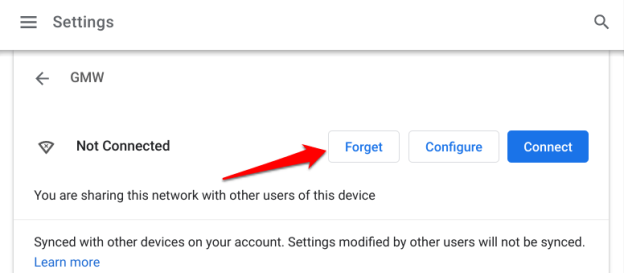
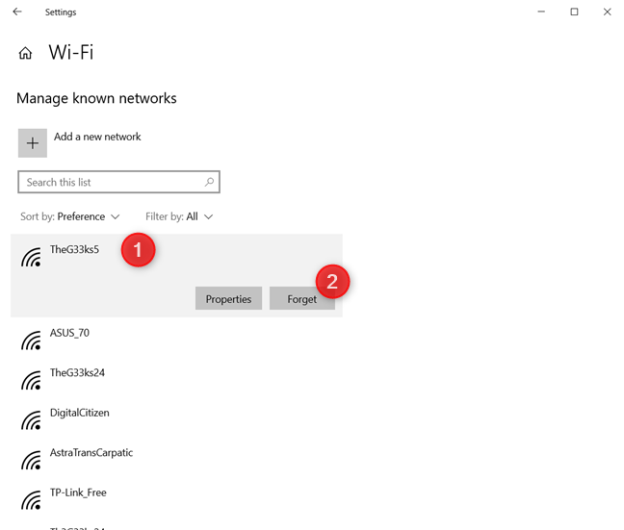
Forget and Rejoin the Network
If your Chromebook consistently disconnects from Wi-Fi, forgetting and rejoining the network can be an effective strategy. This method helps refresh your device’s connection to the network by erasing saved settings and starting a new one.


Check Router Settings
When facing Wi-Fi disconnection issues with your Chromebook, one crucial step is to check your router settings. Certain configurations, outdated firmware, or network congestion can lead to unstable connections, making this a valuable area for troubleshooting.



Disconnect Other Devices from Router
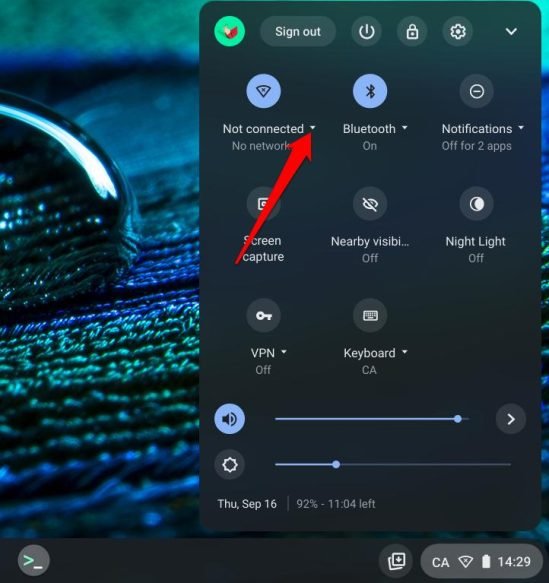
If your Chromebook frequently disconnects from Wi-Fi, disconnecting other devices from the router can be a helpful step. This can alleviate potential bandwidth congestion, providing a more stable connection for your Chromebook.
Disconnect your VPN App or Connection
When experiencing Wi-Fi disconnection issues on a Chromebook, consider disconnecting any Virtual Private Network (VPN) app or connection. VPNs can sometimes interfere with your network stability, so disconnecting can provide a straightforward troubleshooting step.
Restart Router
Restarting your router can be a simple yet effective solution when your Chromebook disconnects from Wi-Fi. This action refreshes your network and can resolve temporary glitches that might be causing instability.
Restart your Chromebook
When facing persistent Wi-Fi disconnection issues on your Chromebook, a simple yet often effective solution is to restart your device. This process can clear temporary files and processes that may be causing network instability.
While a system restart can be an effective troubleshooting step, if your Chromebook continues to disconnect from Wi-Fi, you may need to explore additional solutions or consult with a professional.
Reset Router
Resetting your router can be an effective last resort when your Chromebook persistently disconnects from Wi-Fi. This process returns your router to its factory settings, potentially resolving complex network issues.
It’s important to note that while resetting the router can fix many connectivity issues, it might not solve every problem. If the disconnection issues persist, it might be necessary to contact your Internet Service Provider (ISP) or consider replacing your router.
Change the Server Name
Altering the server name, or Service Set Identifier (SSID), can be a useful step when your Chromebook frequently disconnects from Wi-Fi. This process can help avoid conflicts with other networks and refresh your device’s connection to the network.
While changing the server name can resolve certain connection issues, if the problem persists, further troubleshooting may be necessary.
Avoid Using a Hidden SSID
If your Chromebook struggles to maintain a steady Wi-Fi connection, avoiding the use of a hidden SSID (Service Set Identifier) could help. Hidden SSIDs can sometimes cause connectivity issues due to the additional steps required to maintain the connection.
Remember, while using a visible SSID can resolve some connectivity issues if the Chromebook continues to disconnect from the Wi-Fi, further troubleshooting steps may be necessary.
Report the Bug to the Chrome Team
If your Chromebook consistently disconnects from Wi-Fi despite numerous troubleshooting efforts, it might be helpful to report the bug to the Chrome team. This step ensures that the developers are aware of the issue and can work on a possible fix.
Detailed Content:
Reporting a bug can contribute to a long-term solution, it may not immediately resolve your connectivity issues. Continuing to troubleshoot or seeking professional help may still be necessary.
Antivirus Conflict
If your Chromebook persistently disconnects from Wi-Fi, it could be due to a conflict with an antivirus program. Antivirus software can sometimes interfere with network connectivity, making it an area worth investigating.
It’s important to check for potential antivirus conflicts, if connectivity issues persist, other troubleshooting steps may be necessary. Never leave your device unprotected to maintain network connectivity.
DNS Settings
Incorrect Domain Name System (DNS) settings can sometimes cause connectivity issues, such as your Chromebook disconnecting from Wi-Fi. DNS translates website names into IP addresses, and issues here can disrupt your online activities.
Detailed Content:
Altering DNS settings can resolve some connectivity issues, but it might not fix all problems. If your Chromebook continues to disconnect from Wi-Fi, further troubleshooting may be necessary.
Hardware Problems
Persistent Wi-Fi disconnection on your Chromebook could potentially indicate a hardware issue. This can occur if the wireless adapter, router, or other network hardware is failing or not functioning correctly.
Hardware problems can cause Wi-Fi disconnections, but they are not the only potential causes. Thorough troubleshooting should consider both hardware and software issues.
Overheating
If your Chromebook continuously disconnects from Wi-Fi, overheating could be a possible culprit. Excessive heat can affect a device’s performance and stability, including its ability to maintain a steady network connection.
Overheating can cause Wi-Fi disconnections, it’s just one potential cause. If you’re Chromebook continues to overheat or disconnect from Wi-Fi, consider seeking professional assistance.
Reset: Reboot Chromebook
In certain scenarios, when your Chromebook frequently disconnects from Wi-Fi, a simple reboot can rectify the issue. Rebooting gives your system a fresh start, potentially resolving temporary glitches or issues with the operating system.
A reboot can solve temporary glitches, it might not resolve deeper software or hardware issues. If Wi-Fi disconnection persists, further actions will be required.
Update Drivers: Ensure Up to Date
Outdated network drivers can sometimes cause Wi-Fi disconnection issues on your Chromebook. Ensuring these drivers are up to date can help maintain a stable connection, as updates often include fixes for known issues and improved compatibility.
Keeping your drivers up to date can prevent many issues, but it might not solve all Wi-Fi connection problems. If your Chromebook continues to disconnect from Wi-Fi, further troubleshooting will be necessary.
You May Need to Repair your Chromebook
If your Chromebook persistently disconnects from Wi-Fi and all troubleshooting measures have been exhausted, it might be time to consider repair. This implies that the issue could be related to a hardware fault or a deeply embedded software problem that requires professional attention.
Even though a repair might resolve the Wi-Fi disconnection problem, it’s a measure typically reserved for persistent or severe issues that can’t be resolved with standard troubleshooting steps.
Pros and Cons
Here are the pros and cons:
Pros
Cons
FAQs
Here are the frequently asked questions:
Q1: Why does my Chromebook keep disconnecting from Wi-Fi?
Ans: There could be several reasons, including router issues, interference from other devices, outdated system software, incorrect settings, VPN issues, or even hardware problems with the Chromebook itself.
Q2: How can I fix my Chromebook’s Wi-Fi connection?
Ans: Some quick fixes include restarting your router or Chromebook, moving closer to the router, trying another Wi-Fi network, disabling Bluetooth, forgetting and rejoining the network, or updating your system software.
Q3: Can outdated system software cause Wi-Fi disconnection issues on a Chromebook?
Ans: Yes, outdated software can cause such issues. It’s always recommended to keep your Chromebook updated to the latest version of Chrome OS, as updates often include bug fixes and improvements.
Q4: Does a VPN connection impact Wi-Fi connectivity on a Chromebook?
Ans: A VPN connection can sometimes interfere with your Wi-Fi connectivity. If you are using a VPN and experiencing connection issues, try disconnecting the VPN to see if the problem resolves.
Q5: Why is my Chromebook’s Wi-Fi connection slow?
Ans: Several factors can cause a slow Wi-Fi connection on your Chromebook, including distance from the router, interference from other devices, network congestion, or even issues with your internet service provider.
Q6: Can overheating cause Wi-Fi disconnection issues on a Chromebook?
Ans: Yes, overheating can cause hardware to function erratically, leading to Wi-Fi disconnections. Ensure your Chromebook has proper ventilation, and avoid using it for prolonged periods in hot environments.
Q7: What should I do if other devices connect fine to the Wi-Fi but my Chromebook doesn’t?
Ans: This could indicate an issue with the Chromebook’s Wi-Fi card or its settings. You could try forgetting and rejoining the network, checking for system updates, or even resetting the network settings on your Chromebook.
Q8: Will resetting my Chromebook help resolve Wi-Fi issues?
Ans: A factory reset can help resolve Wi-Fi issues, particularly if they are caused by software problems. However, it should be used as a last resort, as it will erase all data on your device.
Q9: Can a failing hardware component cause Wi-Fi disconnection on a Chromebook?
Ans: Yes, if components like the Wi-Fi adapter are failing, it can cause unstable connections. If you suspect a hardware issue and your device is under warranty, consider contacting an authorized service center.
Q10: Is it worth repairing a Chromebook that keeps disconnecting from Wi-Fi?
Ans: This depends on various factors, such as the age of the device, the cost of repair, whether it’s under warranty, and the severity of the issue. If the repair costs are high and the device is older, it might be more cost-effective to replace it.
Conclusion
Wi-Fi disconnections on a Chromebook can stem from various factors, including system software, router issues, physical proximity to the router, and hardware problems. It’s essential to troubleshoot systematically, starting from simple solutions like rebooting the device or moving closer to the router, towards more complex steps like updating system software or considering hardware repair.
Often, keeping your Chromebook’s software up-to-date can prevent many such issues. If none of these steps resolve the problem, it might be time to consult a professional or consider a replacement, factoring in the device’s age, repair costs, and your specific needs. You may acquire further tech-related yet highly useful information by visiting Qnnit.com.