Are you one of those who prefer freedom from tangled cords with wireless earbuds like AirPods? They usually allow easy mobility, whether you’re commuting, exercising, or simply going about your day. But unfortunately, sometimes you may encounter an issue that callers can’t hear you properly.
In this article, we will discuss a few common reasons behind the issue that callers being unable to hear the AirPods user. In addition, we will also offer valuable ideas and tips to help you address and resolve this problem.
What are AirPods?
AirPods are wireless earbuds first introduced in 2016 by Apple Inc. The integration of AirPods with Apple’s ecosystem, like iPhones, ipads, etc., and their user-friendly nature has played a significant role in their widespread popularity.

AirPods are compact, lightweight, and completely cord-free, offering freedom of movement by eliminating the hassle of tangled cords. AirPods works on Bluetooth technology to establish wireless connections with various Apple devices. They are designed to provide a convenient audio experience for users.
AirPods feature built-in microphones, touch controls, and sensors that enable different functions like playing audio, adjusting volume, answering calls, and activating voice assistants like Siri. They come with a charging case that protects and charges them when placed inside.
When using AirPods for calls, the audio transmission from the user’s end fails to reach the recipient, resulting in a one-sided conversation. This issue can cause significant frustration and inconvenience for both parties involved in the call.
Why can’t Callers Hear me on my Airpods?
There are several potential causes as to why callers might be unable to hear the AirPods user during phone calls. These causes include:
Microphone Settings
Incorrect microphone settings on either the AirPods or the connected device can result in the microphone not being enabled or selected as the audio input device, leading to callers being unable to hear the user.
Bluetooth Connectivity
Poor or unstable Bluetooth connection between the AirPods and the connected device can cause disruptions in the audio transmission, resulting in callers not being able to hear the user clearly.
Physical Obstructions
Physical obstructions such as dirt, debris, or earwax covering the AirPods’ microphones can impede the capture of sound, leading to muffled or inaudible audio for the callers.
Software or Firmware Issues
Outdated software or firmware on the AirPods or the connected device can cause compatibility issues, resulting in audio problems during phone calls.
AirPods Positioning
Improper positioning or a loose fit of the AirPods in the user’s ears can affect the microphone’s performance, leading to callers being unable to hear the user clearly.
Background Noise Reduction
AirPods’ built-in noise reduction technology might mistakenly filter out the user’s voice if there is excessive background noise, causing callers to struggle to hear them.
Call Settings
Incorrect call settings on the connected device, such as volume settings or audio routing preferences, can impact the call audio and result in callers being unable to hear the user properly.
Hardware Issues
Sometimes, there may be hardware malfunctions with the AirPods, such as a faulty microphone or internal component, causing audio problems during phone calls.
Device Compatibility
Certain devices may have compatibility limitations with AirPods, leading to audio issues during calls.
Network or Service Provider Problems
Network or service provider issues, such as poor signal strength or network congestion, can disrupt call audio and impact the ability of callers to hear the AirPods user clearly.
How to Test the Proper Working of AirPods?
If you’re experiencing the issues like callers can’t hear your voice, it’s suggested to perform simple tests to identify the issue. These tests will allow you to troubleshoot or seek necessary assistance for a seamless audio experience.
To assess if AirPods are working, you can follow these tests:
Check Battery’s Level
Ensure that AirPods have sufficient battery power to support its complete potential. Place them in the charging case while keeping the lid open to check the battery status on your device’s display.
Check Bluetooth Connectivity
Make sure your AirPods are connected to your device via Bluetooth properly. Access Bluetooth settings on your device and verify the connection.
Test Audio Playback
To test the audio, play music or a podcast on your device and listen through your AirPods. If there is no distorted audio, try to adjust the volume and assess the audio output settings on your device.
Test Microphone Functionality
Assess the working of the microphone of AirPods by making a call from the device or recording your voice. Speak into the AirPods’ microphone and verify if your voice is being transmitted clearly.
Try with Another Device
To check whether the problem lies within the device or the AirPods, try to connect your AirPods with different devices, for instance, with any other smartphone, iPad, MacBook, etc. If AirPods aren’t working, it ensures that AirPods are damaged.
Reset AirPods
Resetting your AirPods can help resolve many issues. You can follow these steps to reset the AirPods quickly:
Step 1: Place both AirPods into the charging case and keep the lid open.
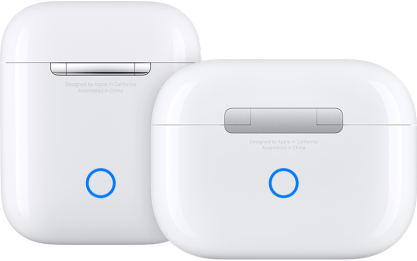
Step 2: Locate the setup button on the back of the charging case.
Step 3: Then press and hold the setup button.
Step 4: Once the LED light is flashing, release the setup button.
Step 5: Now, reconnect the AirPods to your device by going through the initial pairing process.
How to Fix “Why can’t Callers Hear me on my AirPods?”
Resolving the problem of callers being unable to hear you on your AirPods is essential for maintaining effective communication. Clear and uninterrupted audio during phone calls is crucial for conveying your message accurately and ensuring a smooth conversation.
By implementing these essential troubleshooting steps, you can restore the functionality and performance of your AirPods, enabling seamless and hassle-free conversations with callers.
Method 1: Check Microphone Settings
It is essential to verify that the microphone settings are correctly configured on both your device and AirPods. Enable and select the “Microphone” option as the audio input source to ensure the microphone is active and ready to transmit your voice during phone calls.
Step 1: Access the settings on your device and navigate to the Bluetooth section.
Step 2: Locate your AirPods in the list of connected devices and tap on the “i” or information icon next to them.
Step 3: Ensure that the “Microphone” option is enabled and selected as the audio input source.
Method 2: Improve Bluetooth Connection
Maintaining a stable Bluetooth connection between your AirPods and the device is crucial for clear audio during phone calls. Keep your AirPods and the connected device in close proximity and remove any obstructions or interference.
Step 1: Keep your AirPods and the connected device in close proximity to maintain a strong Bluetooth signal.
Step 2: Remove any obstructions or interference from other electronic devices or physical barriers.
Method 3: Clean the AirPods
Accumulated debris, dirt, or earwax can obstruct the microphones on your AirPods, affecting the audio transmission. Regularly clean the AirPods to ensure optimal microphone performance.
Step 1: Inspect the AirPods for any debris, dirt, or earwax accumulation.
Step 2: Gently clean the AirPods Mesh using a soft, lint-free cloth or a small handy brush.
Method 4: Update Firmware and Software
Outdated firmware or software can cause compatibility issues and impact the performance of your AirPods during calls. Keep both your AirPods and the connected device up to date to ensure optimal functionality.
Step 1: Check for any available firmware or software updates for your AirPods and the connected device.
Step 2: Install the updates if available.

Method 5: Re-pair AirPods
Re-pairing your AirPods can refresh the connection and resolve any temporary glitches or connection issues.
Step 1: Forget or unpair your AirPods from the Bluetooth settings on your device.
Step 2: Put your AirPods back in the charging case and open the lid.
Step 3: Press and hold the setup button until the light begins to flash.
Step 4: Proceed with following the on-screen instructions provided to successfully re-pair your AirPods with the device.
Method 6: Reset AirPods
Resetting your AirPods to their factory settings can help resolve persistent issues. This clears any customized settings and allows you to set them up as if you are using them for the first time.
Step 1: Put both AirPods in the charging case.
Step 2: Keep the lid of the case open.
Step 3: Press and hold the setup button at the back of Airpods’s case until the light starts flashing.
Step 4: Reconnect the AirPods to your device by going through the initial pairing process.
Method 7: Disable Automatic Ear Detection
Some users have reported issues with automatic ear detection interfering with microphone functionality. Disabling this feature may help resolve the problem.
Step 1: Access the settings on your device and locate the Bluetooth section within the menu.
Step 2: Locate your AirPods in the list of connected devices and tap on the “i” or information icon next to them.
Step 3: Disable the “Automatic Ear Detection” feature.
Method 8: Grant Apps Microphone Access
Ensure that the apps you are using have proper microphone access permissions to utilize the AirPods’ microphone.
Step 1: Assess the settings on your device and locate the Privacy section in the menu.
Step 2: Select “Microphone” and enable microphone access for the relevant apps.
Method 9: Turn off Noise Cancellation
If your AirPods have noise cancellation features, disabling it may help resolve microphone-related issues.
Step 1: Access the settings on your device and locate the Bluetooth section within the menu.
Step 2: Locate your AirPods in the list of connected devices and tap on the “i” or information icon next to them.
Step 3: Turn off the feature of “Noise Cancellation” on the device.
Method 10: Contact Apple Support
In case the problem persists despite attempting the aforementioned methods, it is recommended to reach out to Apple Support for further assistance. Apple Support can provide specialized guidance and troubleshooting specific to your AirPods and device.
Apple Support has dedicated resources and expertise to help address complex issues and provide personalized assistance. Reach out to them for advanced troubleshooting or to schedule a repair or replacement if necessary.
FAQs (Frequently Asked Questions)
Q: Why can’t callers hear me on my AirPods?
A: There could be various reasons for this issue, such as microphone settings, connectivity problems, or hardware malfunctions.
Q: How can I check if the microphone on AirPods is working?
A: You can make a phone call or use a voice recording app to test if your voice is being transmitted clearly through the AirPods’ microphone.
Q: What should I do if my AirPods doesn’t work during calling?
A: First, check the microphone settings on your device and ensure the “Microphone” option is enabled and selected as the audio input source.
Q: Can a software update fix the issue?
A: Yes, updating the firmware and software on your AirPods and the connected device can help resolve compatibility issues and improve overall performance.
Q: What if none of the troubleshooting steps work?
A: Then, it is recommended to contact Apple Support or visit an authorized service provider for further assistance and potential repairs.
Q: Do I need to clean my AirPods regularly?
A: Yes, cleaning your AirPods regularly is important to remove any accumulated debris, dirt, or earwax that may be obstructing the microphones and affecting audio quality.
Q: Can I disable noise cancellation to improve microphone performance?
A: Yes, disabling noise cancellation on your AirPods can help enhance the microphone performance, especially in noisy environments.
Conclusion
In conclusion, addressing the issue of callers being unable to hear you on your AirPods is crucial for effective communication. By following the recommended troubleshooting steps and seeking appropriate support, you can resolve the problem and ensure a seamless audio experience during phone calls. Keep your AirPods updated and clean regularly to optimize their performance. If it doesn’t resolve, reach out to Apple Support or authorized service providers for further assistance.