___________________________________________________________________________________
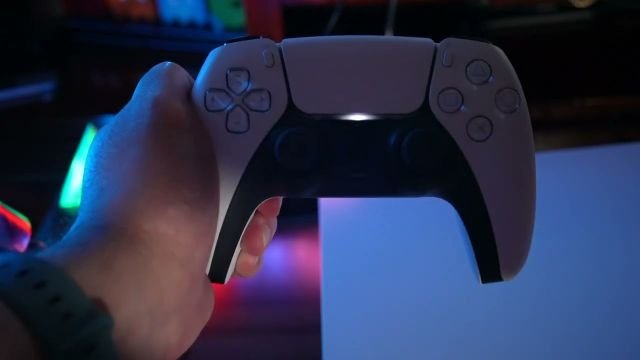
Calling all avid gamers! Have you ever been a PlayStation player, battling epic foes and uncovering digital adventures? If so, then you will surely understand the significance of a gaming controller. The controller acts as an extension of the player’s hands, translating their physical inputs into in-game actions.
The Controller, with its buttons, triggers, analog sticks, and touchpad, provides players with a wide range of input options. It enables them to perform various movements, actions, and commands within the game world with precision.
Buttons on a controller are of utmost importance in gaming as they provide the means to execute actions, navigate menus, and unlock the full potential of gaming experiences. The design and placement of buttons are carefully considered to accommodate a wide range of hand sizes and physical capabilities.
In this article, you will be provided with the location, significance, and functionality of the R3 button on the PS5 controller.
What is Play Station 5 (PS5)?
The PlayStation 5 (PS5) is the latest gaming console developed by Sony Interactive Entertainment. Released in November 2020, the PS5 represents the next generation of gaming technology. It boasts powerful hardware and advanced features designed to deliver stunning visuals, immersive gameplay, and lightning-fast load times.
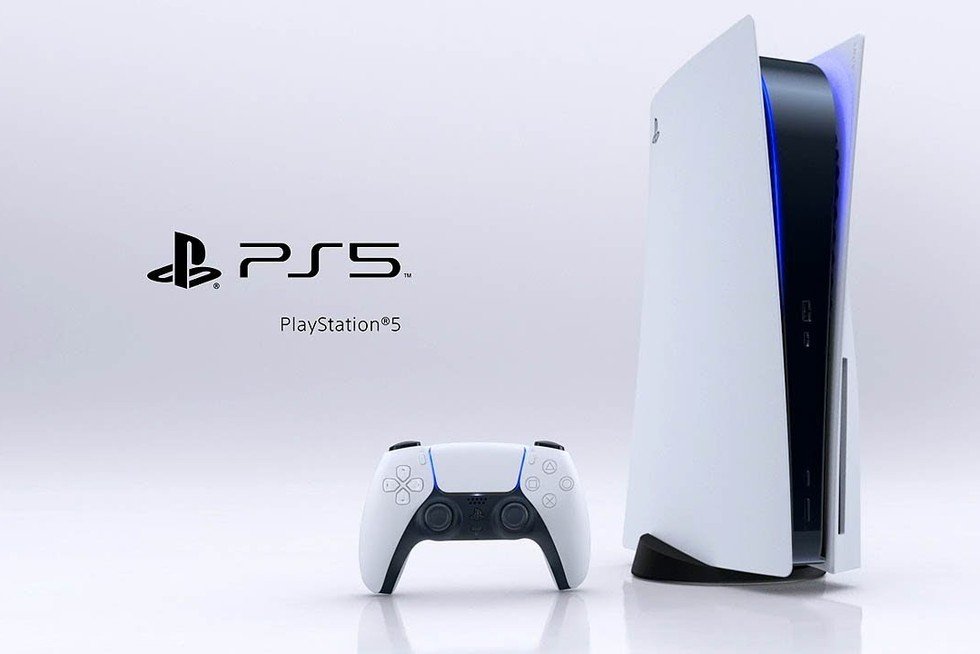
The PS5 features a custom AMD Zen 2 processor and a custom AMD RDNA 2-based graphics processing unit, enabling high-fidelity graphics and smooth performance. It also incorporates an ultra-high-speed solid-state drive (SSD) that dramatically reduces loading times, allowing games to load almost instantly. One of the standout features of the PS5 is the DualSense controller. This controller’s advanced feature allows players to feel a greater sense of impact, texture, and responsiveness in games.
In addition to gaming, the PS5 serves as a multimedia entertainment hub, providing access to streaming services, Blu-ray/DVD playback, and other media apps.
Buttons on PS5 Controller
The PS5 controller is equipped with various buttons that offer a wide range of input options for gaming. It features a directional pad (D-pad) for navigation and movement, action buttons (Triangle, Circle, Cross, Square) for executing different actions, shoulder buttons (L1, R1) for secondary actions, and curved triggers (L2, R2) for variable input. Additionally, the controller includes clickable analog sticks (L3, R3) that can be pressed down to activate specific functions.
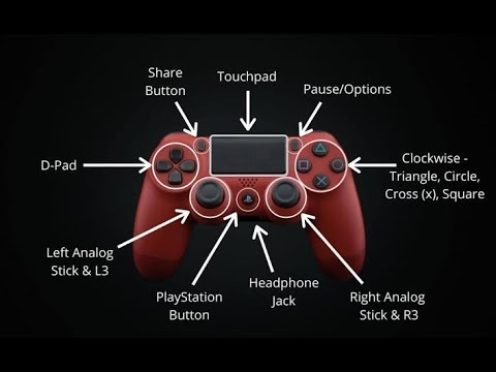
The Options button provides access to menus, while the iconic PlayStation button allows for system navigation. Together, these buttons and features empower players to control gameplay, navigate menus, and interact with the PlayStation 5 console effectively.
Where is R3 on PS5 Controller?
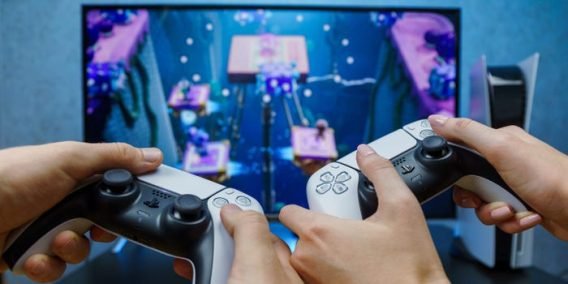
R3 on the PS5 controller can be found on the right side of the controller, alongside the right analog stick. It is positioned parallel to the left analog stick and is easily accessible to players. By pressing down on the right analog stick, you activate the R3 button input, which can be utilized for specific actions or functions in games.
Understanding the precise location of R3 is important for effectively utilizing this button during gameplay on the PS5 controller.
Layout of R3 on PS5
On the PS5 controller, the R3 button is not a physical button but rather an input function activated by pressing down on the right analog stick. By applying pressure and clicking the right analog stick inward, you engage the R3 function.
This design allows for the flawless addition of R3 without adding an additional physical button, maximizing the functionality of the controller while maintaining a compact and ergonomic layout. So, to access the R3 function on the PS5 controller, simply press down on the right analog stick.
Functionality of R3 on PS5 Controller
The R3 button on the PS5 controller serves as an additional input option when pressing down on the right analog stick. Its specific functionality can vary depending on the game or application being used. Here are some common functions assigned to the R3 button:
Camera Control
In many games, pressing R3 can adjust the camera angle or provide a first-person perspective, allowing players to have greater control over their viewpoint.
Sprinting or Running
R3 is often used to initiate or toggle sprinting or running in games. It is also used for providing a burst of speed for the player character.
Crouching or Sneaking
Some games utilize R3 to make the character crouch or move silently, allowing for stealthy approaches or interactions with the game environment.
Context-Sensitive Actions
The R3 button can trigger context-sensitive actions or interactions based on the game’s mechanics. This may include interacting with objects, performing special moves, or activating abilities tied to specific in-game scenarios.
Miscellaneous Functions
Depending on the game, the R3 button can have various other functions, such as toggling a map or menu, performing a melee attack, or executing a specific action unique to the gameplay mechanics.
 When and Where was R3 First Implemented?
The DualShock for the PS1 was the third attempt by Sony at analog controls on the PS1 and was the first to implement R3. Following that, the implementation of R3 (Right 3) as a button on game controllers can be traced back to the sixth generation of video game consoles, specifically the PlayStation 2 (PS2) and the original Xbox. These consoles introduced the concept of clickable analog sticks.
R3 has been carried forward to subsequent generations of gaming consoles, including the PlayStation 3 (PS3), PlayStation 4 (PS4), and the current generation PlayStation 5 (PS5). It continues to be utilized in various games across different genres, offering players additional control options and enhancing game-play experiences.
Can you Disable or Remap R3?
It is not possible to disable or turn off the R3 function on the PS5 controller, but there are methods to remap it to a different input.
The ability to disable or remap specific buttons, including R3, on the PS5 controller can depend on the game or application being used. Some games may offer in-game settings or options that allow you to customize button assignments or disable certain inputs, and some do not. However, this feature is not universally available in all games.
Steps to Remap R3 on the PS5 Controller
Step 1: Access the Settings menu on your PS5 console. You can do this by selecting the gear symbol, typically found on the home screen or in the control center.
Step 2: In the Settings menu, navigate to Accessibility and select it. Within the Accessibility settings, locate and choose Controls.
Step 3: Look for the option labeled Custom Button Assignment and select it. Here, you will see various options to customize your controller’s button layout.
Step 4: To switch the left and right analog sticks, choose the option called “Switch the Left and Right Analog Sticks.” This allows you to use the right stick for character movement and the left stick for camera control in most cases.
Step 5: For more detailed changes, select the option called “Customize Button Assignments.” This will display an image of the PS5 controller.
Step 6: Locate and select the right stick on the image of the controller.
Step 7: Choose the button to which you would like to remap the R3 functionality. Selecting a button will assign the R3 function to that specific button.
Why isn’t R3 on PS5 Controller Working Properly?
If your R3 button on the PS5 controller is not working properly, there could be a few possible reasons for this issue. Here are some troubleshooting steps you can try:
Check for Debris or Physical Damage
Inspect the controller and the R3 button for any visible debris or physical damage. Clean the button and the surrounding area using compressed air or a soft cloth to ensure there is no obstruction affecting its functionality.
Restart the Controller and Console
Sometimes, a simple restart can resolve minor software glitches. Turn off the controller and the PS5 console, then power them back on and see if the R3 button starts working properly.
Test the Controller on Another Device
Connect the PS5 controller to another device, such as a computer or another console, to see if the R3 button functions correctly. This will help determine if the issue is specific to the controller or the PS5 console.
Update the Controller Firmware
Ensure that your PS5 controller’s firmware is up to date. Connect the controller to the PS5 console using a USB cable and check for any available firmware updates in the system settings.
Reset the Controller
Resetting the controller can sometimes help resolve issues. On the back of the controller, locate the small reset button and use a paperclip or a similar object to press and hold the button for a few seconds. Then, pair the controller again with the PS5 console and check if the R3 button functions properly.
Contact Sony Support
If the issue persists and none of the above steps resolve the problem, it may be necessary to contact Sony Support for further assistance. They can provide specific troubleshooting steps or arrange for a repair or replacement if needed.
FAQs (Frequently Asked Questions)
Q1: Can the R3 button be used for in-game communication or quick chat features?
Ans: In certain multiplayer games, developers may assign communication or quick chat functions to the R3 button. This allows you to send predefined messages or signals to your teammates without having to use a separate communication menu.
Q2: How do I use the R3 button?
Ans: To use the R3 button, you simply press down on the right analog stick until it clicks. This activates the R3 function and performs the assigned action or function in the game or application.
Q3: Can I use the R3 button in all games?
Ans: The functionality of the R3 button can vary depending on the game. While most games utilize the R3 button for specific actions or functions, some games may not make extensive use of it. Check the game’s control scheme or documentation to understand how R3 is utilized in that particular game.
Q4: Are there any alternative ways to activate the R3 function?
Ans: The primary method to activate the R3 function is by pressing down on the right analog stick. While some games may offer alternative control options, such as using a touchpad or another button, the default and most common way is through the right analog stick.
Q5: Can I adjust the sensitivity of the R3 button?
Ans: The sensitivity of the R3 button is typically determined by the hardware and software design of the PS5 controller. As of now, there are no native options to adjust the sensitivity of individual buttons on the PS5 controller, including R3.
Q6: Can I use the R3 button in non-gaming applications on the PS5?
Ans: Yes, the R3 button can have functions assigned to it in non-gaming applications as well. This can vary depending on the application and its specific controls and features. Check the application’s documentation or settings to understand if and how the R3 button is utilized.
Conclusion
In conclusion, the R3 button on the PS5 controller offers a world of possibilities to enhance your gaming experience. Located on the right analog stick, it grants you access to special actions, camera adjustments, and context-specific functions. You can’t disable it but can remap it with another function. The R3 button allows you to unlock new levels of control and immersion while gaming on the PlayStation 5. So, elevate your gameplay with the R3 button on the PS5 controller.