


The Elder Scrolls V: Skyrim is quite a thrilling and action role-playing video game developed by Bethesda Game Studios and published by Bethesda Softworks.
Are you among those who are unable to enjoy the game as Skyrim Special Edition limits itself to 60 FPS? Or, do you find yourself in trouble with screen tears because of the output of higher frame rates than what their displays can handle?
However, there is no doubt that frame rates can be annoying for gamers as they stop them from enjoying the game. You are no longer required to worry about it, as Vsync is your top solution for resolving this issue.
The good feature of the Vsync is that it limits your frame rate to 60 FPS and takes off that limit if you need it to. So, read the blog until the end to get the comprehensive details or guide about how to turn on Vsync Skyrim and Skyrim Special Edition.
What Does Vsync Mean?
Vsync or Vertical Sync is a great technology that limits the screen tearing and frame rate of games below what a screen can display. Moreover, the exciting news for the players is that you have the option to turn Vsync on and off.
How to Enable Vsync in Skyrim?
The Elder Scrolls V: Skyrim offers the players an exciting in-game Vsync option through its UI. Thus, check the game files and follow the steps below to enable Vsync in Skyrim.
Note: It is worth mentioning that before changing any file, make sure to copy the original or replace it with the changed one if anything goes wrong.
Step 1: Locate the right game folder
The first step in enabling the Vsync in Skyrim is to locate the folder with the ini files. Make sure that the file contains the file ‘SkyrimPrefs.ini.’
Step 2: Open the Skyrimprefs.ini file
In this step, you better try to open the Skyrimprefs.ini file with Notepad and edit the text inside it. Once you successfully open the file using Notepad, you can move on to the next step and find ‘iVsyncPresentInterval.”
Now, make sure to set the file as read-only in its properties. If you do not do the same thing, then the file will not work properly.
Step 3: Edit the iVsyncPresentInterval Value
The ini file covers values that affect different visual parts of the game. Also, check the line that states ‘iVsyncPresentInterval’ as this works as an alternative or switch for Vertical Sync. Also, the end of the line will either say ‘=0 or =1’ i.e. ‘iVsyncPresentInterval=0’ or ‘iVsyncPresentInterval=1’.
So, to enable Vsync, make sure to edit the line to iVsyncPresentInterval=1. If it is already the way, then do not worry; Vsync is already on. Moreover, you can also use Ctrl+F to figure out the line. If you do not find it, you can add it yourself.
How to Turn ON/OFF Vsync Skyrim?
Below are the ways to turn on/off Vsync Skyrim:
Method 1: Enabling V-Sync with NVIDIA Control Panel
Below are the steps to enable V-Sync with NVIDIA Control Panel:
Step 1: First, make sure to click the start button or Windows icon.
Step 2: Now, in the search bar, type “NVIDIA control panel.”
Step 3: Next, just press Enter on your keyboard.
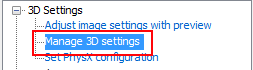
Step 4: After that, clicj Manage 3D settings
Step 5: Under “I would like to use the following 3D settings,” just scroll down until and unless you see Vertical sync.
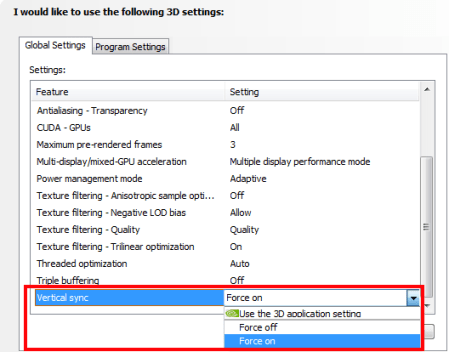
Step 6: Lastly, choose Vertical Sync from the drop-down to choose Force on.
Method 2: Enabling V-Sync with AMD Catalyst Control Center
Below are the steps to enable V-Sync with AMD Catalyst Control Center:
Step 1: First, make sure to click the start button or Windows icon.
Step 2: Now, in the search bar, just type “Catalyst control center.”
Step 3: Next, press the Enter button on your keyboard.
Step 4: After that, click Gaming.
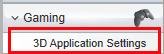
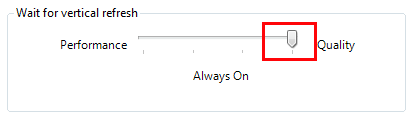
Step 5: Under 3D Application Settings, make sure to scroll down to Wait for vertical refresh.
Step 6: Lastly, move the slider down to the side that states Quality so the text beneath it says Always On.
Alternatives to VSync in Skyrim
The best alternatives to VSyne in Skyrim are Nvidia and AMD. Thus, depending on your graphics card, you had better choose which alternative you wanted to use in order to deal with FPS problems.
In addition, both Nvidia and AMD can change the visual elements of games. The major thing about Nvidia is its control panel; meanwhile, the AMD catalyst control center (Depending on your GPU company) allows you access to advanced video card settings that can help you sort out the FPS issues you face.
Conclusion
The blog has covered the required details about the Elder Scrolls V Skyrim: How to Turn ON/OFF Vsync SKYRIM. Hopefully, you have found the blog helpful. Do not forget to check out the blog so that you be able to sort the issue of framerate through the VSync in Skyrim. For more informative blogs, stay tuned to Qnnit.com.


