
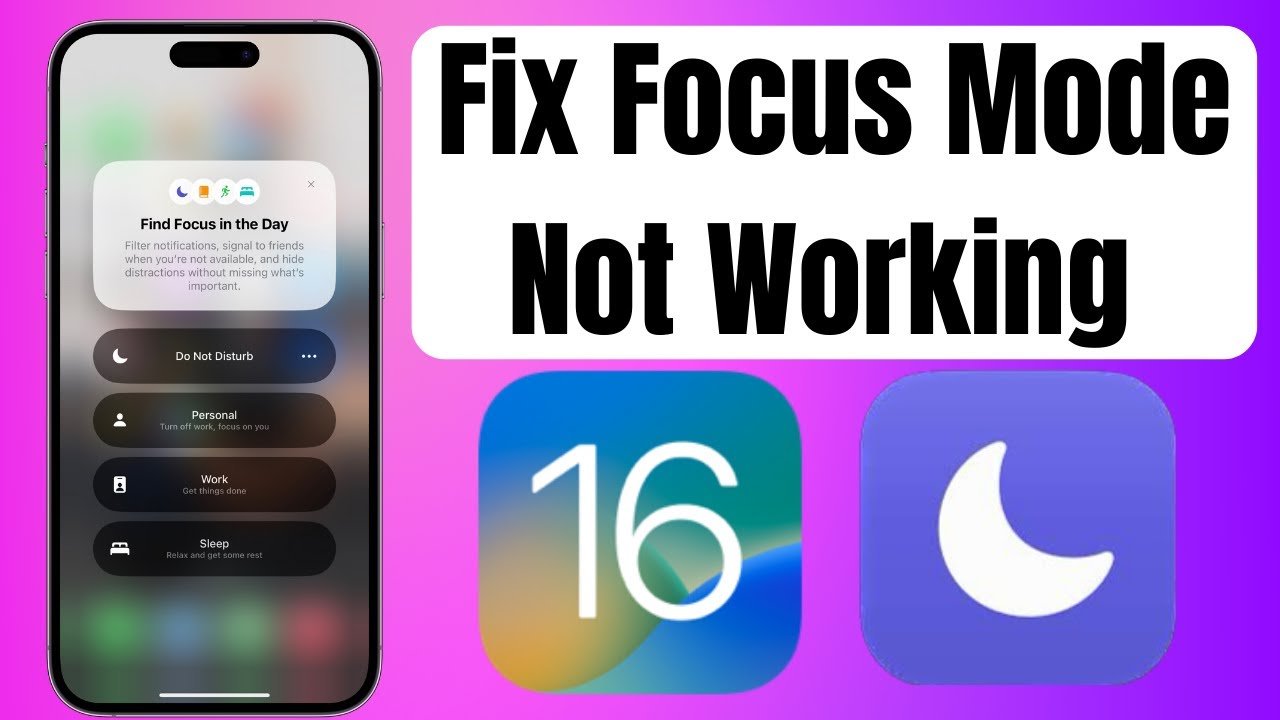
Apple has recently introduced the latest feature, Focus Status, which lets you prioritize your notifications on iOS 16. The feature is designed for people who want to be more productive.
You can customize and schedule how you want to be notified about messages, calls and apps during the day to limit distractions when you are caught up doing other important things.
If you don’t know how to use the Focus feature or are unaware of the correct usage of the app, then this article will offer you some quick fixes to guarantee Focus mode works properly on your iOS 16.
What is Focus Mode?
Focus mode gains the capability to allow specific notifications to be notified. It helps when you are doing something productive and don’t want to get distracted.
The Focus status adds a banner at the bottom of the conversations; however, the decision is up to you whether or not you want to show that you are away or busy to receive texts.
Moreover, the feature is a polite way to let its users know that you are busy with something significant throughout any period, so all text messages would be delivered silently unless you allow others to avoid it.
Likewise, sharing Focus status is a good option with people who respect your time and won’t disturb you unless it’s urgent.
So if they have something important to share, they can select the Notify Anyway option. Eventually, you will be notified normally if you enable the Notify Anyway option.
Turning Focus Mode
You can turn on Focus mode via three methods. It could be enabled through the Control panel, Lock screen and Settings section on your iOS 16.
While keeping in mind to share your Focus status, your Focus settings must be shared all over your Apple devices. Also, you won’t be able to use Focus status if you don’t share Focus sharing across your Apple devices.
If you want to enable Focus sharing via Lock screen, you will follow a few steps:
Step # 1: Associate a particular iOS 16 16 lock screen to a focus mode profile. Remember, the Focus mode is enabled on which device you want to enable sharing.
Step # 2: Long press the lock screen to initiate customization; thus, you will observe the Focus link on the screen.
If you want to enable Focus sharing via the Control panel, you will follow a few steps:
Step # 1: Swipe down to access the control centre of your iOS 16.
Step # 2: Tap on the Focus button to switch it on.
Step # 3: Now, press the button to also turn the other modes on.
If you want to enable Focus sharing via Settings, you will follow a few steps:
Step # 1: Go to the Settings of your iOS 16, and tap Focus to turn it on.
Step # 2: Now enable the toggle for Share Across Devices at the bottom. Then, tap and select Focus Status.
Step # 3: Enable the toggle for Share Focus Status at the top of your mobile screen. Now, you can turn on the toggle for particular focus modes to alert your contacts.
Step # 4: You will eventually have enabled Focus Status for your specific Focus modes.
Sharing Focus with Everyone
Since you have enabled the Focus Status on iOS 16, the status will be shared with everyone in your contacts. So, it means anyone who sends you a text throughout a Focus routine can observe notifications on your phone are silenced.
Moreover, if you intentionally exclude a contact from Focus Sharing, they won’t get the notifications of your Focus Status.
If the Share Focus Status toggle is not accessible in any of your contacts, the feature might be disabled automatically on your device. It could happen if you update your phone with the latest version.
So the Focus status will reappear on text messages once you re-enable the settings. The share feature will start working, allowing you to share your Focus status with a particular person.
Similarly, there could be issues regarding sharing Focus status. It could be due to various reasons, such as:
Reason # 1: The silent mode of your phone is turned on. You may disable the silent mode if you want the Focus status to work properly.
Reason # 2: iOS 16 Focus status is not being enabled properly. There are various settings in Focus status mode, so if any settings are not settled properly, the Focus status won’t work appropriately.
Reason # 3: There are iOS 16 glitches that are hurdling the Focus mode to run properly.
Reason # 4: Check if you have whitelisted the app.
Reason # 5: You might have enabled repeated calls or messages.
Reason # 6: Cross-check the privacy settings.
Reason # 7: Check if the phone has any pending updates.
Now, there are solutions to every problem. As per the bugs mentioned above, here are a few solutions:
How to Fix iOS 16 Focus Mode Not Working?
The following are the solutions to fix if the share focus status is not working in iOS 16:
Discontinue Sharing Focus Across Devices
The foremost reason the iOS 16 Focus mode is not working properly might be that the Sharing Across Device settings are not being set appropriately.
Enabling the Sharing Across Device feature will synchronize and enable altogether using the same iCloud account. You may turn it off by doing only one step:
One-step Solution: Go to Settings and tap Focus. Now press the toggle of Share Across Devices to disable it.
Cross-check Various Focus Settings
Focus mode comes with several customization needs of its user. You may check the different Focus settings if you receive notifications about messages or phone calls while keeping Focus mode on.
You must follow different tips to check the general settings:
Tip 1: Turn off Focus Status that can share that you have silenced notifications.
Tip 2: Eliminate people and apps from Allow Notifications.
Tip 3: Turn off Allow Repeated Calls. If somebody tries to reach you continuously, their call can get through in Focus mode.
Tip 4: Do not Allow Sensitive Time Notifications.
Tip 5: Toggle off Silenced Notifications to Show on the Lock screen
Tip 6: Check if the Focus mode is automatically turned on at your scheduled time.
Apply Focus Mode again
You may set the Focus status to turn on straight away from the start. It is the easiest way to solve the Focus mode bug.
Restart your iOS 16
Another solution is that you must restart your iOS 16 if the Focus mode is not working properly. It will fix most of the phone’s glitches as well. It is recommendable to Force Restart your phone.
Reset your iOS 16
Moreover, you can also reset your iOS 16 to default settings to make Focus mode work accurately. It is safe to reset your phone as it won’t erase your data. All you have to do is:
Go to Settings corner > General > Transfer or Reset iOS 16 > Reset > Reset all settings.
For this, you must enter iOS 16 passcode, and the process will be completed. The settings will be set to default automatically.
Update iOS 16’s Software
After restarting and resetting, checking if your device needs a system update is also okay. Most of the time, the software update could fix many bugs and glitches and make your life easier.
Turn off Repeated Calls
It could also be a problem if you have to enable Repeated Calls from any contacts. You follow a few steps:
Step # 1: Go to Settings.
Step # 2: Tap Focus.
Step # 3: Tap the preferred focus mode.
Step # 4: Now, tap People under the ‘Allowed Notifications’ section > Calls from.
Step # 5: Finally, toggle off Allow Repeated Calls.
Step # 6: No repeated calls will restrict your Focus status now.
Fixing System Bug by ReiBoot
iOS 16 is an amazing device; however, there are several system glitches that iOS 16 users report. There is a magical way to fix system problems like iOS 16 Focus not working by using Tenorshare ReiBoot.
By using Tenorshare ReiBoot, you need to use the standard repair to avoid any data loss. Just follow a few steps:
Step # 1: The very first step you need to do is to install ReiBoot on your computer. Now you need to start the installation process.
Step # 2: Connect your iOS 16 device to your computer via a lightning cable. Select ‘Standard Repair’ to start the procedure.
Step # 3: After that, install the Firmware package. It may take a few minutes of yours; however, make sure you have a good internet connection.
Step # 4: Once the Software is downloaded, you may click ‘Start Standard Repair’.
Step # 5: Now wait for ReiBoot to finish the setup. Your iOS 16 will get restart. Check if the problem gets fixed or not.
Frequently Asked Question
What is Sharing Focus Status?
Focus mode gains the capability to allow specific notifications to be notified. Sharing Focus status is a good option with people who respect your time and won’t disturb you unless urgent.
Where can you enable Share Focus Status?
Focus Status could be enabled via three device options: Lock screen, control centre and settings.
What is the recommended solution to fix the share Focus status?
According to this article, using Tenorshare ReiBoot is the recommended solution to fix the bug of sharing Focus status.
Where can your Focus status be shown?
When you enable the Focus status on your iOS 16, the status is visible to everyone in your contact list. The Focus status is shown at the bottom of the conversations.
Can whitelisted people see the Focus status?
No. The messages will restrict any Focus setting you may have enabled if you whitelist a contact.
How can you turn on your Focus status?
You can turn on your Focus status by going into Settings > Focus.
Why isn’t Focus status turned on when it’s needed to be?
If you have scheduled the Focus, verify the time and corresponding days for which it’s thought to be turned on.
Conclusion
The above article discusses the importance of Focus mode and how the app is being used properly. The problems and solutions regarding Sharing Focus Status have also been discussed to make the users more compatible with their devices.
You can try the methods mentioned earlier to keep your Focus mode working appropriately; surely anyone would work for you. The recommended and easiest method is Tenorshare ReiBoot.


