Introduction
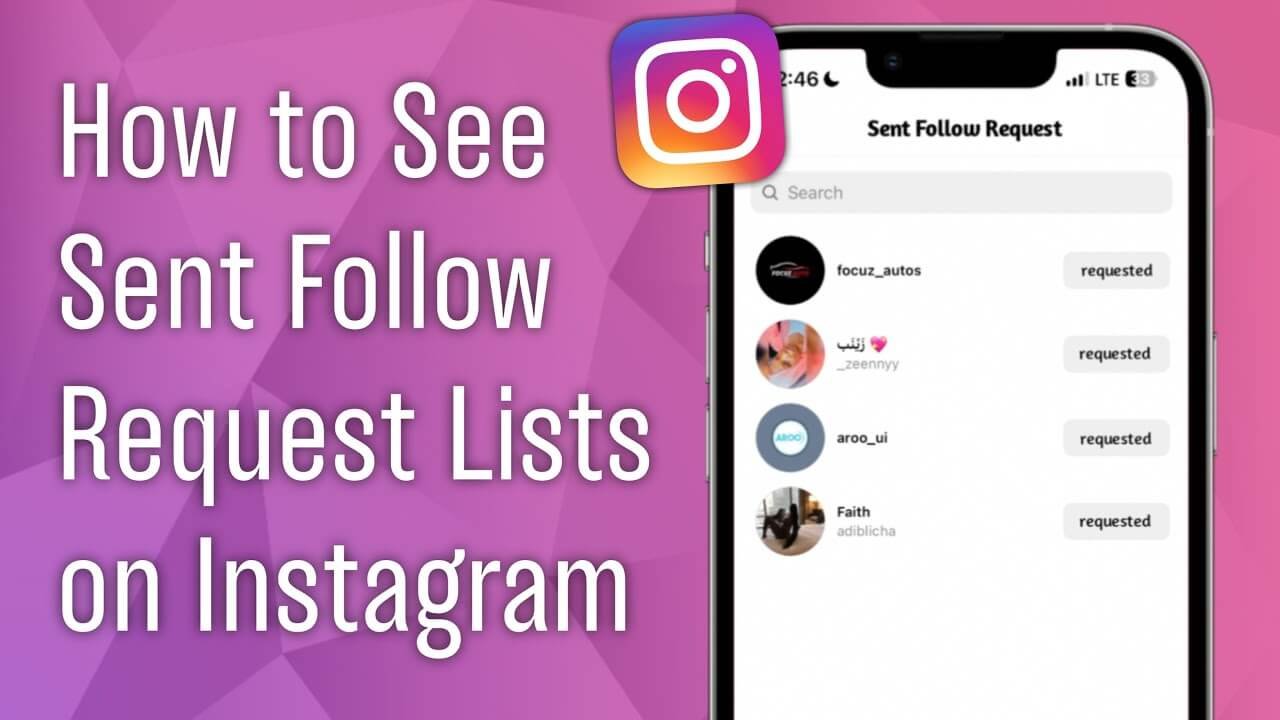
Do you want to know who you have sent follow requests on Instagram? If yes, you are on the right page.
We all live in a time when social media is an essential part of our lives. We greatly rely on social media to communicate with others through various apps. One such app is Instagram, through which we share pictures, videos, and reels and chat with others through DMs. Like other social media apps, Instagram also involves sending follow requests to other accounts if they are not public.
On Instagram, the more your followers are, the closer you are to getting your account verified by the app. Therefore, users send requests to as many people as they want so that they might follow them back and increase their following and views.
Instagram is a user-friendly app that keeps on adding features to enhance user experience. The app keeps a record of all your activities, including the follow requests you have sent to other users. So, if you have forgotten and want to know who you have sent a request to on Instagram, you can do so by simple methods.
In this blog, we will explore How to See Sent Follow Request on Instagram iPhone. Good read!
Can you See Sent Follow Request on Instagram?
Before we dig into the methods to see sent follow requests on Instagram, let us answer the question, Can you See Sent Follow Request on Instagram?” unfortunately, the answer is No. It is currently not possible for a user to view the list of follow requests that they sent on Instagram.
There were a number of ways to see the sent request on Instagram before the latest Instagram update. However, the recent update on the app has made the methods ineffective on both Android and iPhone. You can still follow the steps of all possible methods that were effective before. We hope that they will work for your Instagram account.
How to See Sent Follow Request on Instagram iPhone?
It is noteworthy that, at present, there is no direct way to see the sent follow requests on the Instagram app or the web. All you have to do is to download your Instagram data and then open the folder to view your sent follow requests or pending follow requests.
Below are the steps to see sent follow requests on Instagram iPhone:
On iPhone
Step 1: Open your Insta profile
First, open your Instagram account and click on your profile picture in the bottom right corner to go to your Profile page. If you have more than one Instagram account, it is necessary for you to be on the right account (long press on your profile picture to switch accounts).
![How to See Sent Follow Request on Instagram? [2023 Updated]](https://qnnit.com/wp-content/uploads/2023/07/how-to-see-sent-follow-request-on-instagram-2023.jpeg) Bottom of Form
Bottom of Form
Step 2: Open the Settings Option
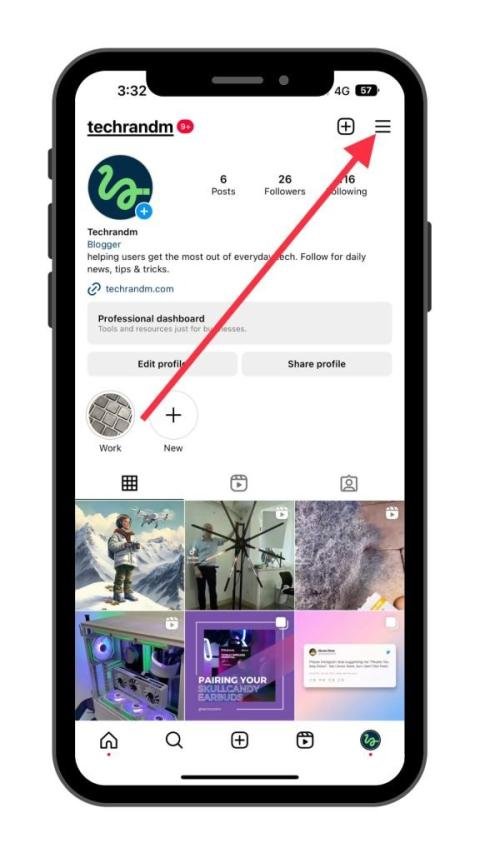
Once your profile page gets opened, you will see a three-line icon in the top right corner of the page. Tap on that, and the settings menu will appear.
Step 3: Open ‘Your Activity’
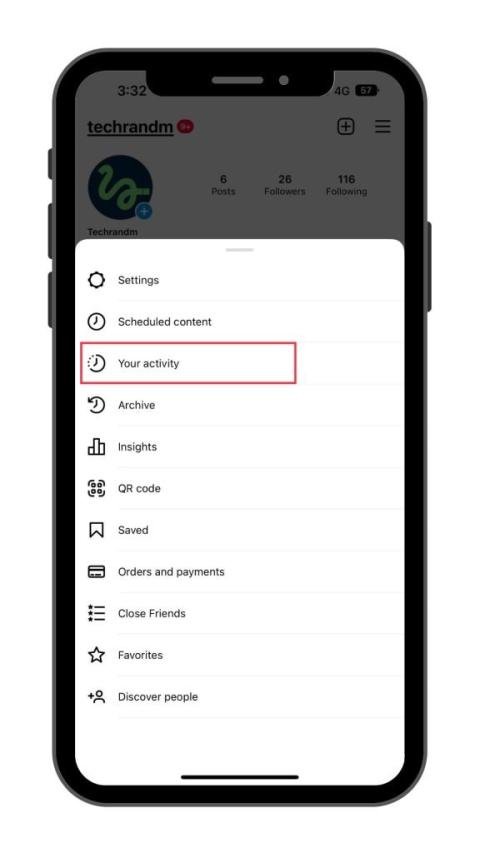
A number of options will appear on the Settings page. Select “Your activity” to open the further settings menu. Here you will see a history of your activities on Instagram, such as what you purchased, your archived content, recent searches, and things you have shared.
Step 4: Select ‘Download your information’
Scroll down through Your activity page until you find a button that says “Download your information”.
![How to See Sent Follow Request on Instagram? [2023 Updated]](https://qnnit.com/wp-content/uploads/2023/07/how-to-see-sent-follow-request-on-instagram-2023-3.jpeg)
The option allows you to export all your information that Instagram has, including;
- Posts and stories you have shared
- Pending and sent follow requests
- Likes, comments, and other interactions
- People you followed, and people following you
- Old messages (sometimes even containing deleted messages)
Step 5: Tap on ‘Request a download’
Another page will pop up where you will find a button that says, “Request a download”. Select the option to move to the next section.
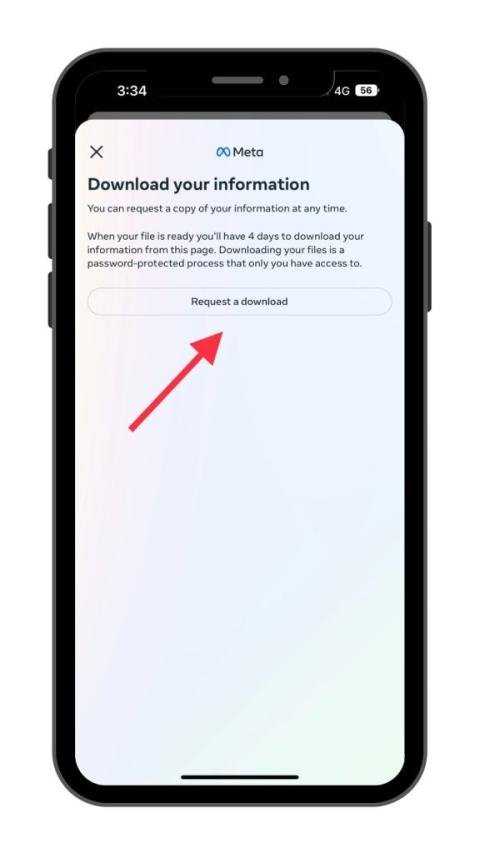
Instagram will give you two options either you want to download a complete copy of your information or want some chunks of it.
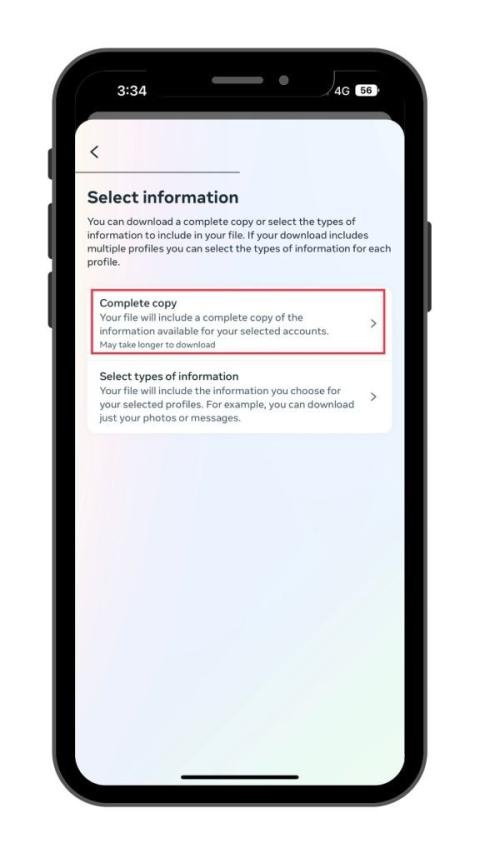
Step 6: Choose your Download Options
Next, you will find a few more options that you have to select, including:
- Notify: Write your email address here (it can be any email address and not necessarily your Instagram email)
- Format: Pick HTML, as it is easier to view in the browser
- Media quality: Select the quality of images and videos
- Date range: Either select “all time” or a recent period like “Last 3 months”
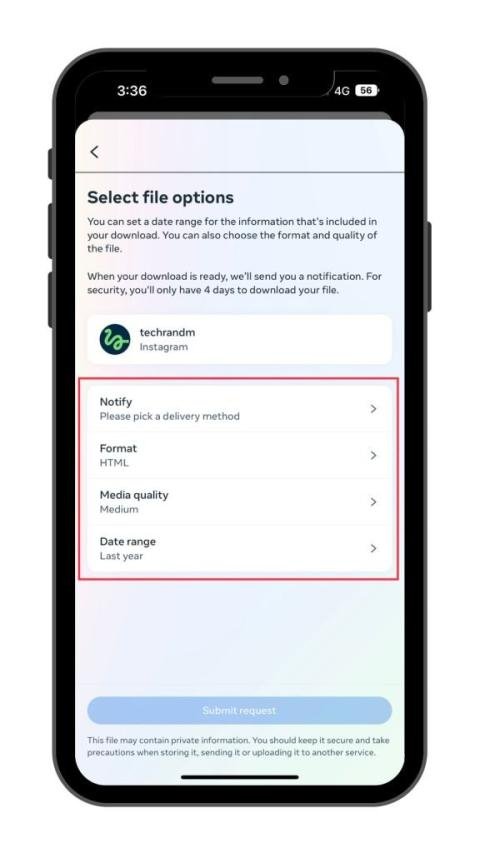
After you choose all the options, tap on “Submit request”. You will see a pending download on the screen after submitting your request.
![How to See Sent Follow Request on Instagram? [2023 Updated]](https://qnnit.com/wp-content/uploads/2023/07/how-to-see-sent-follow-request-on-instagram-2023-7.jpeg)
You have to wait for a while as Instagram will take some time to prepare your file. The app takes time, depending on the number of messages, photos, and videos you have.
Step 7: Download your File to your iPhone
After your file is prepared, you will get an email notification about it. Next, you have to download the file to your iPhone. You can choose the same location and see the download button.
![How to See Sent Follow Request on Instagram? [2023 Updated]](https://qnnit.com/wp-content/uploads/2023/07/how-to-see-sent-follow-request-on-instagram-2023-8.jpeg)
Once you select the “Download” option, it will open your browser, which will ask for your Instagram password. You have to enter the password, after which your download will start.
Step 8: Open the Downloaded File
Next, find your downloaded file in your mobile browser. On an Android phone, you can open your file manager and see the zip file. On an iPhone, you can go to Files > Downloads and find your file there. You will find a zipped folder. Tap to unzip it to get a regular folder.
![How to See Sent Follow Request on Instagram? [2023 Updated]](https://qnnit.com/wp-content/uploads/2023/07/how-to-see-sent-follow-request-on-instagram-2023-9.jpeg)
Step 9: Search the Correct Folder
There will be a number of sub-folders, each with different information, inside the unzipped folder. There will be sub-folders related to your contacts, content, events, photos, etc., but the file you are looking for is “followers_and_following”. Open it once you find it.
![How to See Sent Follow Request on Instagram? [2023 Updated]](https://qnnit.com/wp-content/uploads/2023/07/how-to-see-sent-follow-request-on-instagram-2023-10.jpeg)
![How to See Sent Follow Request on Instagram? [2023 Updated]](https://qnnit.com/wp-content/uploads/2023/07/how-to-see-sent-follow-request-on-instagram-2023-11.jpeg)
After you open the relevant folder, you will see HTML files named “pending_follow_requests”. You have to select them to see all your follow requests on Instagram.
![How to See Sent Follow Request on Instagram? [2023 Updated]](https://qnnit.com/wp-content/uploads/2023/07/how-to-see-sent-follow-request-on-instagram-2023-12.jpeg)
On Desktop PC
Although most of us use Instagram on our phones rather than PCs, however, if we compare the process of downloading Instagram data and seeing your sent follow requests, the process is a lot easier on the latter one, i.e., PCs.
So if you have a PC near you, we recommend you download your Instagram data on it, as you can then easily open the downloaded files and explore them.
Let’s dive into the process of checking sent requests on Instagram on your PC.
Step 1: Open your Instagram Account on Desktop
Open a search engine like Google Chrome and head to Instagram.com. In case you are not already signed in, enter your account credentials to sign in. Then click on your profile picture go to your Profile page.
Step 2: Go to Instagram Settings
Select the three-line icon on the bottom left corner, and open your Instagram settings menu.
![How to See Sent Follow Request on Instagram? [2023 Updated]](https://qnnit.com/wp-content/uploads/2023/07/how-to-see-sent-follow-request-on-instagram-2023-13.jpeg)
Step 3: Select “Your activity”
Select the “Your activity” option from the menu on the screen.
![How to See Sent Follow Request on Instagram? [2023 Updated]](https://qnnit.com/wp-content/uploads/2023/07/how-to-see-sent-follow-request-on-instagram-2023-14.jpeg)
A new page will appear with multiple options, like
- Account history
- Your interactions
- Photos and videos you have shared
- Download your information
As per our interest, select the last option “Download your information”.
![How to See Sent Follow Request on Instagram? [2023 Updated]](https://qnnit.com/wp-content/uploads/2023/07/how-to-see-sent-follow-request-on-instagram-2023-15.jpeg)
Step 4: Request Instagram Data Download
A new tab will appear that says, “Get a copy of your information”. Enter your email address which can be any email address and not necessarily your Instagram email. Choose the HTML from the given options below the email bar and select “Next”.
![How to See Sent Follow Request on Instagram? [2023 Updated]](https://qnnit.com/wp-content/uploads/2023/07/how-to-see-sent-follow-request-on-instagram-2023-16.jpeg)
A new page will appear where Instagram will inform you that your file is being created. The file will be emailed to you after it is prepared.
Note: You may read that the process “may” take 14 days. But actually, it will take a few minutes to an hour, depending on your data.
![How to See Sent Follow Request on Instagram? [2023 Updated]](https://qnnit.com/wp-content/uploads/2023/07/how-to-see-sent-follow-request-on-instagram-2023-17.jpeg)
Step 5: Follow the Download Link
Once the file is ready, Instagram will send a data download link to your provided email address. Open the link and select the “Download Information” option.
Step 6: Complete the Download Process
After that, you will be sent back to your Instagram account, where you have to select the “Download Information” option given on the screen.
You may have to provide your password, and your download will begin. After the download is complete, save the zip file to your preferred destination and unzip it.
Step 7: Select the Followers Folder
After downloading and then unzipping the file, you will see several different sub-folders that contain all your IG account information. Among them, select the “followers_and_following” folder.
![How to See Sent Follow Request on Instagram? [2023 Updated]](https://qnnit.com/wp-content/uploads/2023/07/how-to-see-sent-follow-request-on-instagram-2023-18.jpeg)
Step 8: Find the Follow Requests
Open the folder and click on the “pending_follow_requests.html” file to open it. There you will see the usernames of all the accounts you have sent follow requests to in the past who haven’t accepted your requests.
![How to See Sent Follow Request on Instagram? [2023 Updated]](https://qnnit.com/wp-content/uploads/2023/07/how-to-see-sent-follow-request-on-instagram-2023-19.jpeg)
It is crucial to mention that if you don’t find that particular file in your download folder, it suggests that you do not have any pending sent requests.
How to Cancel All Sent Follow Requests on Instagram?
If you have sent a follow request to someone on IG in the past and want to cancel it now, below are the steps to do so:
Step 1
Firstly, make a list of those usernames to whom you sent follow requests on Instagram and now want to cancel the requests.
Step 2
Once you are done with the list, open your Instagram account on your device.
Step 3
In the search bar, type the username of the account.
Step 4
Go to that Instagram user’s main profile.
Step 5
For public accounts, tap “following,” and then you`ve to tap on the “unfollow” option. For a private Instagram account, select the “Requested” option to cancel the request.
Conclusion
this blog has explored the answer to How to See Sent Follow Request on Instagram iPhone. We hope that the methods we mentioned above will make it easier for you to keep track of your following activity on Instagram. Moreover, by canceling your requests on Instagram, you won’t feel embarrassed about your choices in the future.
It is crucial to manage your IG follow requests to maintain and control who can access your content and interact with your profile. Although, due to privacy concerns, Instagram’s interface has become a little challenging, the methods we discussed in this blog will help you find and manage the follow requests you have sent.
For more informative blogs, stay tuned to Qnnit.