Introduction
Social media has taken the world by storm, where billions of people use various social media apps to communicate with others. Of these apps, Snapchat is an immensely popular social platform that offers various exciting features to make your chats enjoyable.
If you use Snapchat quite often and have a long friends’ list, your Chat page is probably teeming with different conversations. This makes it difficult for you to swipe through the long list and find the one person you want to chat with.
To make it easy for you, Snapchat has introduced a pinning feature so that you can access your most important conversations without searching them out. Isn’t that easy peasy? So, if you want to know how to pin someone on Snapchat, read this guide till the end. Let’s get started!
What does Pinning Someone on Snapchat Mean?
Before we look at the steps to pin someone on Snapchat, let us understand the term “pinning” on Snapchat. It is because many of you must be new to the term. Pinning on Snapchat means keeping specific contacts or messages on top of your Snapchat feed. The feature has been introduced to escape the tiresome scrolling for your desired chat.
It is noteworthy that, for now, the pinning feature is available for the iOS app only. So, if you have an iPhone and you want to pin your favorite chat, all you need to do is swipe right to the chat screen. After that, tap and hold the finger on a friend’s name or a chat. Tap on chat settings and select ‘Pin Conversation’ from the options. Doing so will set your desired conversations on top of the feed on your Snapchat account. Simple!
Another thing to know about pinning on Snapchat is that the feature doesn’t change the account status of your pinned chats. Moreover, people you have pinned don’t even get a notification about it. The feature is just to locate a conversation more easily on Snapchat.
How to Pin Someone on Snapchat?
Now that you have understood what pinning on Snapchat really means, let us quickly move to the steps to pin someone on the app. Below are quick steps to follow:
- Open the Snapchat app
- On the Chat screen, long-press a Snapchat friend’s name that you want to pin
- You will see a pop-up menu. Tap “More”
- Now tap on “Pin Conversation”
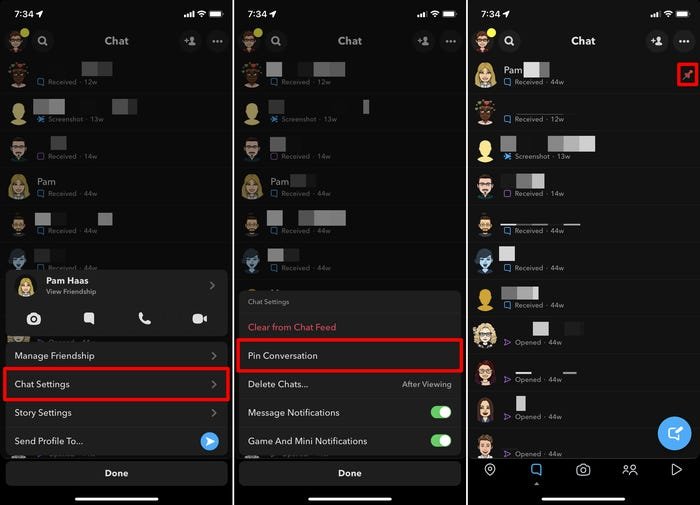
After you follow these steps, your conversation with the person will be pinned and will be visible at the top of the chat list.
Note: Snapchat allows you to pin only three chats at a time.
How to Unpin Someone on Snapchat?
Sometimes, it happens that you want to unpin some pinned chats because they are no longer important to you. Moreover, due to the limitation of pinning only three chats at a time, you want to unpin some of them. To do so, follow these easy steps:
- Long press the pinned person who you want to unpin on your Snapchat screen
- A pop-up menu will appear. Choose “More”
- Among the other options, tap on “Unpin Conversation”
Your chat will now be unpinned and placed within the rest of your Snapchat messages, where they will be sorted by date. You can repeat the same process to unpin any other conversation that you want to unpin.
How to Customize Pin Icon on Snapchat?
For all the customizing freaks, Snapchat gives the option to customize your pinned icon using various emojis or emoticons. Here is how to do so:
- Open your Snapchat profile and tap the Settings icon in the top-right corner of the screen
- Scroll down through the options and tap “Manage”
- Tap “Friend Emojis”
- Now click on “Pinned Conversation”
- A whole list of emojis will appear, from which you can choose the one to replace the default pin icon with. If you select the emoji appropriately, a subtle gray box will appear. You do not need to click on “Save” or “Confirm Changes”
- Keep on tapping the Back arrow in the top-left corner of the screen until the Settings menus are entirely closed
As soon as you follow these steps, you will see your new pinned icon within the app.
Can you Pin People on Snapchat Android?
As stated before, the feature of pinning your conversations to the top on Snapchat is only available for iPhone users. In August 2022, however, some Snapchatters with Snapchat Plus Subscription reported that the pinning feature was available on their Android devices.
Although it is clear that the feature is available on iOS devices, we are still uncertain whether the developers plan to extend the ability to pin people on all Android users in the future. For now, if you have an Android device, you can only pin your chats on Snapchat if you have an SC Plus account.
Conclusion
Do you have some really important chats on Snapchat that you always want to keep on top of your chat list? The pinning feature is definitely for you. The feature allows you to get rid of scrolling through many conversations and makes your favorite chats appear at the top.
We hope this guide has made you clear about the Snapchat pinning feature and provided you with some quick steps on how to pin someone on Snapchat. So, pin your special chats now and enjoy Snapchatting!
For more exciting blogs, stay tuned to Qnnit.