One of the most basic things a phone can do is to make or receive calls, connecting you with your family or people you love but sometimes it doesn’t cooperate.
Ever experienced the situation of having an Android phone that for some reason refuses to make calls while allowing you to send texts only? No matter what numbers you’re trying, you never hear your phone around. This could be frustrating.
Don’t worry, though! This guide will help you to get your Android talking again. Let’s understand the problem first.
Why my Android Phone is not making calls but can text?
There are several reasons why your Android phone might be able to text but not make calls. Here are some common ones:
1.Network issues
Weak Signal:
If you’re in a low-signal area, your phone may not be able to establish a strong enough connection to make a call, while still managing data for texting.
SIM Card Issues:
A damaged or improperly inserted SIM card may affect the phone’s ability to establish a call connection.
Carrier Service Issues:
There could be temporary outages or technical problems with your network provider that are affecting call functionality.
2.Phone Settings
Airplane Mode:
This mode disables all wireless connections, including cellular data, which is needed for calls. Make sure the Airplane mode is off.
Do Not Disturb Mode:
This mode can silence calls. Check if the “Do Not Disturb Mode” is off or if it’s set to allow calls from specific contacts.
Blocked Contacts:
Check if the contacts you are trying to call have been accidentally blocked on your device.
3.Software Issues
Software Glitches:
Software bugs or glitches in the operating system may interfere with the phone’s call functions. Running an outdated version of the Android operating system can lead to compatibility issues and impact the phone’s overall performance.
Third-Party App Interference:
Certain third-party apps might conflict with the phone’s calling features, causing disruptions.
How to Fix Android Phone Not Making Calls but Can Text Issue?
Here are a few important methods that help you troubleshoot and resolve the Android phone not making calls but can text issues.
Method 1: Reset Network Connectivity
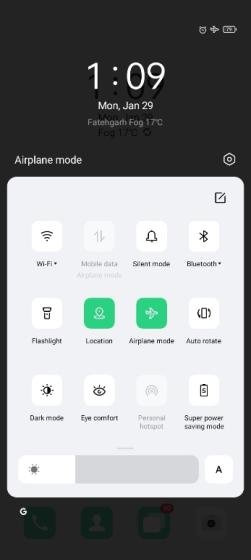
The first thing you can do is reset network connections on your Android. You can temporarily enable the Airplane mode and disable it after a couple of seconds. Here’s how you can do that on your Android.
Step 1: Swipe down from the top of your Android phone home screen.
Step 2: Expand the quick toggles menu.
Step 3: Enable the Airplane mode for a couple of seconds and disable it.
Step 4: Try making calls to see if the issue is resolved.
Method 2: Check Issues with Your Local Carrier
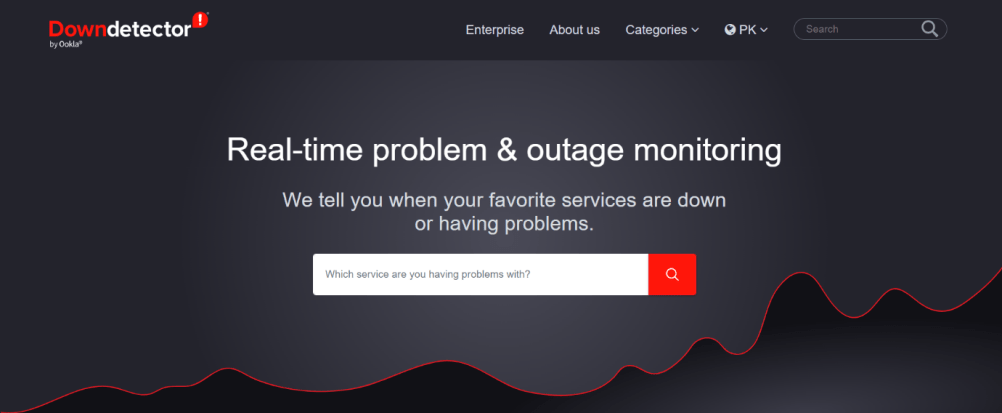
When your local carrier faces server-side issues, you can’t make or receive calls on your Android phone. You can visit downdetector and search for your local carrier. When others face the same issue, you shall notice high outage graphs and user comments confirming the problem. You have no option but to wait for your carrier to fix the problem.
Step 1: Visit Downdetector.
Step 2: Search for your local carrier.
Step 3: Check outage graphs and user comments.
Step 4: Wait for your carrier to resolve the problem.
Method 3: Reinsert SIM Card
You can temporarily remove the SIM card from your Android for a minute and insert it again. Grab a SIM ejector tool (that comes with your phone’s retail box) and remove the SIM card. Reinsert the card properly, let your phone latch on the network and try making some calls.
Step 1: Use a SIM ejector tool to remove the SIM card.
Step 2: Reinsert the SIM card properly.
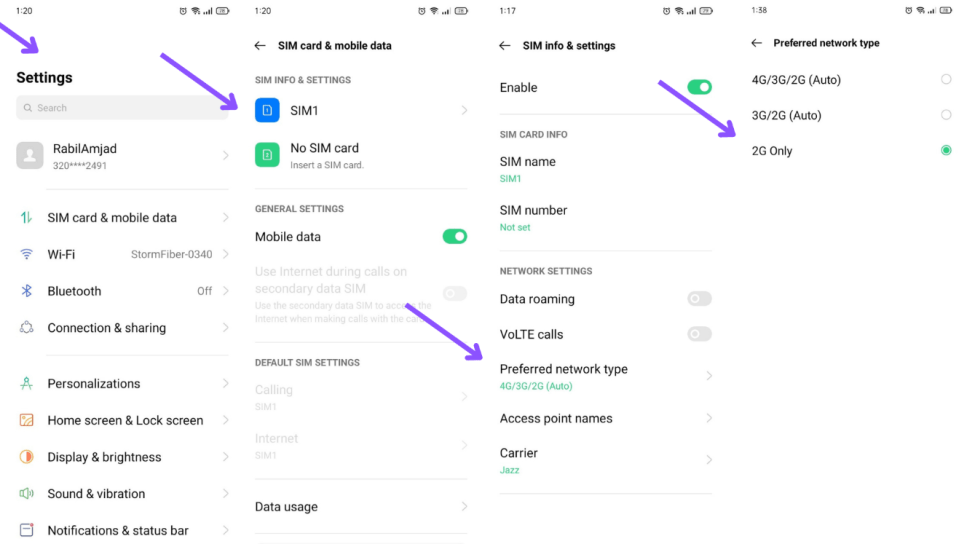
Method 4: Change Your Preferred Network Type
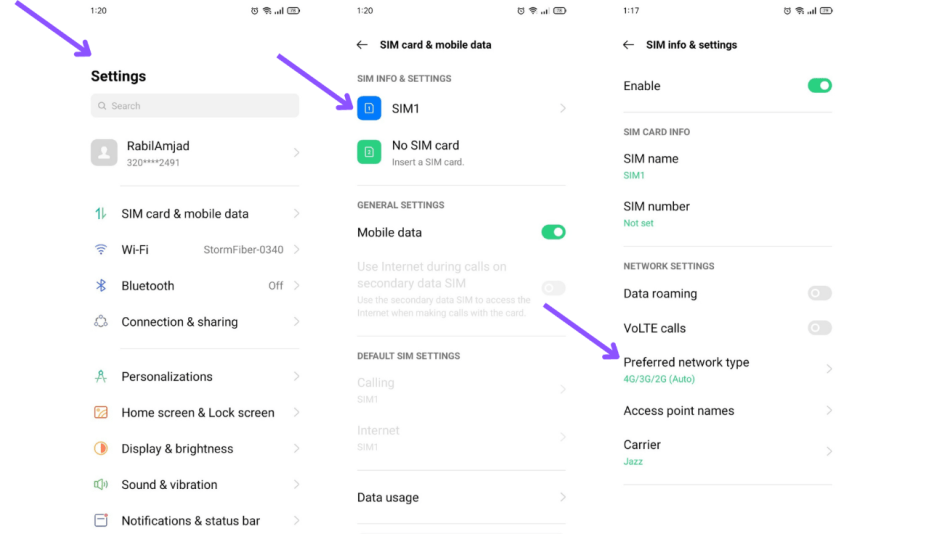
In challenging locations like hills or tunnels, you can change the preferred network type on your phone from 5G or LTE (4G) to 3G for a reliable network connection. Although 3G doesn’t deliver fast internet speeds, it’s more reliable than LTE to make or receive calls in tricky areas.
Step 1: Swipe up from the Android phone’s home screen.
Step 2: Open Settings (with a familiar gear icon).
Step 3: Select Network & internet.
Step 4: Tap your preferred SIM.
Step 5: Select “Preferred network type.”
Step 6: Tap the radio button beside 3G.
Step 7: Wait for some time to let your phone detect a network connection and start making calls.
Method 5: Reactivate SIM Card
Chances are, you have been using the Google RCS platform to send or receive messages on your Android phone. To enable calls and messages over your local carrier, you can reactivate the SIM card on your Android phone.
Step 1: Open your preferred SIM in Settings (refer to the steps above).
Step 2: Disable the Use SIM toggle and enable it again after a minute or two.
Method 6: Enable Allow 2G
While 2G is less powerful (in terms of data connectivity), it may improve cellular connectivity in remote locations.
Step 1: Open SIM details in Android Settings.
Step 2: Scroll down and enable Allow 2G toggle.
Method 7: Reset Wi-Fi, Mobile, and Bluetooth
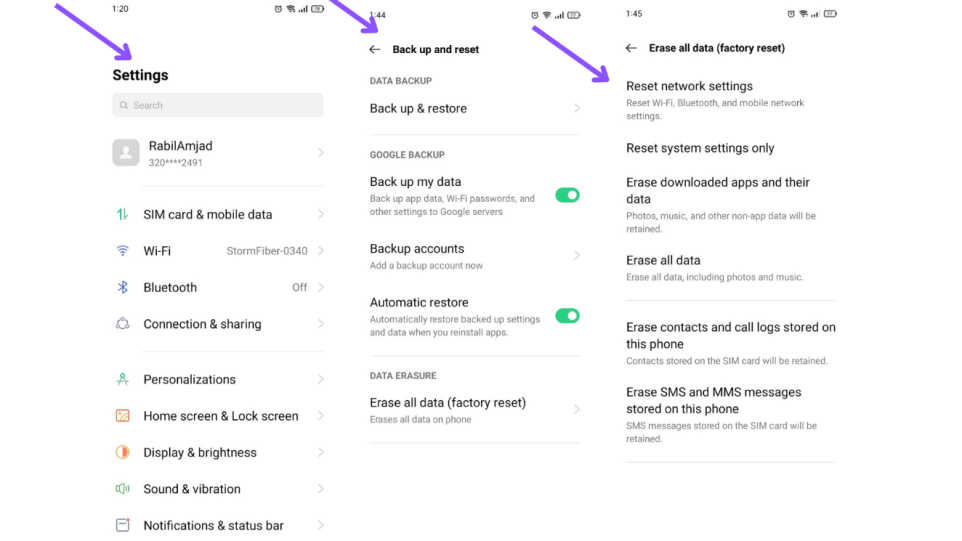
If your Android phone is still not making or receiving calls but can text, it’s time to reset the network connection.
Step 1: Open Settings on your Android.
Step 2: Select System and tap Reset options.
Step 3: Tap ‘Reset Wi-Fi, mobile & Bluetooth.’
Step 4: Confirm your decision from the following menu.
Method 8: Clear Phone App Cache
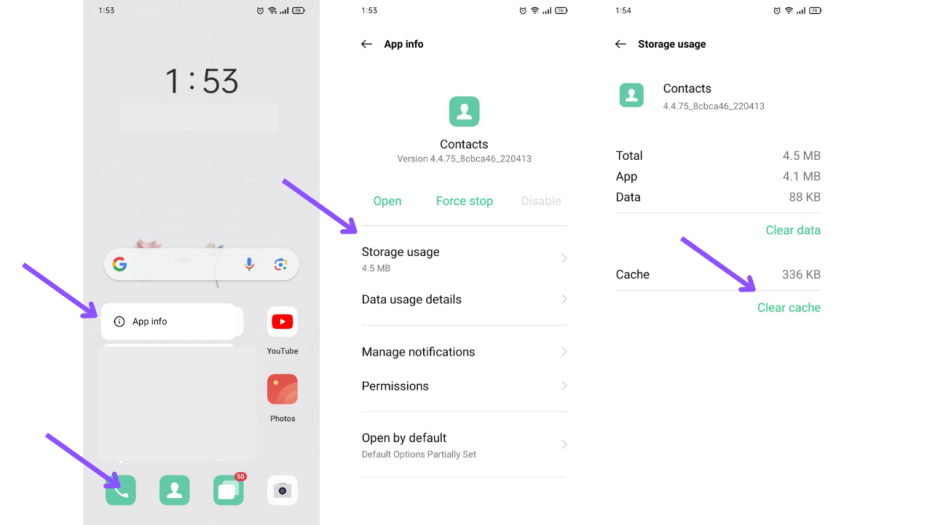
Due to a corrupt Phone app cache, you may face issues with making or receiving calls on your Android phone.
Step 1: Long-tap on the Phone app icon and open the info menu.
Step 2: Open Storage & cache and tap Clear Cache from the following menu.
Method 9: Update Android Security Patch
Android phone not making calls but can text bug might be due to an outdated OS build or security patch.
Step 1: Open System in Android Settings.
Step 2: Tap System Update and install any pending OS build.
Method 10: Move to Instant Messaging Apps
You can always move to instant messaging apps like WhatsApp, Telegram, or Signal to compose calls over the internet. But it’s not convenient all the time.
Step 1: Install and set up an instant messaging app.
Step 2: Use the app for calls over the internet.
If you’ve tried these steps and your phone still isn’t making calls, it’s best to consult a repair professional or your network provider for further diagnosis and potential repair.
Conclusion
In conclusion, if your Android phone is limited to texting and won’t make calls, these steps can help you troubleshoot and resolve the issue. Check your network, disable Airplane Mode, ensure your SIM card is correctly placed, and restart your phone. Keep your software updated, clear app data and cache, and restart network settings. If issues persist, consult your devices or contact your network service provider. Consider alternatives like third-party chat apps or a soft reset to restore call functionality.
For more tech insights, visit https://qnnit.com
Frequently Asked Questions FAQs
Q: How can I prevent my Android phone from not making calls but being able to text?
A: To prevent your Android phone from not making calls but being able to text, you can keep your phone updated with the latest software updates and security patches. You can also contact your local carrier or the manufacturer of your Android phone for further assistance if the problem persists.
Q: What should I do if my Android phone is in a low-signal area?
A: In areas with weak signals, switch your preferred network type to 3G for a more reliable connection. You can also reinsert the SIM card or temporarily enable 2G to improve cellular connectivity.
Q: Should I perform a soft reset if none of the other troubleshooting steps work?
A: Yes, a soft reset can help resolve temporary software problems. Depending on your phone model, press and hold specific buttons (like power and volume down) until the device restarts.
Q: What alternative methods can I use for calls over the internet apart from popular messaging apps?
A: Apart from popular messaging apps like WhatsApp and Telegram, consider exploring other VoIP (Voice over Internet Protocol) apps available in app stores for making internet-based calls.
Q: How can I reach out to a repair professional for my Android phone?
A: Contact your phone’s manufacturer for guidance on reaching repair professionals. Additionally, many manufacturers provide authorized service centers where you can seek assistance.