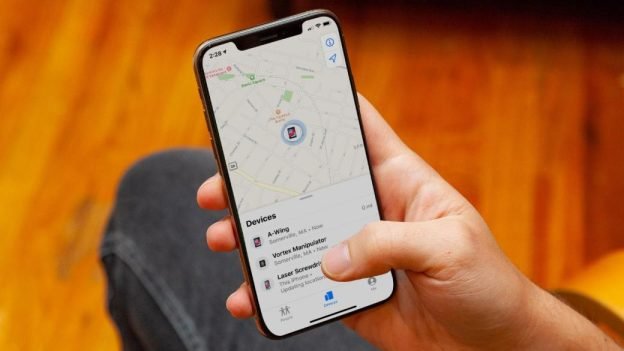
The share my location feature of the iPhone is quite impressive as it helps out people to keep track of each other’s locations. Moreover, this feature lets you easily check out how far the person is and have a keen eye on where the person is going.
However, there comes a time when you face some errors or issues while checking the location. You can encounter issues such as location not available or no location found on Find My iPhone apps. So, if you are eager to know why it is happening to you, then read this blog till the end to learn what does no location found mean on iPhone or how to fix no location found on iPhone.
What does No Location Found Mean on iPhone?
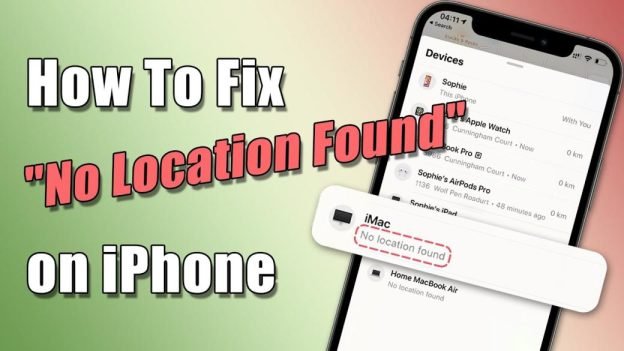
No Location Found Meaning is that the location services are not functioning properly or have technical errors in the location sharing feature. Moreover, the issue may arise due to poor internet connection, low battery, etc.
The other reason is that either the other person might have stopped sharing their location with you or even removed you from their share list. Or, the device you are looking for maybe have location services disabled, or maybe it is without serviced completely.
What does Location Not Available Mean on iPhone?
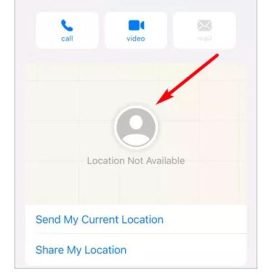
Location Not Found Means that the person has stopped their location with you, which simply means that the person has gone to his/her find my app and then stopped sharing their location. Therefore, you will start to see the message stating Location Not Found.
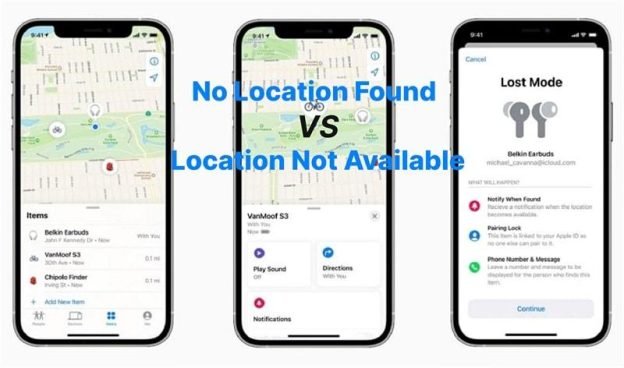
Differences Between “No Location Found” and “Location Not Available”
To better understand about what is the difference between No Location Found and Location not Available, then read the differences with full consideration,
11 Reasons Why No Location Found Happens
Below are the 11 reasons why the no location found error occurs:
1: GPS is Off
It is worth mentioning that the share location feature requires GPS in order to track and locate your friends on your iPhone. So, if the GPS is off, the app will obviously be ineffective.
2: Phone is Off
The no location found error will occur if your phone is off or your phone’s battery has died completely.
3: You Might Have Activated Airplane Mode
By turning on the airplane mode on your iPhone, your internet connection will be off. This is the other reason you are unable to trace the location, and you end up with no location found.
4: Logged Out of iCloud
Logging out of iCloud is yet another reason you end up with no location found, and the location will not be transmitted to your device.
5: Problem with the System
The iPhone’s internal problems can also cause the issue of no location found.
6: The Account no Longer Exists
If you and your friend switch to another phone like Android, then Find My iPhone, Find My Friends, and share location on iPhone will be unreachable.
7: Incorrect Date and Time
The incorrect time and date are yet another reason why no location-found errors happen and can cause the issue. This issue further prevents others from finding you on the map, and you also cannot find others on the map. So, make sure to fix the date and time issue to sort out the issue of no location found.
8: iPhone is Not Connected to the Internet
Sometimes sit also happens that due to an internet issue, you are unable to find out others, or due to the same internet issue, the other person is also unable to find you on the map. So, always make sure to have a solid and stable internet connection to get the support of the location so that you should easily track the location.
9: Poor or No Signal
Poor internet connection and no signal are the major reasons that can easily cause the no location found issue. Your friend might be in a place where the signal might not work properly. So, make sure to have a stable internet connection and where the signal is also stable.
10: Location Sharing was Stopped
Suppose you figure out that the location sharing was stopped suddenly when it was working. So, the reason might be either you or your friend went to the settings and then disabled the location-sharing option. Disabling the location sharing stops the service from working properly. So, if you want the location sharing to work properly, then go to the settings again and turn on location services.
11: Failure to Sign in to “Find My Friends”
The other reason why the no location found error occurs is the failure to sign in to Find My Friends. The reason can be either signal issue or you are not signed in with your Apple ID or the background app refresh is disabled. So, make sure to sort out all these problems before trying again.
How to Fix No Location Found on iPhone? (9 Easy Ways)
1: Connect to Wifi, Hotspot Network, or Mobile Data
If you want to fix the no location or find an error in your iPhone, make sure to be connected to the Wifi, hotspot, and even m mobile map because a stable internet connection can help you to share your location with others or even get the location of others.
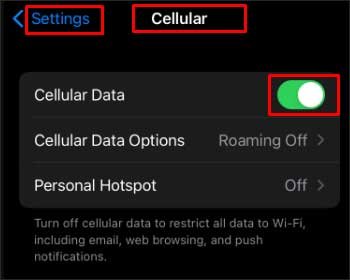
Below are the steps to turn on Cellular Data on iPhone:
Step 1: In your iPhone, go to the Setting.
Step 2: Now, select Cellular and turn on Cellular Data.
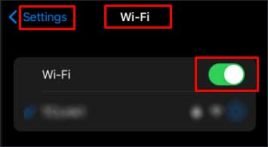
Below are the steps to turn on Wifi on your iPhone:
Step 1: In your iPhone, go to the Setting.
Step 2: Now, click on Wifi.
Step 3: Lastly, switch on the button next to Wifi and connect with an SSID.
2: Enable Location Services
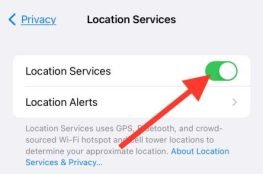
It is worth mentioning that if the location service is off, then you will not be able to detect the location. Therefore, you must enable the location services. Below are the steps to enable location services on iPhone:
Step 1: In your iPhone, go to the Setting.
Step 2: Now, scroll down and click on Privacy and select Location services.
Step 3: Lastly, make sure to turn on the location services.
3: Turn on Precise Location
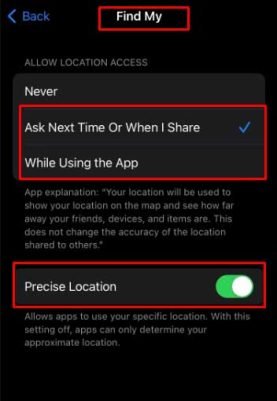
Make sure to turn on the precise location to eliminate the no location found issue. So, below are the steps to turn on a precise location on iPhone:
Step 1: In your iPhone, go to the Setting.
Step 2: Now, scroll down and click on Privacy and select Location services.
Step 3: Next, scroll down a bit and click on Find My.
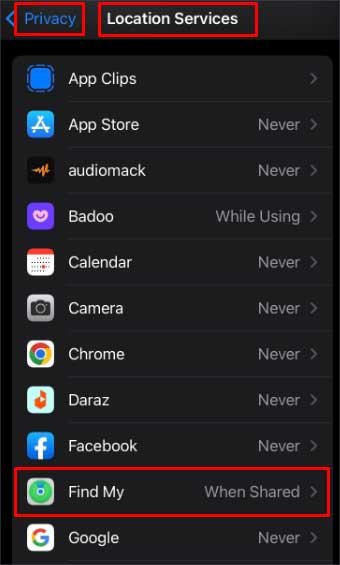
Step 4: Make sure the blue tick which is under Allow Location Access is next to ‘Ask Next Time or When I Share ‘or ‘While Using the App.’
Step 5: Now, turn on the precise location.
4: Turn Off Airplane Mode
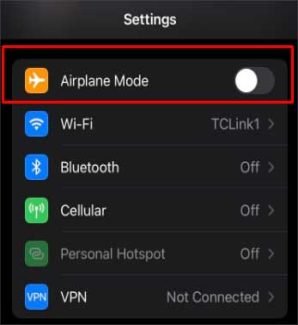
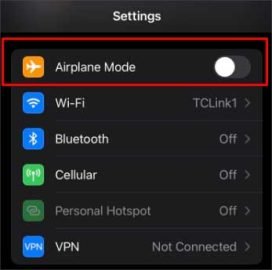
As mentioned before, if you turn on airplane mode on your iPhone, you might encounter a no location found issue because there is no internet at all, as airplane mode turns everything off. Below are the steps to turn off airplane mode on your iPhone:
Step 1: In your iPhone, go to the Setting.
Step 2: Go to the Airplane Mode and turn it off.
5: Turn on Find My and Share My Location Options
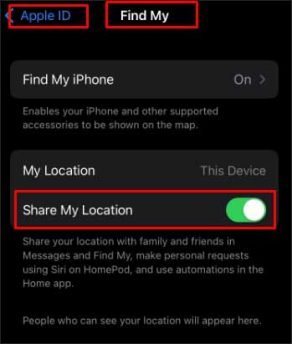
The other important way to fix the no location found issue is to turn on Find My and share my location. Below are the steps to turn on Find My and Share My Location:
Step 1: In your iPhone, go to the Setting.
Step 2: Now, choose the Apple ID and then select Find My.
Step 3: Make sure to turn on the Share My Location option.
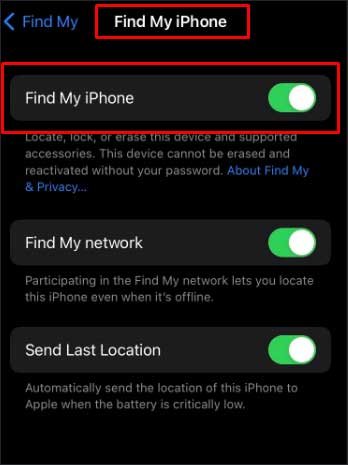
Step 4: Next, click on Find My iPhone and turn on the button next to Find My iPhone.
6: Reset Location and Privacy Option
If you are still struggling with the issue, then you better reset the location and Privacy, This way will revert the location and privacy settings to default, and apps will need permission to access the location. Below are the steps to reset the location and privacy option:
Step 1: In your iPhone, go to the Setting.
Step 2: Now, select the general option and then choose reset.
Step 3: Next, press the reset location and privacy.
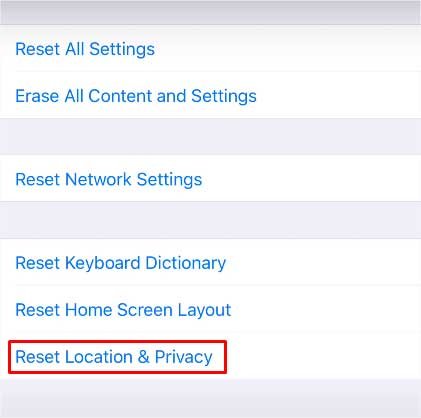
Step 4: A prompt will appear and will ask you to enter your passcode.
Step 5: Lastly, press the reset settings option.

7: Update your iOS Version
Bringing back your device with the latest updates is the best thing for you. So, make sure to update your iOS version. The benefit of the updated version is that it can clear out bugs and software glitches from your phone. Below are the steps to update your iOS version:
Step 1: Go to the Setting and select the General option.
Step 2: Now, click on Software Update.
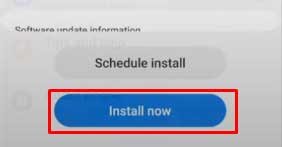
Step 3: Make sure to press Download and Install. Once you do it, then it will ask you to enter the password. So, type the password and choose Install Now.
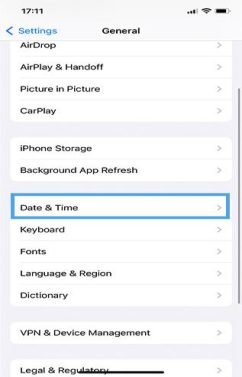
8: Set the Correct Date and Time
Make sure to have the correct date and time on your device. Below are the steps to set the current date and time on iPhone:
Step 1: Go to the Setting and select the General option.
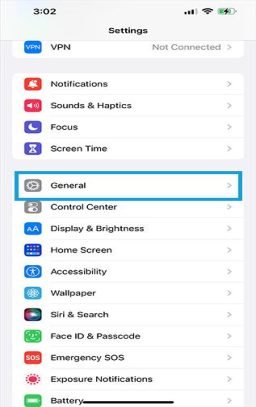
Step 2: Now, click on Date and Time from the general section.
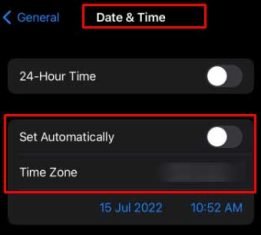
Step 3: Make sure to turn off the Set Automatically option.
Step 4: Lastly, choose the time zone, type your city name, and then choose it.
9: Confirm the GPS is On and Working
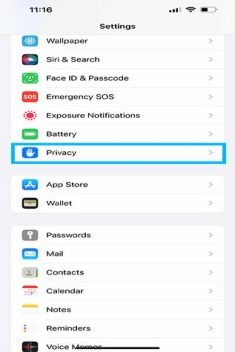
Always try to keep the GPS on when you need it. Below are the steps to confirm the GPS is on and working:
Step 1: Go to the Setting and select the Privacy option.
Step 2: Click on Location Service and then turn it on.
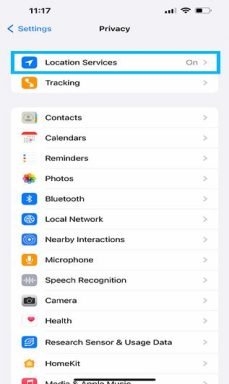
If you want to share your location with someone in Find My App, then make sure to turn on location. After turning on the location, you will be able to start sharing the location and request for location from your friend or family member,
Below are the 4 steps to share location with someone in Find My App:
Step 1: First, open Find My App and choose the People tab from the bottom.
Step 2: Now, click on the Start Sharing Location button.
Step 3: Select a person you want to share your location with.
Step 4: Select the duration you want to share the location for.
Below are the 4 steps on how others can share their location with you in Find My App:
Step 1: First, open Find My App and choose the People option.
Step 2: Now, select the person with whom you want to share your location.
Step 3: Next, just scroll down a bit and select the Ask to Follow Location button.
Step 4: Lastly, the other person will then get a notification with permission. So, the person can either accept it or reject it.
Frequently Asked Questions (FAQS)
Below are the FAQs about what does no location found mean on iPhone:
Q1: Does no location found mean contacts stopped sharing?
Ans: No Location Found Means that the location services are not functioning properly or have technical errors in the location sharing feature. Furthermore, the issue may arise due to poor internet connection, low battery, etc.
Q2: What is the difference between No Location Found and No Location Available?
Ans: Location Not Available means that the Find My App is on but failed to update locations. Whereas, No Location Found means that either the phone or the location service is off.
Q3: What does No Location Found Mean on Find iPhone?
Ans: No Location Found Mean that the location services are not working well or have technical errors in the location sharing
Q4: What does Location Not Available Mean on Find iPhone?
Ans: Location Not Found simply Means that the person has stopped their location with you by going to his/her find my app and then stops sharing their location. So, you will start to see the message stating Location Not Found.
Conclusion
Through the share my location feature of the iPhone, you can easily track each other’s locations and help each other in case you forget your location. Moreover, this feature lets you easily check out how far the person is, and you can help them to reach the location where they want to go or come. So, make sure to read this blog to get help with the ways mentioned in this blog. You can use these ways at any time you need them.
So, stay tuned with us at Qnnit for more informative blogs. To learn more about iPhone and its latest features, read these blogs: What does the Arrow Next to the Time on Your iPhone Mean?, How to Get wifi Password from iPhone, and How To Change Alarm Sound/Volume On iPhone 13/12?.