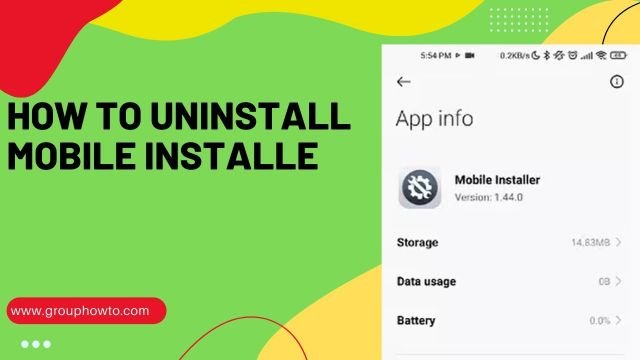

Mobile Installer: If you are looking to know what is Mobile Installer on Android then it is vital to mention that it is an app pre-installed on many Android devices, including Samsung. Although it does not play a direct role in your daily mobile usage, it is crucial for keeping certain system apps up-to-date.
This article will explain in-depth what this app does, its benefits, and how to manage it on your device. Read the blog to get yourself updated about What is a mobile installer Android app in depth and How to Uninstall Mobile Installer on Android?
What is Mobile Installer?
Mobile Installer App: If you are wondering what is Mobile Installer App then it is worth mentioning that it is an Android system application that is pre-installed on some devices. It is responsible for installing and updating various applications from the device manufacturer or carrier. It works in the background and does not require any user interaction.
The goal of the Mobile Installer app is to act as a link for downloading bloatware and other carrier applications in the background. Furthermore, when Mobile Installer wants to install an app on the device, you will get a ‘Processing Request’ notification that you cannot dismiss. It is vital to mention that the app does not harm your device or steal your private data.
So, through the Mobile Installer app, you can discover many new applications. However, despite amazing features, this application has some disadvantages. One of the drawbacks is that Mobile Installer installs the apps without the user’s permission. Consequently, there will be a lot of bloatware on your device, and they take the space in the memory.

Why is the Mobile Installer on my Android Phone, Including Samsung Devices?
The Mobile Installer app comes pre-installed on some Android devices, especially those from Samsung and those using SoftBank Corp networks. Its primary role is managing system-level apps, ensuring they are up-to-date and functioning properly.

How does Mobile Installer Work on Android?
Mobile Installer is a wonderful application for Android devices that allows you to install and manage apps. So, suppose you are thinking about what is Mobile Installer used for. In that case, you will be glad to know that the Mobile Installer app is mainly designed to simplify installing and managing Android apps for you by providing a user-friendly interface. Moreover, the features of Mobile Installer will surely amaze you.

Below are the Mobile Installer features that make it an essential tool for Android users:
What are the Benefits of Using the Mobile Installer App? (9 Top Benefits)
Below are the 9 advantages of using Mobile Installer app:
Can you Uninstall Mobile Installer App?
It is unfortunate to say that you cannot uninstall the Mobile Installer app as you uninstall and disable other apps that are installed from Google Play Store. Moreover, Mobile Installer might appear whenever there is an update on the device. So, you better not delete this app because some functionalities of phones require third-party applications for sustenance.

So, if you delete the Mobile Installer app, then it can affect the standard process of the phone. However, if you still want to uninstall the Mobile Installer app, then the easy way is to use ADB or some other software such as NoBloat in order to uninstall the app. Some kinds of software can root the device and permanently remove the application. Therefore, it would be better for you to use ADB in order to uninstall Mobile Installer app since it does not root the phone.
How to Uninstall Mobile Installer App Using NoBloat Free Software? (10 Easy Steps)
You can uninstall the Mobile Installer app using the NoBloat Free Software. So, make sure to review the permissions you granted the app earlier, then decide whether to keep or discard them.
Below are the steps to Uninstall Mobile Installer App Using NoBloat Free Software:
Step 1: First, go to the Play Store and then search for the NoBloat Free application and then download it.
Step 2: Now, review the permission requests on the mobile screen and then grant them as required.
Step 3: Next, click on ‘Accept’ in order to finish the process.
Step 4: Make sure to open the NoBloat Free app on your Samsung device.
Step 5: Granting a “Super User request’ appears, and now confirm it by clicking on ‘Grant.’
Step 6: You will get access to 4 options on the NoBloat Free app’s home screen after clicking Grant. The options are Backup and Delete and Delete without Backup.
Step 7: Now, make sure to click on ‘System Apps’ in the app and then choose the Mobile Installer app from the list of apps that appears.
Step 8: Next, click the two options above in order to choose it.
Step 9: If you want to restore Mobile Installer, you can do it using the Backup and Delete options. So, remember that the Delete without Backup option permanently deletes the item without making a backup, preventing future retrieval.
Step 10: Lastly, make sure to verify your choice to remove/uninstall the Mobile Installer from your device permanently.
How to Uninstall Mobile Installer App Using ADB? (12 Easy Steps)

Below are the steps to Uninstall Mobile Installer App Using ADB:
Step 1: In order to uninstall the Mobile Installer app, make sure to download the USB drivers that are compatible with your device.
Step 2: Now, you better install the corresponding ADB binary as per your computer’s OS. Usually, ADB is installed as a zip file. You can extract the zip file to access it easily.
Step 3: Next, go to the settings and then click on the About Phone option, figure out the build number, and keep tapping on it until you can access ‘Developer Options.
Step 4: After that, you will see the ‘USB Debugging‘ option. So, click on it. Secondly, click on ‘Enable.’
Step 5: Make sure to connect the mobile phone to the computer and then set it to ‘File Transfer mode.
Step 6: Now, go to the ADB binary folder.
Step 7: Next, locate ‘Command Prompt‘ in order to launch it on the folder. To do that, you must press the ‘Shift’ key. At the same time, you have to right-click and then choose the ‘Open command prompt option.
Step 8: Now, ADB devices must be typed on the command prompt. So, in case this is your first time, then you better should allow the action to complete.
Step 9: After you run the command then, the device’s serial number will be shown. So, make sure to type ADB shell.
Step 10: Next, locate this option to run – ‘pm list packages ǀ grep <OEM/Carrier/App Name>.’
Step 11: Now that you run the option, then the package names of system apps can be found. So, you are required to find the relevant package of Mobile Installer in order to uninstall it.
Step 12: To delete the app, you must run this command – ‘pm uninstall -k -user 0 <name of package>.
Can you Uninstall or Disable Mobile Installer? Is it Safe to Do So? (5 Easy Methods)
While you technically can uninstall or disable Mobile Installer, it is generally not recommended unless you are experiencing specific issues with it. Disabling or uninstalling it could prevent system apps from receiving necessary updates. However, if you still want to proceed, then follow the below methods to Uninstall or Disable Mobile Installer:
Method 1: Disabling Mobile Installer Using the Debloater Tool
Below are the steps to disable Mobile Installer using the Debloater Tool:
Step 1: In order to disable Mobile Installer, make sure to download and install the Debloater Tool on your PC.
Step 2: Now, just enable USB Debugging on your Android device by going to Settings in your device then. Then go to the About phone option and then click on ‘Build number7 times and then go back and go to the Developer options and then enable USB Debugging.
Step 3: Next, just connect your Android device to your PC by using a USB cable.
Step 4: Make sure to open Debloater, and it will automatically detect your device and show a list of all installed apps.
Step 5: Locate the Mobile Installer from the list, select it, and click on Apply to disable it.
Method 2: Removing Mobile Installer Using Root on your Device
Below are the steps to remove Mobile Installer using Root on Your Device:
Step 1: Root your device using an appropriate method. Note: This step is complex and carries the risks of bricking your device.
Step 2: Download and install a System App Remover from the Google Play Store.
Step 3: Launch the app and grant root permissions.
Step 4: Select the Mobile Installer app and tap on ‘Uninstall’ to remove it.
Method 3: Removing Mobile Installer Using ADB
Below are the steps to remove Mobile Installer using ADB:
Step 4: Download and install the ADB on your PC.
Step 4: Enable USB Debugging on your Android device (Steps as in Method 1).
Step 4: Connect your Android device to your PC using a USB cable.
Step 4: Open a command prompt or terminal and type ADB devices to ensure your device is properly connected.
Step 4: If your device is listed, type ADB shell pm uninstall -k –user 0 com. Softbank. Installer to uninstall the Mobile Installer app.
Method 4: Disabling Mobile Installer from Android Settings
Below are the steps to disable Mobile Installer from Android Settings:
Step 4: Open the Settings app on your Android device.
Step 4: Navigate to ‘Applications’ or ‘Apps’.
Step 4: Locate the Mobile Installer app in the list and tap on it.
Step 4: Tap on ‘Disable’ or ‘Force Stop’ to stop the app from operating. Note: This doesn’t completely remove the app but disables it.
Method 5: Using a Third-Party App
Below are the steps to disable Mobile Installer Using a Third-Party App:
Step 4: Download and install a third-party app like “Package Disabler Pro” from the Google Play Store.
Step 4: Launch the app and then grant the required permissions.
Step 4: Locate the Mobile Installer from the list of system apps.
Step 4: Select the Mobile Installer app and tap on ‘Disable’ to disable it.
Note: Please remember that any change you make to system applications could affect the functionality of your device. Always proceed with caution and make sure you know what you’re doing. If in doubt, seek professional advice.
Frequently Asked Questions (FAQs)
Below are the FAQs about what is mobile installer Android app and how to uninstall it:
Q1: What is Mobile Installer on Android?
Ans: Mobile Installer is a system app that manages updates for other system applications on your Android device.
Q2: Is Mobile Installer spyware?
Ans: No, Mobile Installer is not spyware. It’s a legitimate system app that comes pre-installed on some Android devices.
Q3: Can I uninstall Mobile Installer?
Ans: While it’s possible to uninstall Mobile Installer, it’s generally not recommended as it could prevent system apps from receiving necessary updates.
Q4: Is Mobile Installer safe?
Ans: Yes, Mobile Installer is safe. It’s a legitimate system app from your device manufacturer or carrier.
Q5: What does Mobile Installer do?
Ans: Mobile Installer works in the background to check for, download, and install updates for certain system-level apps on your Android device.
Q6: Why is the mobile installer on my Samsung phone?
Ans: It is worth mentioning that the Samsung Corporation installed the Mobile Installer app on a Samsung phone in order to make it easier to install apps, especially ones the user has not authorized. Moreover, you might also find apps on your Android phone that you did not install and made by the mobile installer.
Q7: Is Mobile Installer Safe?
Ans: Yes, the Mobile Installer app is safe. It’s not spyware or malicious app but a system application that comes pre-installed from your device manufacturer or carrier.
Q8: How Does Mobile Installer Work on Android?
Ans: Mobile Installer works in the background of your Android device. It periodically checks for updates to certain system-level apps and installs these updates automatically. It’s typically programmed to update apps when your device is connected to Wi-Fi and the battery level is above a certain threshold to ensure a smooth process.
Conclusion
The Mobile Installer Android App is an essential system app that manages updates for other system-level apps on your device. While it’s generally safe and beneficial to leave it enabled, there are methods to disable or uninstall it if necessary. Remember to consider the potential consequences of doing so and always back up your data before making any significant changes to your device.