Ever been scrolling through cat videos, only to have your screen flash red notifying “SOS Only”? And then kept wondering if you’ve mistakenly enabled it?
Don’t worry, you’re not alone. Put down the panic, pick up your iPhone, and join us on this path out of “SOS Only” with quick fixes.
Let’s understand it first.
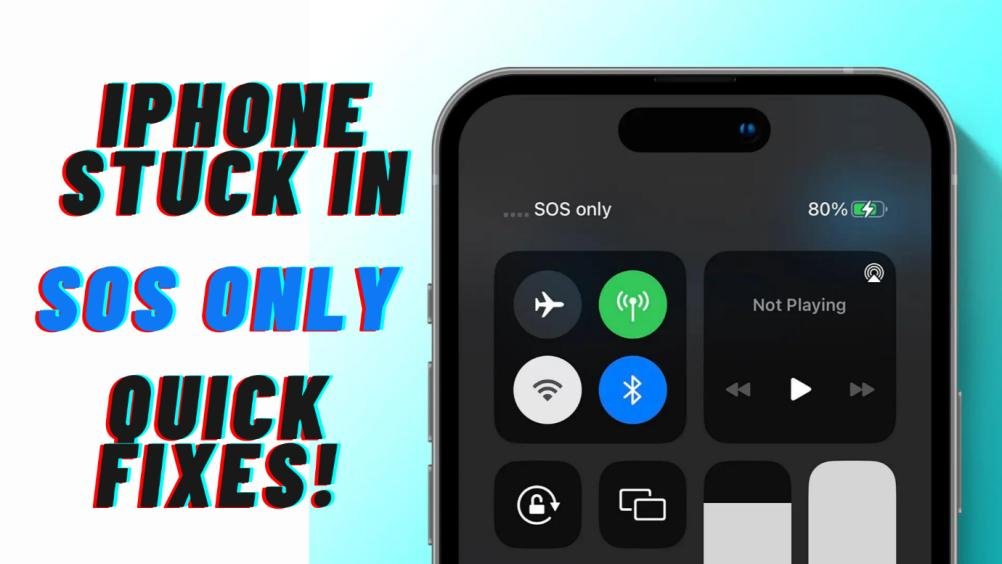
What Does “SOS Only” mean?
“SOS Only” is a message that prominently appears beside the Wi-Fi signal on your iPhone, indicating a disruption in the normal functioning of the cellular network. This issue restricts your ability to engage in regular communication, rendering you unable to text your loved ones or make and receive standard calls.
Instead, the iPhone limits you to emergency calls or texts, allowing communication only with essential services such as the police, rescue teams, coastguard, or ambulance.
Moreover, the “SOS Only” condition also means a temporary loss of data connectivity. This means the unavailability of the internet for tasks like browsing or accessing online services but you can still use Wi-Fi to access the internet.
Regional variations in “SOS Only” functionality?
It’s crucial to note that the “SOS Only” feature is specific to users in the
- United States
- Canada
- Australia
If you happen to reside elsewhere, you might observe a different error message, such as “No Service” or “Searching,” displayed in your status bar.
Why does the iPhone display “SOS Only”?
The appearance of “SOS Only” on an iPhone is an indication that the device is facing issues with its cellular network connectivity. There are several reasons why an iPhone might display this message, and understanding these factors can help users troubleshoot the problem. Here are some common reasons why the iPhone may show “SOS Only”:
1. Poor Cellular Signal Strength:
- In areas with weak or no cellular signal, the iPhone may switch to emergency mode, displaying “SOS Only.” This often happens in remote or low-coverage areas.
2. SIM Card Issues:
- A loose or improperly inserted SIM card can lead to connectivity problems. If the iPhone is unable to recognize the SIM card, it may resort to emergency mode.
3. Network or Carrier Issues:
- Temporary disruptions in the cellular network or issues with the user’s carrier can trigger the “SOS Only” message. This may occur during network maintenance or unexpected outages.
4. Software Glitches:
- Bugs or glitches in the iPhone’s software can sometimes affect its ability to connect to the cellular network. This may result in the device entering emergency mode.
5. Outdated Carrier Settings:
- If the carrier settings on the iPhone are outdated, it could lead to connectivity problems. Updating the carrier settings may resolve the issue.
6. Airplane Mode Activated:
- Accidentally activating Airplane Mode turns off all wireless connections, including cellular data. If the iPhone is stuck in Airplane Mode, it may display “SOS Only.”
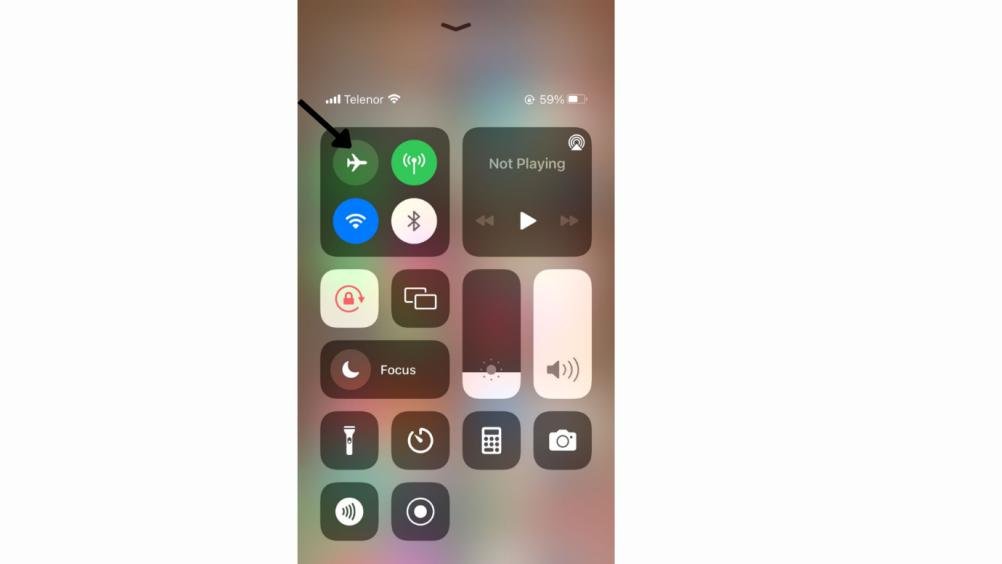
Now that we know some common causes, let’s move on to the fixes for the “SOS Only” error.
How to fix “SOS Only” on iPhone?
1. Check Network Connectivity:
- If you find yourself in an area with poor or no network coverage, the immediate solution is to relocate to a place with better connectivity.
2. Toggle Cellular Data On/Off:
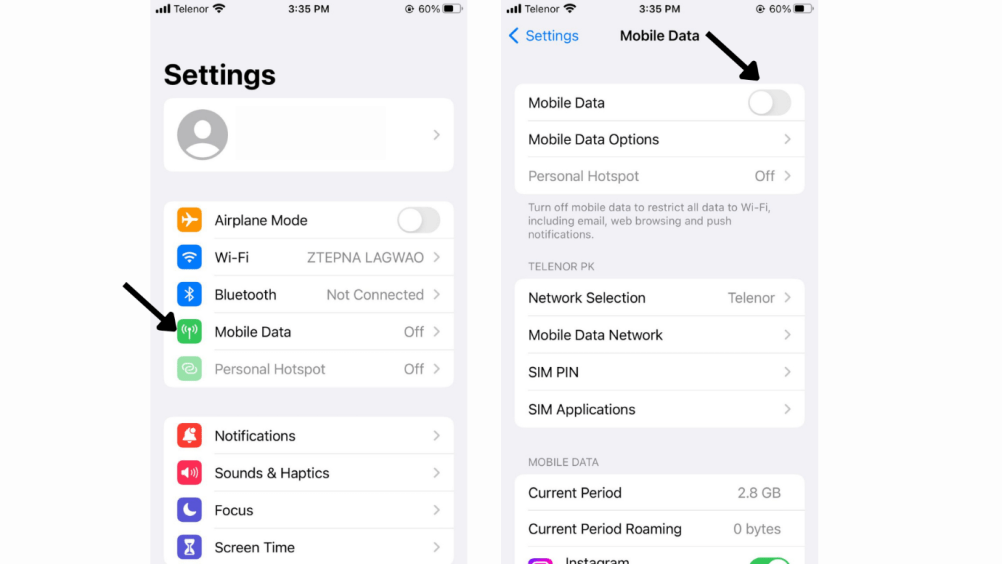
Step 1: Launch Settings and tap on Cellular/Mobile Data.
Step 2: Toggle off Cellular Data/Mobile Data.
Step 3: Wait for a few seconds, then toggle on Cellular Data/Mobile Data.
3. Enable Data Roaming:
Step 1: Navigate to Settings and tap on Cellular/Mobile Data.
Step 2: Tap Cellular Data Options/Mobile Data Options.
Step 3: Toggle on Data Roaming.
4. Switch to 4G or LTE:
- Disable 5G if available and opt for 4G or LTE to ensure stable connectivity.
Step 1: Select Voice data to turn on or off 5G.
Step 2: Choose between LTE, 5G Auto, or 5G On.
5. Restart Your iPhone:
- For Face ID: Press and hold the volume up/down and the side button until the power-off slider appears. Slide to turn off the phone.
- For Touch ID: Press and hold the side button, drag the power slider to turn off the device, and then press the power button to restart.
6. Update Carrier Settings:
Step 1: In Settings, go to General.
Step 2: Tap About.
Step 3: If an update is available, a pop-up will appear; click Update to install.
7. Disable and Enable Automatic Network Selection:
Step 1: Go to Settings → Cellular/Mobile Data.
Step 2: Select Network Selection.
Step 3: Toggle off the switch next to Automatic.
Step 4: After a few seconds, toggle it back on.
8. Re-Insert SIM Card:
- Remove the SIM card, restart your iPhone, and then re-insert the SIM. Avoid resetting the eSIM unless directed by the carrier.
9. Update iOS:
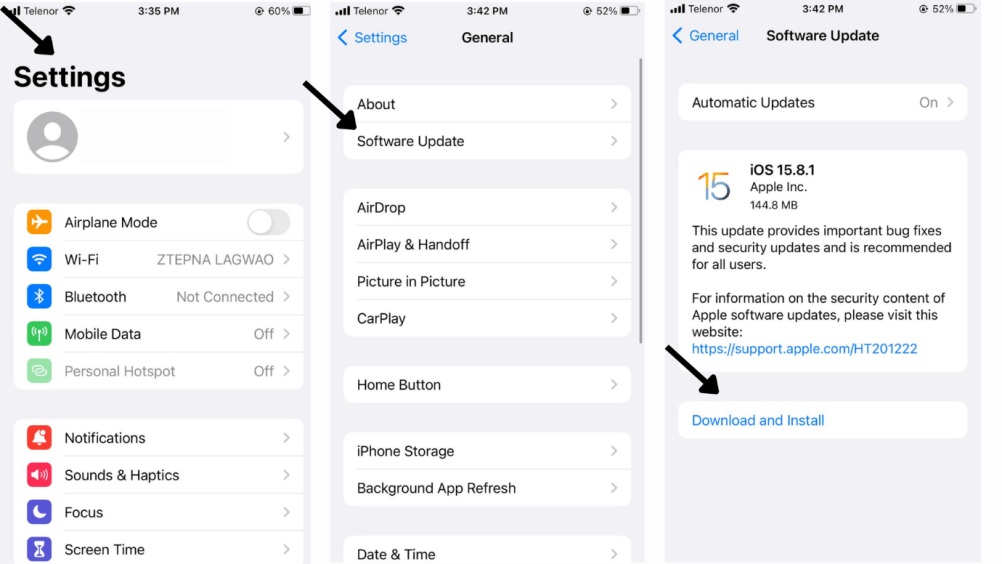
Step 1: Go to Settings and tap General.
Step 2: Select Software Update.
Step 3: If available, tap Download and Install.
10. Reset Network Settings:
Step 1: Launch Settings and go to General.
Step 2: Scroll down and select “Transfer or Reset iPhone.”
Step 3: Here, select Reset.
Step 4: Tap Reset Network Settings and enter the passcode if prompted.
Step 5: Tap Reset Network Settings again to confirm the action.
11. Contact Your Carrier:
- If the issue persists, contact your carrier for assistance. Relay the troubleshooting steps you’ve undertaken. If needed, reach out to Apple Support for further guidance.
Thank you for exploring our guide on resolving the “SOS Only” issue on your iPhone. We hope the information has helped understand and address the challenges you may have faced. If you’ve successfully resolved the issue and restored normal functionality to your iPhone, https://qnnit.com is pleased to have assisted. Feel free to reach out in the future if needed.
Frequently Asked Questions FAQs
Q: Why am I seeing “SOS Only” on my iPhone?
A: Several factors can lead to this issue, including poor network coverage, SIM card issues, software glitches, or network selection problems.
Q: Can moving to a different location resolve the “SOS Only” issue?
A: Yes, moving to an area with better network coverage may resolve the problem if it’s caused by low or no signal.
Q: Why is restarting my iPhone recommended to fix “SOS Only”?
A: Restarting the iPhone is a common troubleshooting step that can help clear caches, resolve bugs, and establish a stable network connection.
Q: What should I do if none of the suggested fixes work?
A: If the issue persists, contact your carrier for assistance, and consider reaching out to Apple Support for further guidance.
Q: Does the “SOS Only” issue affect all iPhone models?
A: The “SOS Only” issue can potentially affect any iPhone model when there are disruptions in cellular connectivity.