Hello friends! Well, you’ve got a bunch of mods for Minecraft burning your download tray, and you have no idea how to install them.
Don’t worry, it has happened to all of us.
In fact, sometimes you keep sweating to settle in! In this Quick Guide I explain how to do it, you will see that it is much easier than it seems.
Make backup copies!
This is first of all. Installing a mod incorrectly is not going to spoil “the game”, but it can cause nasty changes or errors in your worlds.
And no one wants to see their favorite game, or months of work on a creative map, go down the drain for installing the wrong mod.
So before doing anything, you have to back up all your Minecraft worlds.
You do this from the game’s root folder, saving a copy of the “ saves” folder outside of the Minecraft directory. On the desktop, or wherever you want.

If you don’t know how to locate it, keep reading. If you already have it by hand, go to the next point.
Find Minecraft folders on PC
Assuming most of you will be using Windows, what you should do is:
- You open the explorer
- You write% appdata% in the explorer bar (and hit the intro)
- You enter the Roaming folder
- Then you enter the folder .minecraft
- TACHÁN! You are already there
In this directory are all the folders you need to install mods, textures, maps, etc. In the saves folder are your saved games, your worlds, and it is the one that you must copy for safety.
Find Minecraft folders on Mac
The Minecraft folders on Mac OS are inside the Library or Library folder. To get to these folders, the exact way to find it depends on the operating system and the “style” of each one of moving through the Finder. The exact path is:
Library → Application Support → minecraft
But if you get stuck for whatever reason, this method has to lead you to them by force:
- You open the Finder
- You look for the Library folder. It is one of the basic folders on any Mac, so it is usually in the root directory
- Inside Library or Library, go to the Application Support folder
- Inside Application Support, look for the Minecraft folder
- You arrived!
Download Minecraft Forge
Well, now that you’ve made a backup of your worlds, and you have all the Minecraft folders well located and at hand, it’s time to download a little program.
It’s called the Minecraft Forge API and it’s a little wonder that will save you a ton of time and trouble.
- Discover all the steps to install FORGE on PC, Mac or Linux. Anyway, below we tell you all the basics so you can do it easily.
Before Forge, to install mods you had to do a lot of paranoia, decompress files and modify codes, with the consequent risks of loading the entire game. Not to mention the incompatibilities between mods.
What Forge does is install itself within the game, to be able to load and configure the mods from there, without major complications.
To download it , it is best to go to the primary source: Minecraft Forge .
[your_button url = »http://files.minecraftforge.net/maven/net/minecraftforge/forge/index_1.8.9.html» target = »blank» background = »# 1a7825 ″ size =» 8 ″ center = »yes» icon = »icon: download» rel = »nofollow»] Download [/ su_button]
I recommend downloading it from there because on that page you have all the available versions of Forge, depending on the version of Minecraft with which you play :
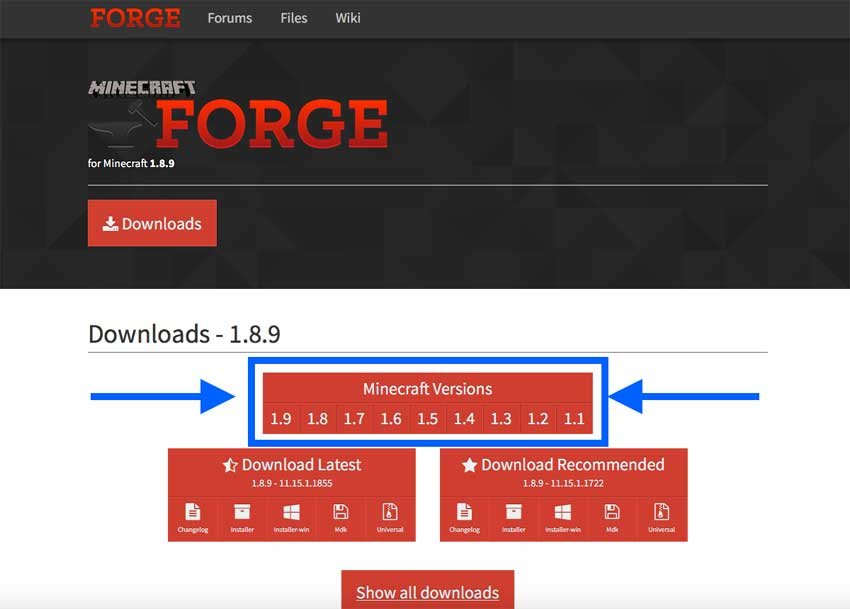
Officially, the latest 100% operational Forge is for version 1.8.9.
Forge 1.9 is out, but it is a first update that still contains bugs and errors, so it is easy to crash when you install a couple of mods.
If you want to try, it depends on your level of patience ?
Anyway, download the Forge version compatible with your Minecraft, otherwise it won’t work.
Install and run Forge correctly
- In your Downloads folder you should have the downloaded file.
- Double click on that file.
- An installer will open:
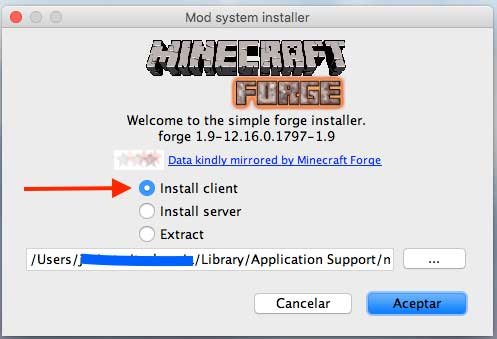
- As you want to install it in your game, and not on a server, you must select “Install client”.
- Then you select the address of your Minecraft folders. In general, the correct one appears by default.
- You give him to accept.
Is already installed! Now you have to run it correctly:
- Launch the Minecraft launcher
In your profile or Profile a Forge profile will appear (directly, or by displaying the menu) (red box)

- Make sure the version of Minecraft you are running corresponds to the Forge you have installed (blue arrow) .
- If it matches, click Play.
- If it doesn’t match, go to Edit Profile (red arrow) :
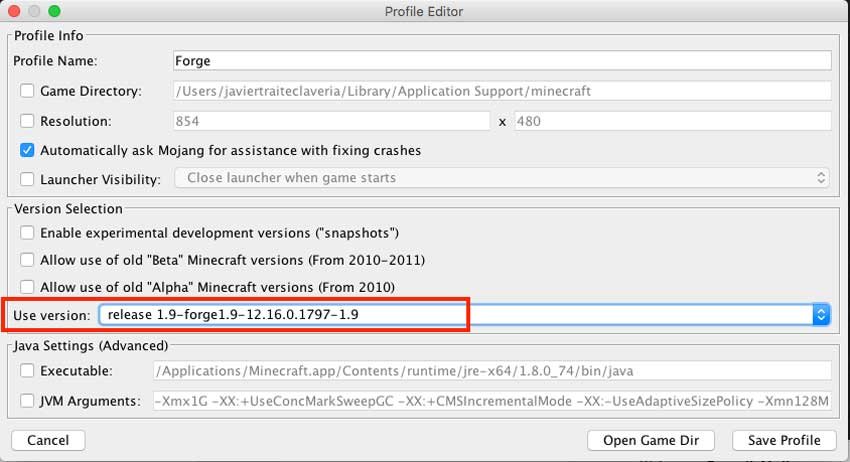
- In the window that opened, select the correct Minecraft version. Save the changes (Save profile) and click Play
And that’s it. Now when you enter Minecraft, within the game you will have a Mods folder where all the mods will appear and you can manage them.
How to install Mods with Forge
We come to the last part. You already have Forge installed, but… how to install all the mods you download?
Well easy. Every time you download a mod, through this or any other website, you download a compressed file, in .zip, .rar or .jar formats
All you have to do is copy that compressed file in your mods folder , in the Minecraft folders (if it does not exist, create it, with the name in lowercase, mods ).
And that’s it! The next time you run the game, Forge will look in that folder, and will manage the mods himself so that you can enable, disable or configure them to your liking with the greatest comfort.
You saw how easy it was to “scoop out a block of sand with a diamond shovel in Pacific mode”! »
What if the mods are not supported?
Be careful because Forge works with most mods … but not all. For example, Forge and MCPatcher collide, and some mods have to be installed separately.
My recommendation is that you carefully read all the information about the mod on duty before installing it, incompatibilities are usually indicated … if not in the info, surely in the comments, or in the forums.
And above all … if you don’t know what you’re doing, don’t do it . Ask the community for help, and someone will come to the rescue!
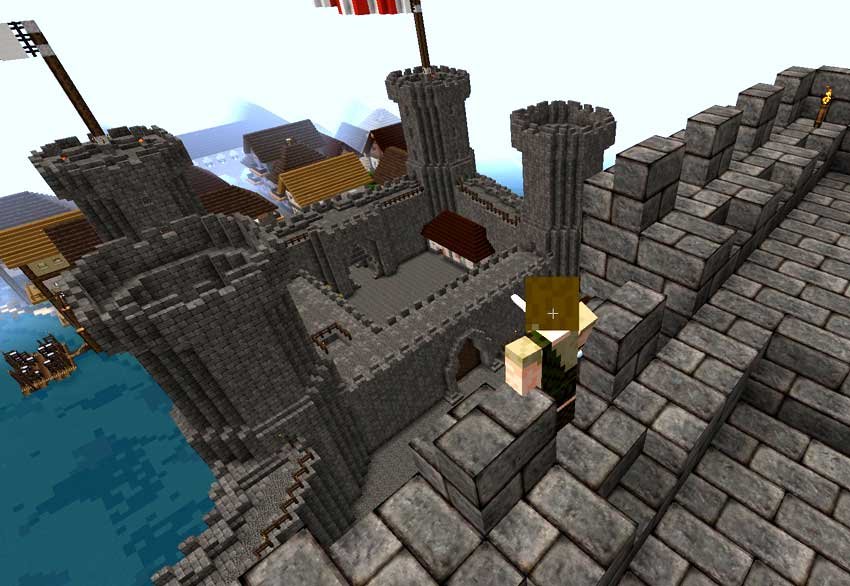 Eoghan: Fear not citizens! I have come to save you from the attack of the MODS! Citizens: We are attacked by mobs, you idiot! The MOBS!
And if you want to keep up to date with new mods, guides and tutorials, or any other beautiful thing about Minecraft, follow us on our networks!