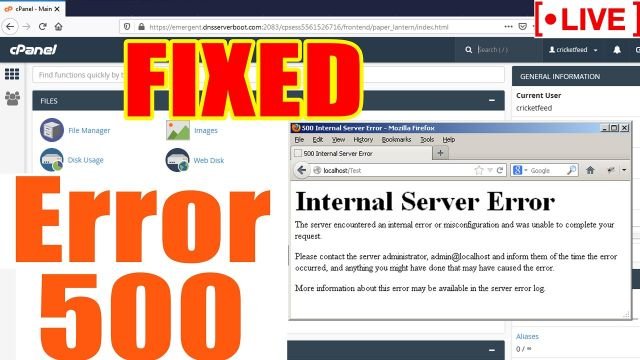
Viewing a website, you may have encountered the famous Nginx 500 Internal Server Error. This regular problem can be fixed with a few simple steps. This post will guide you through analyzing and setting up the Nginx 500 problem to give your users a pleasant browsing experience.
What is Nginx 500 Internal Server Error?
The 500 internal server errors Nginx indicates that something went wrong on the server side and that the server could not determine the exact error code in response. This error message may appear on any web server; it is not specific to Apache, Nginx, IIS, or any other web server.
What are the Causes of 500 Internal Server Errors Nginx?
The most typical causes of 500 internal server problems in Nginx are presented below.
A Misconfigured Server
The communication between the server and the browser may be stopped due to a misconfigured server that generates an error. This could result from poor server management, which can be brought on by human error, a lack of knowledge, or outdated programs.
Incompatible Plugins
The 500 internal server error your installed Word Press plugins could bring on Nginx. The problem could be caused by these plugins’ mismatch with the website.
A Faulty Script
The error could be brought on by corrupted scripts, which would affect how the website functions. Programming faults, file corruption, or compatibility issues might be to blame for this.
Inadequate File Permissions
The server may be unable to access or edit files due to insufficient file permissions, which can result in errors. This can result from user error, incorrectly set file permissions, or corrupted files.
How to Fix 500 Internal Server Error Nginx?
Let’s look at some typical fixes for the Nginx 500 Internal Server Error now that you know what generated it:
Reload your Webpage
If your server experiences a brief problem, it could occasionally cause the 500 Internal Server Errors in Nginx to appear on your screen. The server can be restarted, or it might be overloaded with too many requests, leaving it needing more resources to handle them.
Clear Browser Cookies and Cache memory
Clearing your browser’s cookies and cache memory may assist if a cache-related problem brings on the Nginx 500 internal server error. You can take the following actions:
Deactivate or Disable VPN
To re-access the website, you can add a VPN or utilize a VPN client. If you have already used it before visiting the page, try to deactivate your VPN. To do this, simultaneously access the settings interface by clicking the Windows Key + I.
Remove Unwanted Browser Extensions
Try to uninstall or remove the unneeded plugins or extensions if you have many of them installed on your browsers; sometimes, extensions can also cause problems that result in these kinds of errors.
Check Server Logs
You only have to sign in to the FTP client, then go to the Error Log Directory and either download it or open it in an editor.
Check all your Redirections
Web servers occasionally display the 500 internal server error Nginx due to improper setup or executed redirections. Ensure to verify the correct configuration and functionality of files like mod_rewrite and. htaccess.
Update the Nginx Configuration Files
Updating the Nginx configuration files to resolve the 500 Internal Server Errors is possible. You need a text editor or a Nginx configuration tester to examine the settings for errors or problems. You can use these tools to discover and fix setup problems in the 500 error.
Examine your Script
To deal with the problematic requests, analyze the script. Is it genuinely situated in the appropriate place? In your URL mapping/routing file, are you correctly referencing it?
How can the 500 Internal Server Error Nginx be Avoided?
The following are some preventative measures you may use:
Regular Server Maintenance
Regular server maintenance may assist you in avoiding the 500 Internal Server Error Nginx. The operating system, web server, and other installed programs on your server should all be updated regularly.
Make Use of a Content Delivery Network (CDN)
It may reduce server pressure and enhance website performance, lowering the possibility of internal server issues. By spreading website material over several servers, CDNs decrease the burden on any individual server and increase website speed.
Conclusion
The Nginx 500 Internal Server Error might be a complex problem. The user experience on your website can suffer as a result of the 500 Internal Server Error Nginx. But you can safely resolve the issue with the information and solutions in this article. Remember to carefully examine the settings files, check for syntax issues, and confirm file permissions. Please give your website its full functionality and give consumers an easy browsing experience by following an organized process.