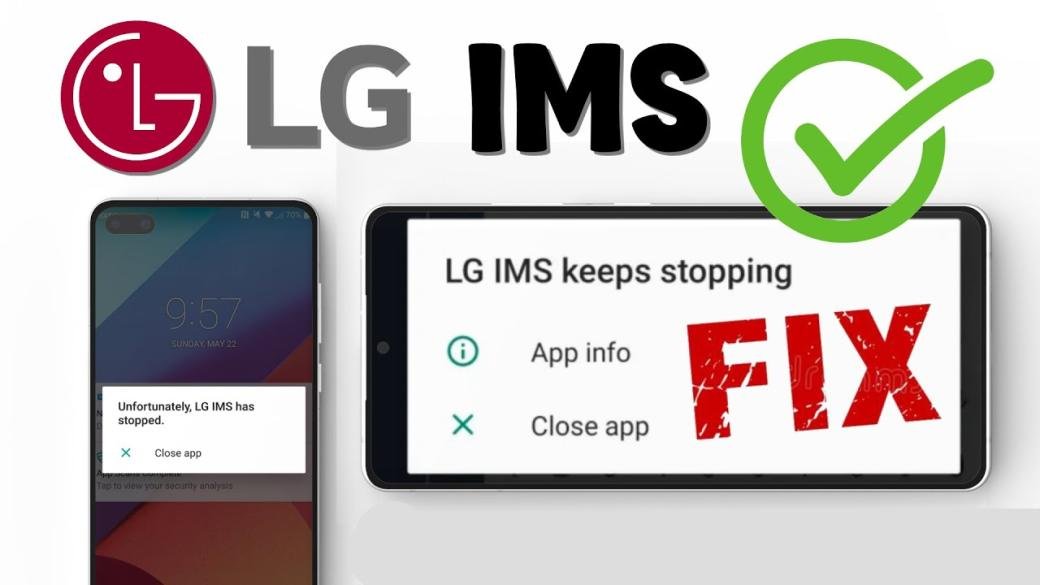
If you are seeking ways to know How to fix the “LG IMS keeps stopping” error on your Phone or How to fix unfortunately LG IMS keeps stopping error, then you have come to the right place. Through this blog, you will find a better solution to your problem. The fixes will help you sort out LG IMS keeps stopping error issues.
What is LG’s IMS App?
It is worth mentioning that every LG phone has an IMS app. The app allows the user to use 4G LTE and 5G networks to send or get messages or call someone.
Why LG IMS Keeps Stopping?
LG IMS keeps stopping errors mainly occur because of the issues with the Phone’s IMS app and bad network settings of your device. Moreover, the error mostly belongs to T-Mobile or Boost. It is pertinent to mention that the error is reported on all types or models of LG smartphones.
4 Factors Why LG IMS Keeps Stopping
The followings are the 4 factors that cause LG IMS to show error:
1: Out-of-date LG IMS App or the LG Phone’s OS
Make sure to check out if the LG IMS app or the LG phone’s OS is not updated. The incompatibility with the other will lead to ongoing issues with the Phone’s IMS modules, which will fail and stop working.
2: Corrupt Cache/Storage of the IMS App
If your cache or storage is corrupt, the LG IMS app shows error issues and crashes after reinitialization. Therefore, it is important to maintain the storage and clear the cache.
3: Corrupt APN or Conflicting Network Settings of the Phone
The LG IMS will stop working until and unless the Phone’s APN settings are corrupt or not aligned according to the IMS requirement. The reason is that whenever the IMS modules are reinitialized after a crash, the other corrupt network settings will lead to another crash. Therefore, several continuous crashes let LG IMS to show errors or stop working.
4: Corrupt OS of the LG Phone
If your LG phone’s OS is corrupt, it constantly crashes the IMS modules because modules can not access the resources important for the IMS operation.
How to Fix Unfortunately LG IMS Keeps Stopping Error (16 Fixes)
Below are the 16 Fixes in order to fix unfortunately LG IMS keeps stopping errors in 2023:
Fix #1 :
Enable and Disable the Airplane Mode of the LG Phone
Enabling or disabling the airplane mode of your LG may re-establish the Phone’s internet connection. Moreover, if you are still facing error issues continuously, it can make troubleshooting impossible. Therefore, in that case, make sure to enable airplane mode on.
However, if the steps are needed for an internet connection, you may enable the wifi while keeping the airplane mode enabled during troubleshooting. To do so, follow the following steps:
Step 1: Go to the setting of your LG phone, then enable Airplane mode.
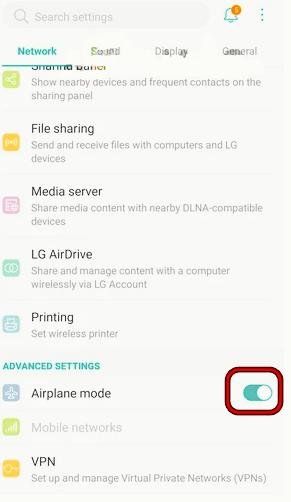
Step 2: Remove the sim card in case it is supported in the power-on condition by your LG phone from your device, and then wait for a moment.
Step 3: Now, put back the sim card and disable the Airplane mode on your phone to check if the LG IMS error is clear or sorted out.
Step 4: In case it Is not cleared, enable the LG phone’s airplane mode once again, and while remaining in airplane mode, enable the phone’s wifi to ensure the device is connected to the wifi network.
Step 5: Lastly, disable the airplane mode on your phone and check out if the LG IMS issue is resolved.
Fix #2 :
Restart your LG Phone
Sometimes it happens that restarting the device will work better. Therefore, restart your LG phone to help clear the error. To do so, follow the following steps:
Step 1: Just press and keep holding the power button of your LG phone until the power menu is shown on the screen.
Step 2: Once it appears on the screen, tap on power off and then wait for about 5 minutes.
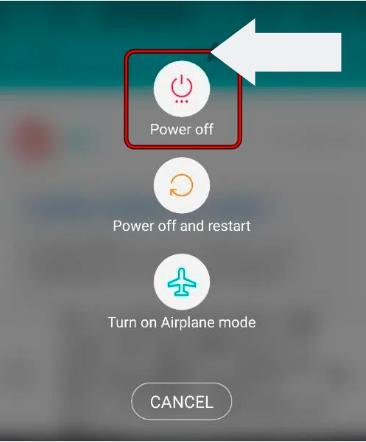
Step 3: Similarly, press and hold the power button on your device for 4 seconds until the phone powers on.
Step 4: After powering on, check if the issue is resolved.
Step 5: If not, press and hold the LG phone’s power and volume down buttons until the LG logo is shown. Once it appears, release the keys, and when the phone is turned on, check out if it is working or operating fine.
Step 6: If it is still not working well, turn off your device and put it or charging until it is fully charged. Once it is completely charged, power on your device and check out if the issue is clear.
Step 7: If the issue continues, check if disabling your LG phone’s location can sort out this issue.
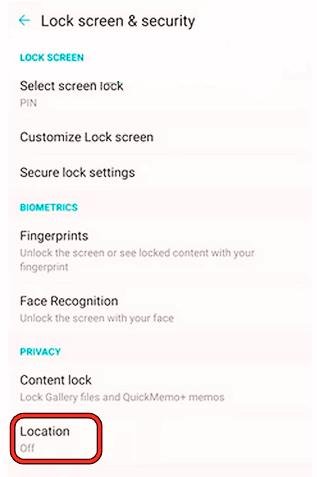
Step 8: If the disabling location does not resolve the issue, try disabling Bluetooth, data connection, sync, and wifi to see if the issue is resolved. If so, you can turn on these options one by one to check which one is causing the issue.
Fix #3 :
Update the LG IMS App
If the LG IMS app is not updated, it can become incompatible with the phone’s carrier and cause errors. So, always make sure to update the L IMS app in order to ensure it works properly. To do so, follow the following steps:
Step 1: Go to the LG phone settings and choose General or System.
Step 2: Go to the update centre and open the Any Updates option.
Step 3: Now, click on download for LG IMS improved and wait until the update is installed.
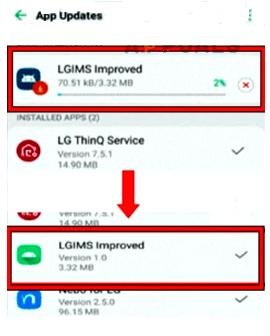
Step 4: After updating, restart your phone and check out if the LG IMS keeps stopping error is resolved upon restarting.
Step 5: Lastly, in case it does not work, make sure to install the LG Smart World App and check if the issue is resolved by updating via LG smart world app.
Fix #4 :
Upgrade the OS of the LG Phone
To upgrade the OS of the LG phone, follow the following steps:
Step 1: Go to the LG phone settings and choose General or System.
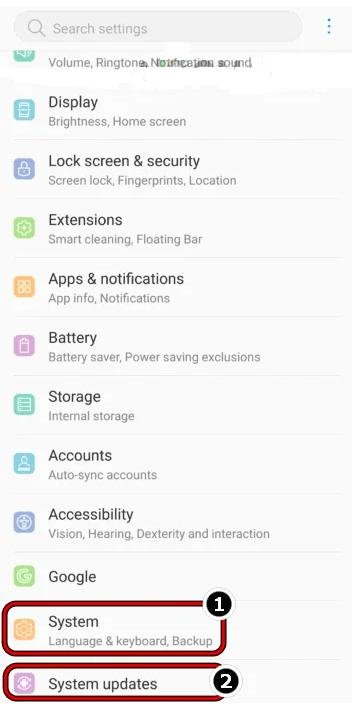
Step 2: Click on the system updates or software Updates.
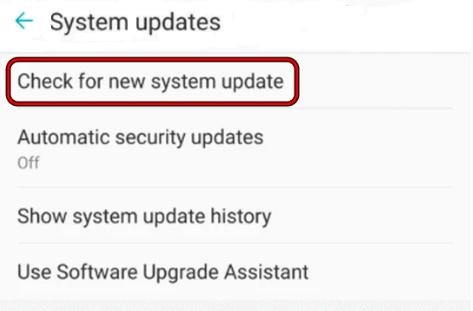
Step 3: Now, click on Check for new system updates. If the update is available, then let it get installed.
Step 4: Once the updating is done, restart your LG phone and check out if the L IMS error is resolved through restarting.
Fix #5 :
Update and Reset LTE in the Phone’s Provisioning Menu
The LG IMS error might occur if the Phone’s LTE connection fails to communicate well with the carrier towers, causing the IMS modules’ stoppage. Therefore, updating and resetting the LTE in the phone’s provisionary menu is better. To do so, follow the following steps:
Step 1: Go to the phone’s dialer and dial the following in order to open the testing menu.
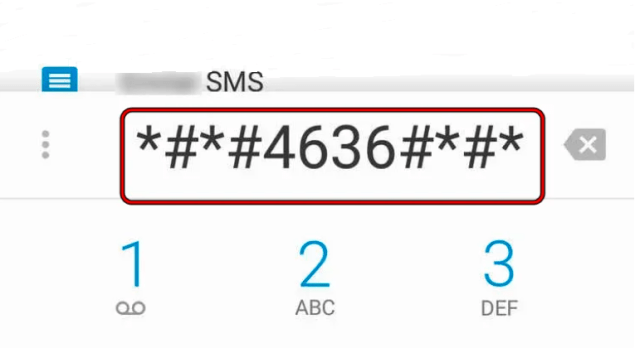
Step 2: Go to the phone info, then refresh/update the connection/PRL. If an error is placed, keep retrying until no error is shown.
Step 3: Now, keep the switch of all your connection types pr provisions enabled and close the menu.
Step 4: Put your LG phone on airplane mode, then wait for a while. After that, exit the phone’s airplane mode and check if the error issue is resolved.
Step 5: If the issue is not cleared, redial the code mentioned in step 1 on your phone’s dialer and manually reset LTE.
Step 6: Put your LG phone on airplane mode again, then wait a while. After that, exit out of the carrier signal and check if the LG IMS stopped error is resolved.
Fix #6 :
Change the Network Type of your Phone
If the network type of your phone is not the best or suitable for the operation of the LG IMS, then the error issue will occur. The app will keep crashing because it will be unable to handle the carrier’s response.
Below are the steps to change the network type of your phone:
Step 1: Go to the phone’s dialer and dial the following code.

Step 2: Open the preferred network type in your wifi data, then set it to LTE/TDSDMA/SM/WCDMA.
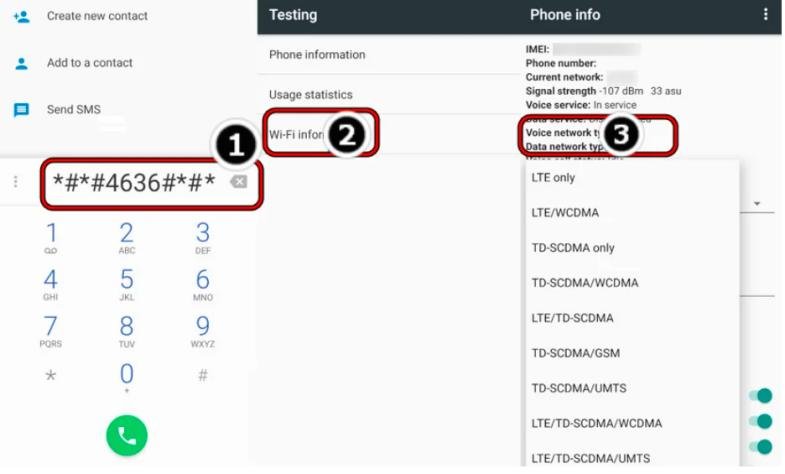
Step 3: Close the menu, then enable airplane mode on your LG phone. Now, wait for a while and disable airplane mode on your device.
Step 4: Lastly, once the phone properly receives the carrier signal, check if the error issue is resolved.
Fix #7 :
Change the Default Messaging App of your Phone
Always ensure that the messaging app you use on your device does not issue the problem in your Phone’s IMS modules because that could stop the execution of the LG IMS and cause the error issue. Therefore, changing the default messaging app on your phone is better.
You can also download another messaging app, such as Google Messages or Google Voice, for messaging and calling.
Below are the steps to change the default messaging app of your phone:
Step 1: Go to the phone setting, then open Apps and Notifications.
Step 2: Choose the default apps option and open the SMS app.
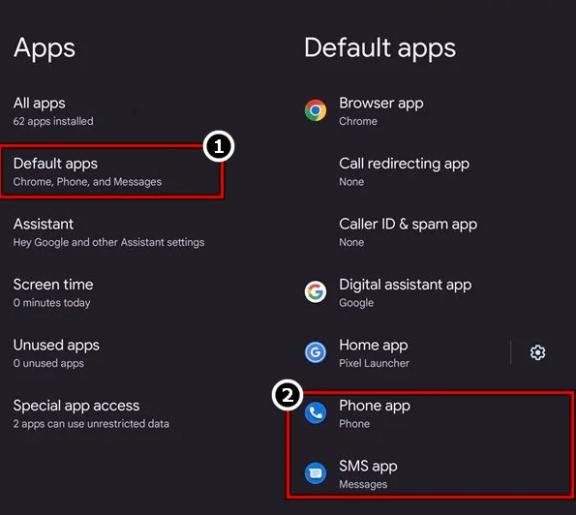
Step 3: Now, choose another messaging app, Google Messages, and click the back button.
Step 4: Open the Phone or call app, then choose another calling app, such as Google Voice. Now, check out if the LG IMS error is resolved from your device.
Fix #8 :
Disable/Enable VoLTE and Set RAT Selection to LTE Only
An improper VoLTE module or configuration of RAT selection in the phone may cause the error issue. Therefore, you better disable/enable the VoLTE and setting the RAT selection to LTE only may sort out this issue. To do so, follow the following steps:
Step 1: Go to your phone dialer, then dial the below code in order to open its service menu (you may try it under airplane mode if the IMS error crashes the dialer). If it does not work, find your service menu code from the LG website according to your device model.
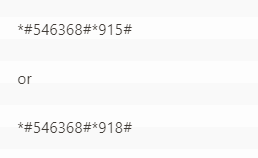
Step 2: Now, open the modem and disable VoLTE. Then, enable VoLTE and then check out if it is working properly.
Step 3: If it does not work well, put your phone in airplane mode and dial the code below in your device dialer. Note the last hashtag may not be shown in the dialer.

Step 4: Now, set the RAT_Selection to the LTE only and exit the devices’ airplane mode.
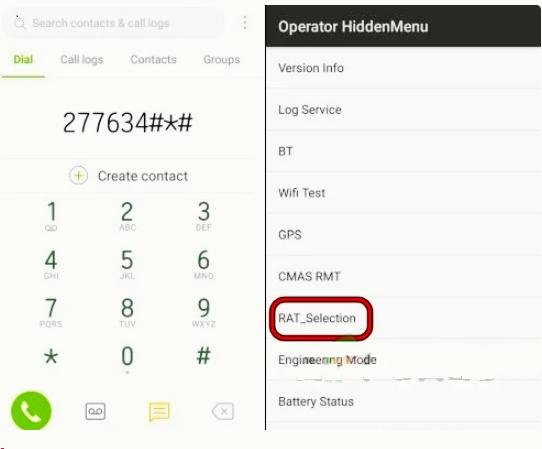
Step 5: After that, check whether the error issue is resolved.
Fix #9 :
Reset APN Settings of the LG Phone to the Defaults
If any customization to your device’s APN setting is incompatible with the LG phone’s carrier requirements, it can cause error issues. Therefore, it is better to reset the APN settings of your LG phone to resolve the error issues. To do so, follow the following steps:
Step 1: Go to your phone setting and open the Network and Internet options.
Step 2: Now, open Mobile Network and choose Access Points Name.
Step 3: Click on the 3 dots and choose reset to defaults or Restore Default Settings. After that, confirm to reset the APNs to the defaults and then check if the issue is resolved.
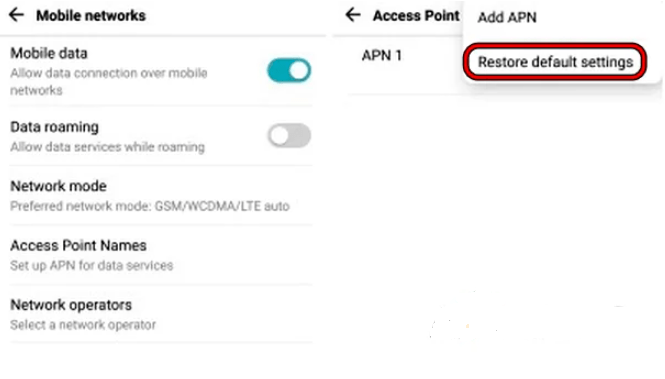
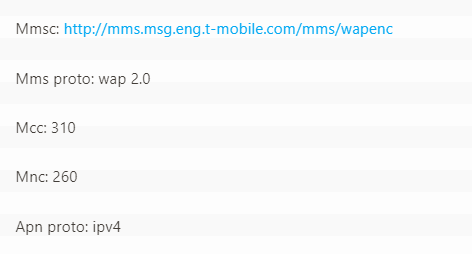
Step 4: Lastly, if it does not work, check if adding another APN with an IPV4 and then choosing that APN sort out this error issue. Moreover, for T-Mobile, you can use the below configuration.
Fix #10 :
Reset the App Preferences of the LG Phone to the Defaults
Resetting the app preferences of the LG phone to the defaults may sort out the error issues. You can sort it by following the below steps:
Step 1: First, go to the settings of your LG phone and open Apps and Notifications.
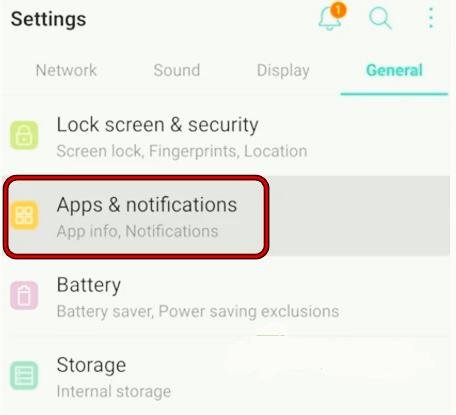
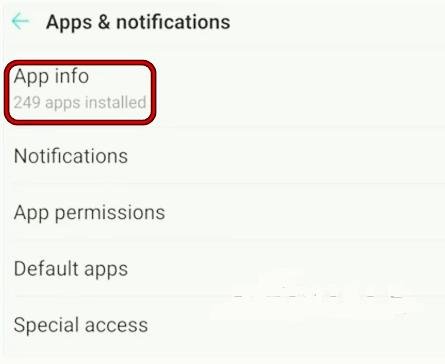
Step 2: Now, choose the App info and click on the three dots on the top right.
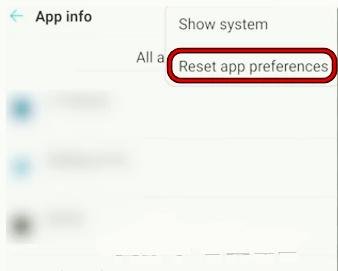
Step 3: After that, select Reset App Preferences. Then just confirm to reset the device’s app preferences.
Step 4: Once it is done, check if the error issue is sorted out.
Fix #11 :
Uninstall the Conflicting Application
In case an app in your LG phone is constantly pinging the LG IMS module but not according to the requirement of the module, then it can cause an error issue. Therefore, uninstall the conflicting applications to resolve the error issues. To do so, follow the following steps:
Step 1: Check out if uninstalling the last 5 to 6 apps can sort the error issue. If not, go to Google Play Store and click on your user icon.
Step 2: Now, go to Manage Apps and Device and steer to the Manager tab.
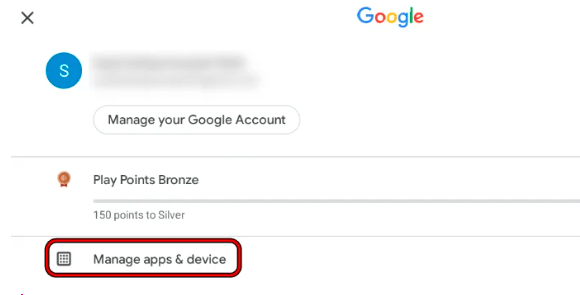
Step 3: Filter the list of installed apps as recently updated. After that, uninstall the last 5/6 updated apps one by one.
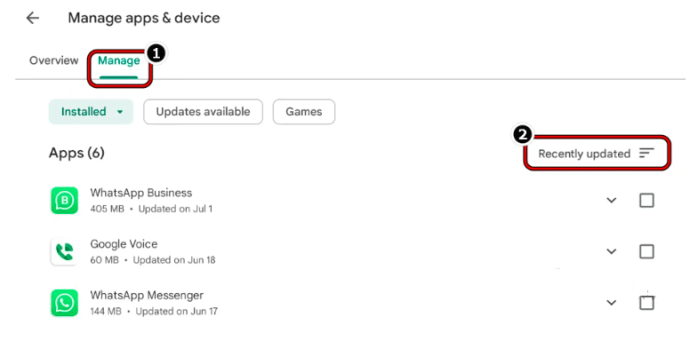
Step 4: Once it is done, restart your device and check out if the LG phone error is solved through restarting. In case it does not work, download and install an antivirus application.
Step 5: Now, launch the antivirus app, then scan your phone with the antivirus app.
Step 6: Lastly, once it is done, check if that clears out the error issue.
Fix #12 :
Clear Cache/Storage of the LG IMS App and Force Stop it
The error issue might occur if the cache or storage of the LG IMS device is corrupt. Therefore, it is better to clear all the cache or storage of the LG IMS app and force stopping it from sorting the issue.
Step 1: Put your phone on airplane mode, then open the setting on your device.
Step 2: Go to Apps and Notifications, then open App Info.
Step 3: Now, click on three vertical ellipses on the top right, and choose Show System.
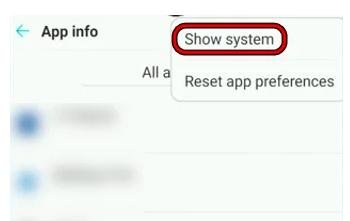
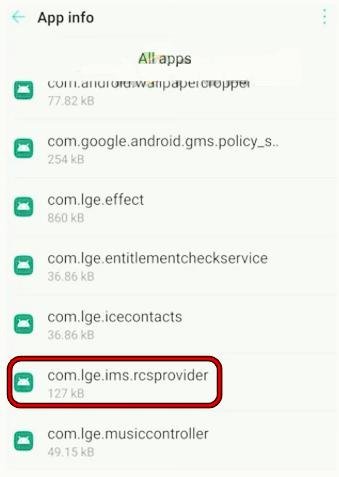
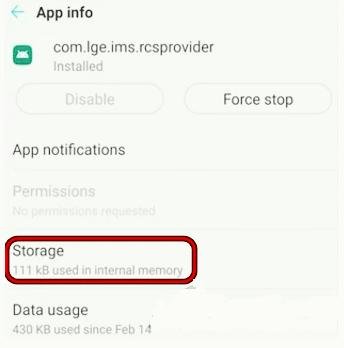
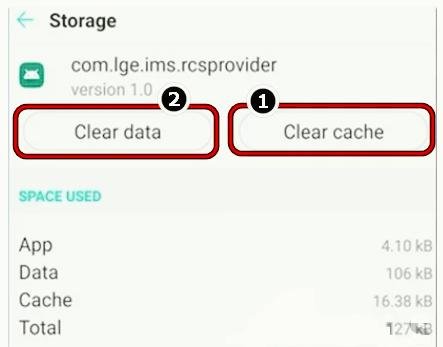
Step 4: Click com.lge.ims.rcsprovider and open storage here.
Step 5: Now, quickly click on clear cache and then on the clear data button.
Step 6: Quickly confirm to clear the IMS data, then hit the back button.
Step 7: After that, press the force stop button.
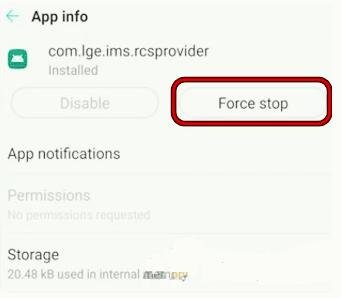
Step 8: Now, keep repeating (clear, cache, data, and force stop if you encountered the IMS error due to all these) until and unless the force stop button turns grey. If the LG IMS stopped the error during the process, then ignore it and continue the above steps.
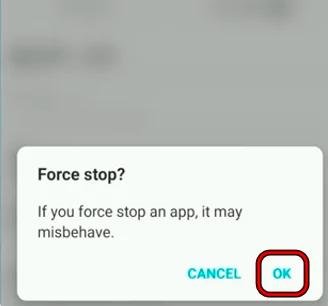
Step 9: So turn off the airplane mode and check if the issue is solved.
Step 10: If not, enable the airplane mode on the phone, then enable wifi, keeping the airplane mode enabled.
Step 11: Ensure the wifi calling is enabled under settings > Call > and repeat steps 2 to 9 to check if the IMS error is resolved.
Step 12: If it does not work again, put your device on airplane mode and remove the sim card from your phone.
Step 13: If the issue is still there, then check if clearing the cache/data of the messages app clears the LG IMS error issues.
Fix #13 :
Disable RCS Messaging on the LG Phone
Rich Communication Services (RCS) is the communication protocol mobile carriers that are used to support their customers in sending images and videos with normal text. So, if the RCS in your device is glitched out, then it can cause the error issue. Therefore, it is better to disable RCS messaging to resolve the error issue.
To do so, follow the following steps:
Step 1: Go to the Messaging app and open its settings.
Step 2: Now, go to its Chat Settings, then disable RCS by turning it off.
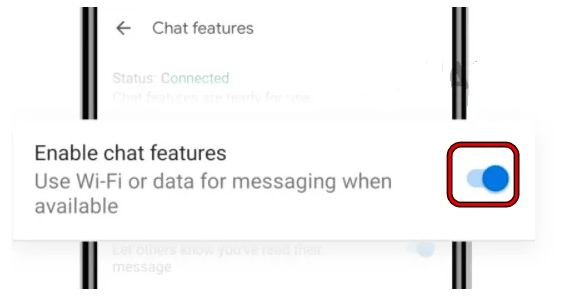
Step 3: After that, relaunch the messaging app and check if the LG phone error issue is resolved.
Fix #14 :
Change the Phone’s IP Version to IPv4
The IMS module of the LG phone connects it to the internet. So, if a carrier like T-Mobile has compatibility issues with the LG phone’s IPv4 protocol, it can be the root of breaking the IMS operation and causing an error. Therefore, changing the Phone’s IP version to IPv4 is better.
To do so, follow the following steps:
Step 1: First, put your Phone in Airplane Mode, then open the phone’s dialer.
Step 2: Now, dial the below code to enter your phone’s hidden menu. If this code does not work, then you better can get the code from the LG website to access the hidden menu of your device.

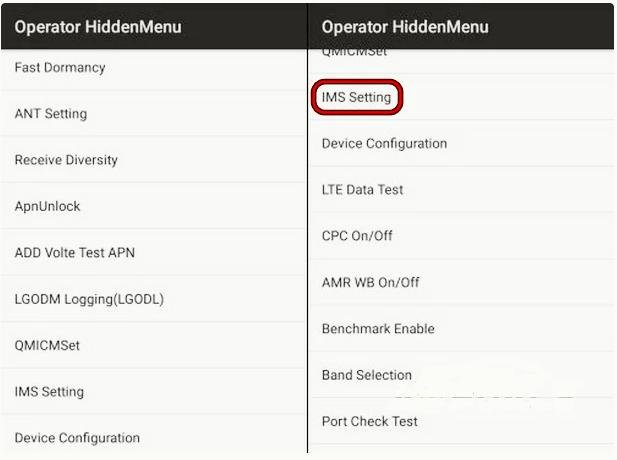
Step 3: Now, go to the IMS settings. It is where you can have the option to enable/disable VoLTE.
Step 4: In the IMS settings, scroll down until the IP version setting, then change the setting to IPV46. After that, close the menu and check out if the issue is resolved.
Step 5: If the issue is not sorted, check if changing the IP version to IPV4 can resolve the error issue.
Step 6: If the issue is not solved again, check if repeating the above steps after removing the Sim Card from the device can sort out the error issue.
Fix #15 :
Reset the Phone’s Network Settings and All Settings to Defaults
Your LG phone will show an error if your network or settings are corrupt and not configurated according to the IMS requirement. So, reset the phone’s network settings to resolve the issue. To do so, follow the following steps:
Step 1: Go to LG phone settings and open Restart and Reset.
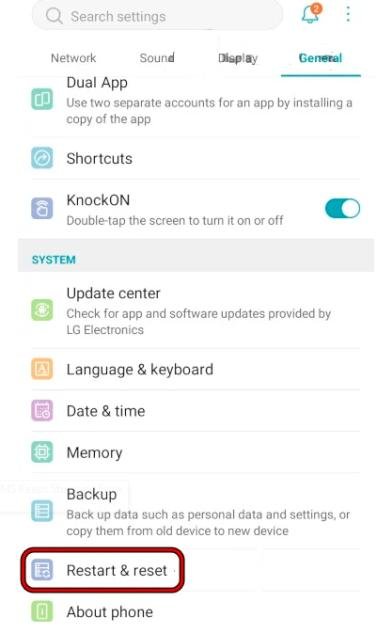
Step 2: Now, click on Network Settings Reset, then confirm to reset the network settings of your LG device.
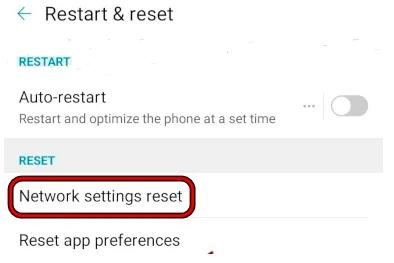
Step 3: So set up network/wifi on your LG phone. After that, check if the issue is solved. If not, repeat step 1 to open the LG phone’s restart and reset settings.
Step 4: Now, click on Reset All Settings, then confirm to reset your device’s settings.
Step 5: Lastly, set up network/wifi on your LG phone. After that, check if the error issue is cleared or not.
Fix #16 :
Reset your LG Phone to the Factory Defaults
In case none of the above options worked for you to resolve the error issue, the root of all causes can be the corrupt OS of your LG Phone, as the IMS app failed to communicate with the modules important for its operations. So, resetting your LG phone to the factory defaults might resolve the LG IMS error.
Step 1: Back up data on your LG device and then charge it fully.
Step 2: Go to the LG Phone settings and open the Back and Reset option. Then, choose Factory Data Reset and click on Reset Phone.
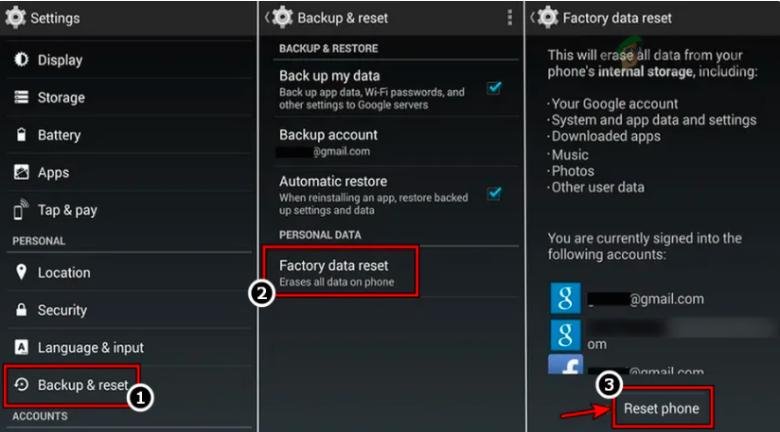
Step 3: Confirm to reset your LG phone to its defaults and wait until the process completes.
Step 4: Once the process is completed, reset your LG phone according to your requirements. Hopefully, now the issue will be resolved.
Conclusion
The blog has covered all the required data about how to fix unfortunately LG IMS keeps stopping error 2023. So, make sure to read the blog carefully and understand each fix so that it can help you resolve your issues in case you are facing them.
Do not forget to visit our website Qnnit for more informative blogs. Thus, have a look at these blogs that will help you to increase your knowledge: Easy Ways to Fix LG TV WIFI Turned Off Problem, How to Activate and Install Pluto TV, and How to fix LG G5 Wi-Fi Issue.