In the era of binge-watching, knowing how to download movies on Netflix on laptop is a must! With Netflix’s vast library at your fingertips, the desire to download content for offline viewing is ever-growing. This blog post will unravel the two safest methods to fulfill your download needs, transforming you into a Netflix downloading pro. Stay tuned as we delve right in!
Can You Download Netflix Movies on Laptop?
Certainly, downloading Netflix movies on your laptop is feasible, since the official Netflix platform does provide a download function. However, it’s important to note that this feature comes with certain restrictions:
- System Support: Netflix’s official software caters exclusively to Windows systems. For Mac users, don’t worry, we have an alternative solution lined up for you in the upcoming section.
- Content Availability: Unfortunately, not all movies on Netflix support downloading, which might limit your offline enjoyment of Netflix’s extensive library.
- Download Limitations: Netflix imposes a cap on the number of downloads. Moreover, the downloaded files might expire after a while, rendering them unwatchable. This means you must keep your Netflix subscription active to re-download expired content.
Given these constraints, it’s worth considering an alternative method for downloading Netflix movies on your laptop that bypasses these limitations, such as MovPilot Netflix Video Downloader mentioned later.
Method 1: Use Official Software to Download Netflix Movies (Windows Only)
The first method to download movies from Netflix involves using the official Netflix software. This option is straightforward and available exclusively for Windows users. It allows you to download select TV shows and movies to watch offline.
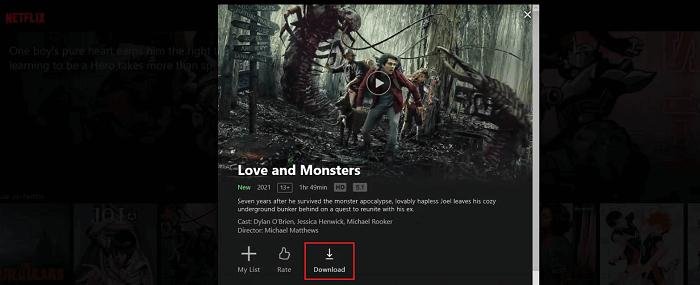
Step-by-step Guide to Using the Official Netflix App for Windows
To leverage this feature, follow these steps:
- Download and install the Netflix app from the Microsoft Store.
- Sign in with your Netflix account.
- Browse and select the movie or TV show you want to download.
- If available for download, click the ‘Downloads‘ button next to the title.
- Access your downloaded titles by clicking More > My Downloads.
Method 2: Use MovPilot Netflix Video Downloader to Download Netflix Movies (Windows & Mac)
MovPilot Netflix Video Downloader is a third-party software that provides an alternative way to download Netflix movies on your Windows/Mac laptop. It offers a more flexible downloading experience, addressing many of the challenges of Netflix’s built-in download feature. It’s an option worth considering for its versatility, compatibility, and functionality.
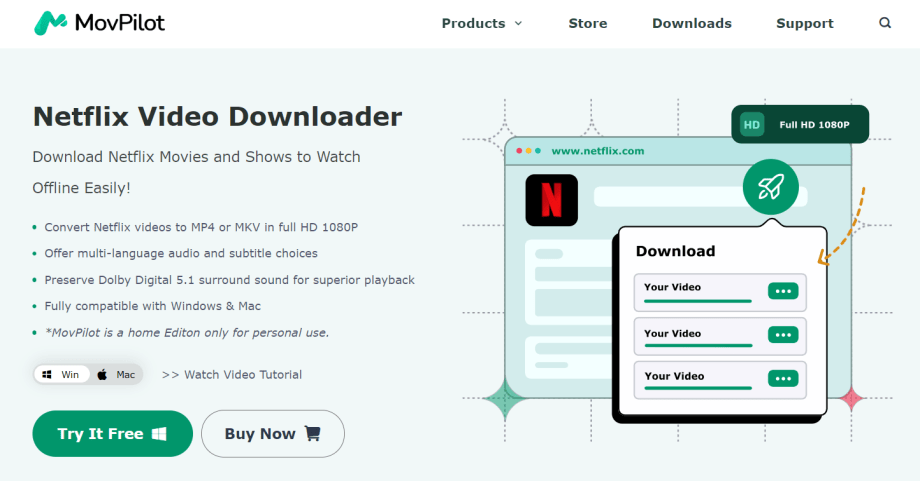
Why MovPilot Netflix Video Downloader?
MovPilot has many amazing features that make it stand out among all the Netflix downloaders on the market. Here are some highlight functions that you will need.
- Cross-Platform Compatibility: MovPilot supports both Windows and Mac operating systems. Specifically, it’s compatible with Windows 11/10/8.1/8/7 (32-bit & 64-bit versions) and Mac OS X 10.11 and above.
- Format Flexibility: The software allows downloads in common formats such as MP4/MKV, enabling users to save their favorite content permanently.
- Video Quality Preservation: It will output your downloaded Netflix videos in HD 1080p with multilingual subtitles and audio tracks, and let you enjoy it by Dolby Digital 5.1 surround sound.
A step-by-step guide to using MovPilot Netflix Video Downloader
The process of downloading Netflix videos using MovPilot Netflix Video Downloader is relatively simple and can be broken down into distinct steps:
Step 1. Launch MovPilot Netflix Video Downloader
First, download, install, and launch the MovPilot Netflix Video Downloader. Log into your Netflix account on the platform. If you select “Remember me” during login, the software will negate the need for future sign-ins.
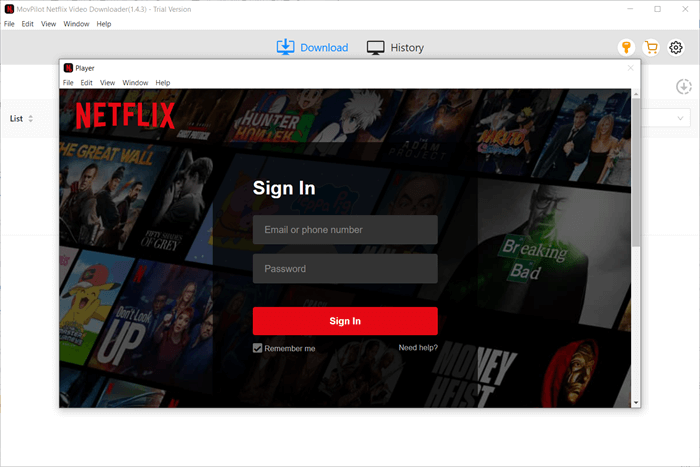
Step 2. Search for Netflix Movies or Shows
Type in the title of the movie or show you wish to download in the search bar, or simply copy the URL from your browser when viewing the movie/show on Netflix and paste it into the MovPilot Netflix Video Downloader.
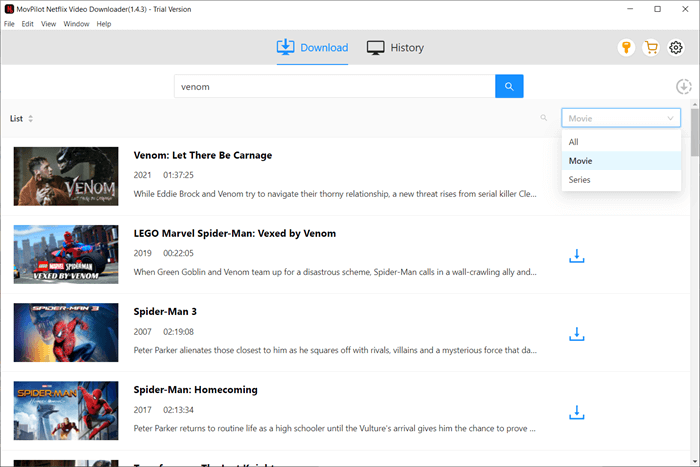
Step 3. Download Netflix Videos to MP4/MKV
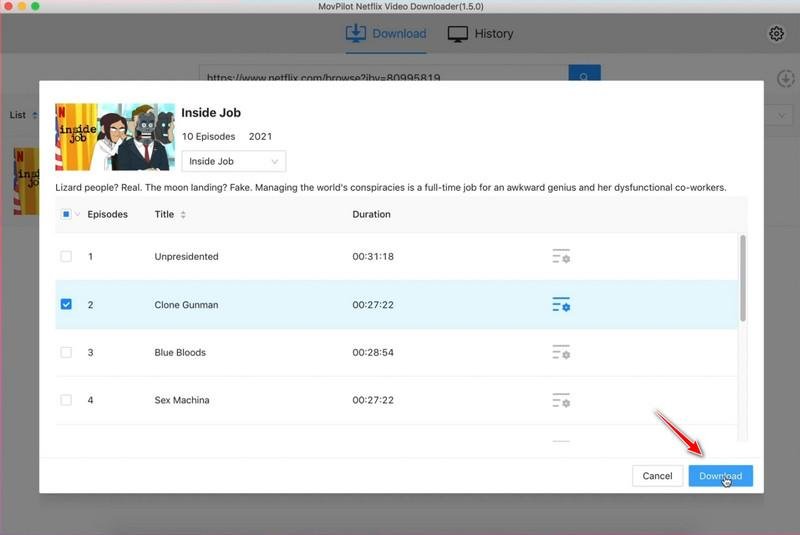
Click the ‘Download’ button to initiate the download process. If you’re downloading a series or TV show, you’ll be prompted to select which episodes to download. Once you’ve made your selections, click ‘Download’ to begin.
The video output format is MP4 by default, and the audio and subtitle language will match the original content. The downloaded subtitles will be embedded and adjustable in size, with an option to toggle visibility.
FAQs about Download Movies from Netflix
Q1. Can I download Netflix movies without Netflix ad-free plans?
No, because Netflix’s official app limits downloads to subscribers of their ad-free plans. But for unrestricted offline enjoyment of Netflix content, try MovPilot Netflix Video Downloader. This software enables unlimited downloads of movies, TV shows, and high-quality content, regardless of your Netflix subscription type.
Q2. How long can I keep my Netflix downloads?
Usually, downloads from the Netflix app are only available for seven days and may expire within 48 hours after starting playback. For a more permanent solution, MovPilot Netflix Video Downloader lets you save Netflix videos in MP4/MKV format indefinitely. So you can enjoy your favorite content without worrying about expiration dates.
Q3. Is it safe to log into my account on MovPilot Netflix Downloader?
Yes, when you log into your Netflix account through MovPilot Netflix Video Downloader, you’re directly accessing the official Netflix site. MovPilot doesn’t collect or store any of your account information. This keeps your personal details secure while you enjoy the convenience and flexibility of using MovPilot to download your favorite Netflix content.
Conclusion
We’ve explored two safe methods to download movies to watch offline on your Netflix account from your laptop. The Netflix app offers a direct yet restricted approach. MovPilot Netflix Video Downloader, however, enables unlimited, permanent downloads. Balancing ease of use with practicality, we suggest opting for MovPilot for an informed and convenient offline viewing experience.