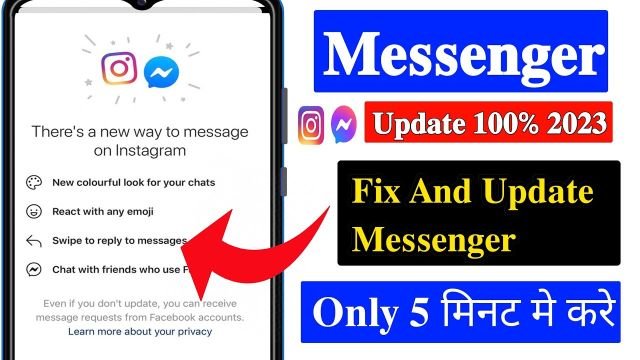
How to fix Instagram Messenger not showing up in 2023? And update it.
Instagram remains a social media barrage, constantly introducing the latest features and updates to enhance user experiences. Instagram Messenger, a platform within the app, is one of its trending features. It allows people seamless communication with their friends and family.
As of 2023, many users have faced the frustrating issue of Instagram updates not showing. You may also face such an issue, so are you looking for a solution?
This article will guide you through the process of updating Instagram Messenger and the irritating issue of’ not showing’ to ensure you stay updated.
Why is Update Messaging Instagram Now Showing?
The majority of Instagram users have access to this option. It is accessible through the Instagram app’s Settings menu. The feature may be found at the top of the Settings screen under the Update Messaging option.
Several factors, such as your location, the version of the app, a temporary bug, or any other problem, may prevent you from accessing this function in your app. The new features might not be available in your nation if you reside in Europe.
How to Update Instagram Messenger
To upgrade Messenger features on the Instagram app, follow the steps mentioned below.
Step 1: Click on the profile photo in the bottom right corner.
Step 2: Select Settings from the three-line menu in the top right.
Step 3: After choosing Update messages, click Update.
How to Fix Instagram Messenger Update Not Showing
These solutions can help you if, after updating Instagram Messenger, your messages are still not showing.
Fix 1: Update the Instagram App
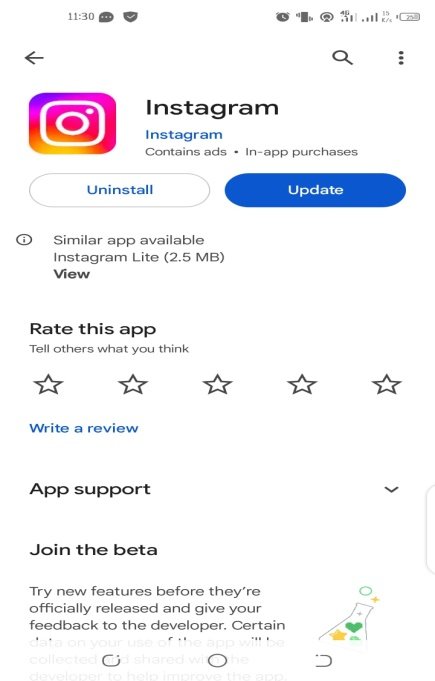
Update your Instagram app first because it may fix any flaws inside the program that affect the Messenger function you have access to.
Go to Google Play or the App Store on your smartphone > search for Instagram, and > see an update icon on the app’s information page to upgrade your Instagram app to the most recent version.
Fix 2: Try a VPN
On Instagram, a VPN can change your location. On your smartphone, you should remove the current version of the Instagram app, turn on the VPN, and then download Instagram from the Google Play Store or App Store.
Open the new Instagram app after it has been installed, and then proceed with the instructions to upgrade Instagram messaging. Keep in mind that Instagram launches its feature in your country.
Fix 3: Log out of Instagram and Back in
One quick and efficient troubleshooting technique when the Messenger update isn’t working is to log out of your Instagram account. Restoring your connection to the Instagram servers after logging out can assist.
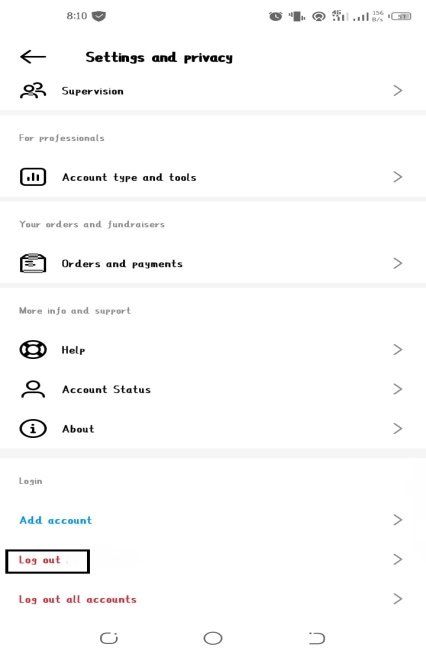
Finally, reloading the feed by scrolling down in the Messenger app can fix any issues or delays in displaying new messages.
Fix 4: Clear Instagram App Data
For Android devices, navigate to “Settings”> “Apps”> “Instagram Messenger”> “Storage”> “Clear Cache.” It can fix problems with cached data.
Fix 5: Check the Messages Option
Check the Messages option in the app’s settings to resolve Instagram Messenger issues. You can access message restrictions by going to your profile>clicking the three-line menu >choosing Settings> clicking Privacy> and then tapping Messages.
You close the Instagram app, restart your phone, and then open this app to test if the Messenger symbol is visible.
Fix 6: Contact Instagram for Help
You can contact Instagram for assistance if the solutions listed below fail to fix the Instagram Messenger update not showing. Access your profile by clicking the three horizontal lines and choosing Settings, Help, and Report a Problem.
How to Delete Instagram Messages
For both the Instagram app and website, follow these instructions.
Step 1: Open the Instagram app on your phone or tablet and select the Messenger or Messages option.
Step 2: Tap the conversations you wish to remove and hold them.
Step 3: Select Delete and then select Delete once more to confirm.
With these steps, all chat messages in the selected chat can be deleted, but others involved in the conversion can still see the chat messages.
How to Delete Instagram Messages from Everyone?
Here are a few steps to delete Instagram Messenger from everyone:
Step 1: Go to a conversion by clicking the Messenger or Messages icon.
Step 2: Locate the message you wish to remove, then click the three dots next to it.
Step 3: After clicking Unsend once more, click Unsend again.
Conclusion
Stay connected via Instagram messenger is essential in 2023. The best way to ensure seamless and secure messaging is to update your app and address problems like messages not showing up.
By following these fixes, you can get rid of frustrating missing messages. I hope you have understood the process of how to update Instagram Messenger.
FAQs
Q. Why can’t I update my Instagram Messenger?
You cannot do so again if you have already updated your Instagram messenger. Otherwise, there may be other causes, such as a previous version of the program, the location of a European nation, or a storage issue with the data.
Q. Why isn’t my Instagram updating in 2023?
It would help if you had a reliable internet connection to update Instagram. You might be unable to finish the Update if your internet connection is slow or unreliable. With a stronger internet connection, retry the Update.
Q. Is there an Instagram Messenger App?
No, there isn’t a messaging app for Instagram. You can use the Instagram app’s built-in Messenger on your Android or iPhone.