Is it a never-ending cycle of rebooting your computer? One may find it inconvenient and disruptive to work or play when their computer refuses to restart.
Thankfully, multiple effective options exist that you may try to resolve this issue and get your computer back to working smoothly.
The finest solutions for a computer that won’t restart will be examined in this post, providing you with the most recent changes and patches for 2023.
Why is My Windows Update Stuck on Restarting
Numerous factors, including faulty Windows updates, broken system parts, and remaining undesirable or useless files, could be the reason for your computer restarting at random more than once.
There could be several reasons for this, including incompatible software, driver issues, or an issue with the update installation.
The following sections will cover the practical steps to resolve this issue and get your computer back in working order.
How to Fix a Computer Stuck on Restarting? (5 Easy Ways)
If your computer keeps getting stuck at the restarting screen, there are a few effective fixes you may try. Some users may find certain ones difficult, while others are straightforward. Now, let’s figure out how to resolve a computer that keeps restarting the screen.
Below are the 5 effective ways to fix a computer stuck on restarting:
Way 1: Use PassFab FixUWin
Is your PC displaying the dreaded restart screen? Don’t worry; PassFab FixUWin is a reliable and strongly advised fix. The much-feared “computer stuck on restarting” issue is one of the many system issues that PassFab FixUWin has been designed to solve.

Its excellent efficiency, wide range of repair options, and easy-to-use interface characterize it. After using this application, your computer can resume regular functioning, minimizing downtime by solving the issue.
The benefits of having a license outweigh the requirement for complete access to all functions. Let us review the benefits and drawbacks of PassFab FixUWin.
Below are the steps to use PassFab FixUWin:
Step 1: Put a CD, DVD, or USB disc in and launch the application on a new computer. The repaired disc can be burned by choosing “Create Boot Disc Now.”

Step 2: Select the boot media you want to use and click Next.

Step 3: Use a USB drive to start your computer. After the computer restarts, press ESC, F9, or F12. This will bring up the Boot Menu.

Step 4: Press “enter” to select the USB drive, DVD, or CD you installed as your boot drive by finding it in the list.

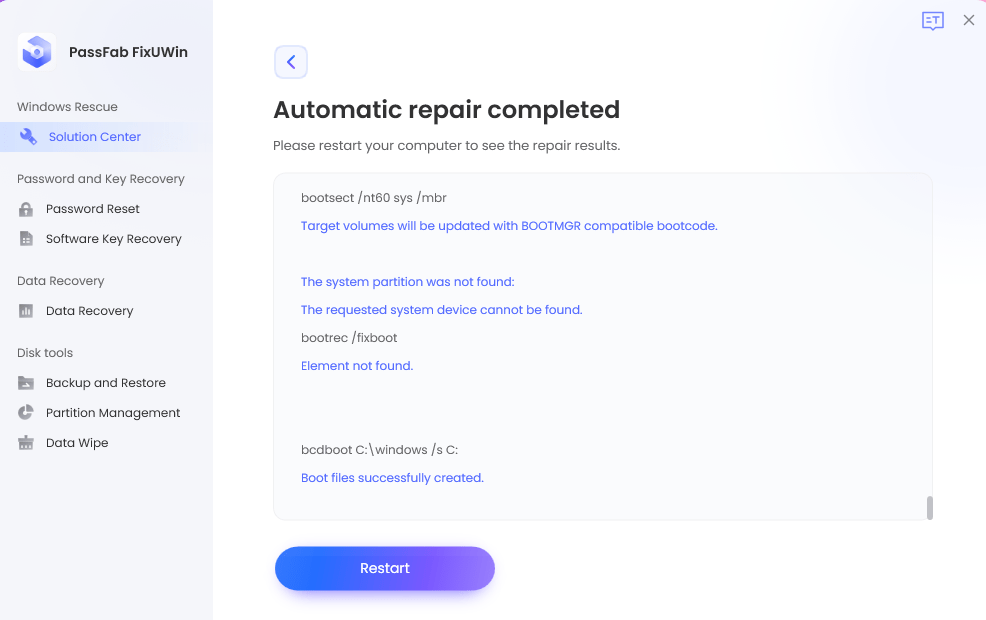
Step 5: Launch the application attached to the USB, then choose “Automated Repair.”

Step 6: Click “Start Repair” after selecting the computer partition that has to be repaired.

Step 7: After completing the repair, choose “Restart” to restart the machine.
Way 2: Disable Fast Startup
As great as “Fast Startup” seems, you need to disable it to try and fix the error of Windows getting stuck on restart. Follow the steps below:
Step 1: Hit the keyboard keys “Win” and “R.” This will take you to the box where you will copy and paste this link “powercfg.cpl”. Now, select “OK.”

Step 2: Now, make sure to select the tab that defines what the power buttons can do

Step 3: Next, select the option that allows you to change any presently unavailable settings
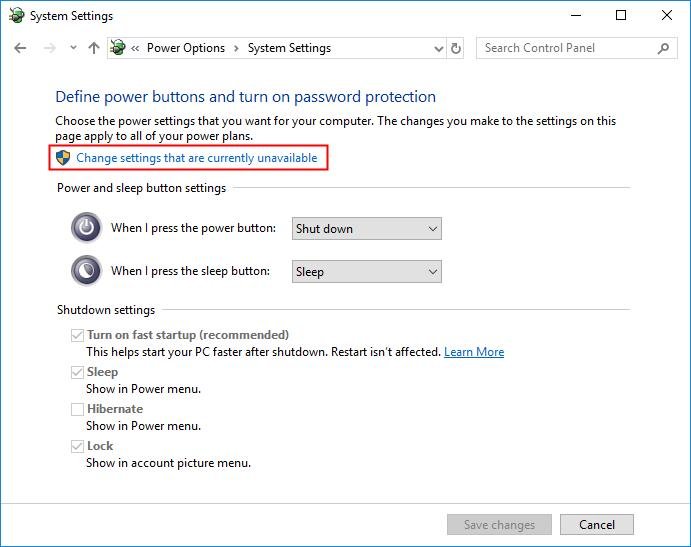
Step 4: After that, make sure to uncheck the box near the button “Turn on fast startup (Recommended)”
Step 5: Next, just tap “Save changes” and close this window.

Step 6: Just make sure to restart your PC.
Way 3: Restart PC Using Recovery Environment
Step 1: Make sure to boot your computer device, as Windows tries to load using the spinning dots. After that, just press the power button and hold it for at least 5 seconds, and then it will hard shut down the computer.
Step 2: Now, just repeat the above step 2 more times.
Step 3: After that, on the 3rd try, your Windows will boot into the recovery environment. Here, make sure to use each of the options in the menu in order to check if you can correctly boot Windows; the options include: “Safe Mode,” “System Repair,” “Command Prompt,” etc.
Step 4: Ensure that you try to use the Windows repair itself by clicking “Troubleshoot,” and then under “Advanced Option,” select “Startup Repair.”


Step 5: Just check out if you have a restore point where things did not get this bad on your Windows. Make sure to try this to select the “System Restore” button after choosing “Advanced Option.”

Way 4: End Process of the Failed Program in Task Manager
It is worth mentioning that a failed program may be locked in your “Task Manager“. This is why Windows keeps rolling on the restart screen without end. Follow the below steps to end the process of the failed program in the task manager:
Step 1: First, make sure to press the “Ctrl” + “Alt” + “Delete” keys all at once, and it will lead you to the “Task Manager” from the restart screen you have been stuck in.
Step 2: Now, you will see any program that is hanging and rejecting to close
Step 3: Next, just right-click each program and end the programs’ processes by clicking “End Task.”

Step 4: Now, just check out to see in case the issue has been sorted out.
Way 5: Fix Windows Stuck on Restarting With and Without Recovery Disk
To fix without recovery disk, do the following:
Step 1: Make sure to reboot your computer into Safe Mode by pressing F8 many times. In case this does not work well, you better force-restart the computer 5 times.
Step 2: Now, just go to “System Restore” from “Advanced Options.” You can find it in the “Troubleshoot” window.
Step 3: Next, select a restore point that you are sure is good and choose “Restore.”
To fix with a recovery disk, follow these steps:
Step 1: Make sure to insert a USB flash drive of at least 4GB into a perfectly working computer
Step 2: Now, just use the Media Creation Tool from Microsoft in order to make a recovery disk with the USB
Step 3: Next, just insert it back into the computer that is stuck on Windows restart. It is noteworthy that you go to the BIOS screen and set the boot order from the USB
Step 4: Make sure to reboot the PC and view Windows Setup from the drive this time around
Step 5: After that, set up the language, keyboard layout, and time, and then choose “Next.”
Step 6: Go to “System Restore” and select an excellent restore point.
Frequently Asked Questions (FAQs)
Below are the FAQs about Best Ways to Fix a Computer Stuck on Restarting:
Q1: How Do You Diagnose Computer Errors?
Ans: When troubleshooting computer errors, the first step is identifying the symptoms and error messages. Verify your drivers, run diagnostics, check your hardware and software, and, if required, search the internet for resources or expert assistance.
Q2: What Causes Your PC To Run into A Problem?
Ans: Hardware problems with the RAM, hard drive, and other components. Software problems with drivers, applications, and other programs.
- Malware or viruses.
- Human mistake.
Q3: How Long to Wait When Windows 10 Is Stuck on Restarting?
Ans: If Windows 10 won’t restart, wait for a minimum of 10 to 15 minutes so that it can complete any critical tasks. If troubleshooting doesn’t resolve the issue, try other solutions or contact technical support. Safe Mode allows you to troubleshoot.
Q4: Is It Better to Shut Down or Restart The Computer?
Ans: Restarting the system compels it to continue, but completely shutting down the computer turns it off. Restarting the computer when troubleshooting is usually advisable because it may update system settings and resolve transient problems.
Conclusion
This article discussed “Ways to fix a computer stuck on restarting.” Don’t let the annoyance of a computer that keeps restarting limit your work any longer. Put the processes and fixes recommended in this article into action. Stay tuned to Qnnit for a more informative blog.